
Google Maps for Android
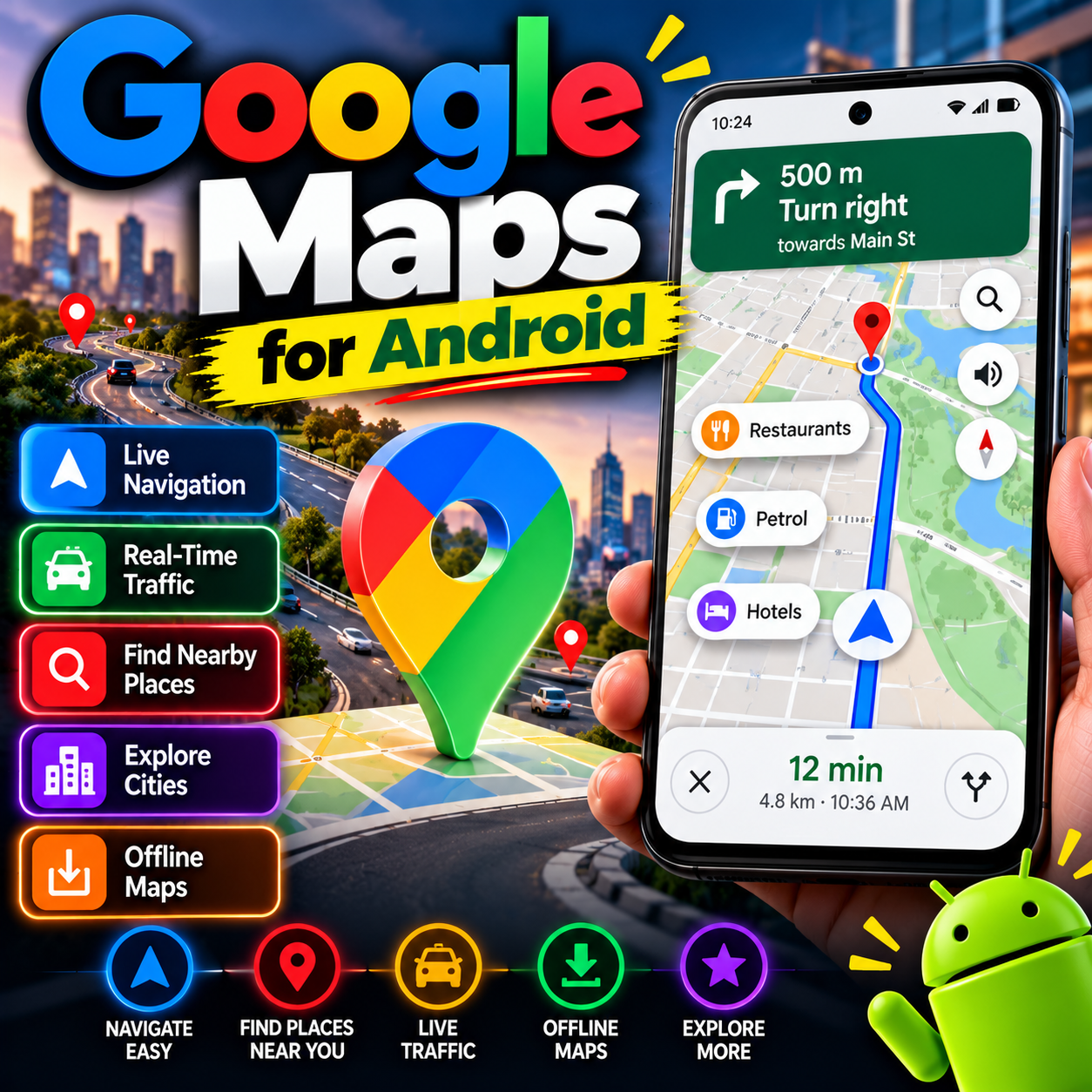
Google Maps is the navigation app everything else is compared to. Turn-by-turn directions for driving, walking, and public transit, with live traffic that reroutes you around jams before you’re stuck in them. In Pakistan’s cities, where road layouts change and traffic has a mind of its own, the live rerouting earns its keep daily. It’s more than directions, though. Search for restaurants, ATMs, hospitals, or petrol pumps nearby, read reviews, check opening hours, and save places to lists for later. Offline maps are the unsung hero — download your city over Wi-Fi and navigate with zero mobile data, perfect for areas with patchy coverage. Street View and Live View AR help you find your footing in unfamiliar places. With over 10 billion downloads, it’s the most trusted map on earth.
Key features
- Turn-by-turn navigation with live traffic and rerouting
- Offline maps for navigating without mobile data
- Local search: restaurants, ATMs, hospitals, petrol pumps
- Reviews, opening hours, and saved places; completely free
What it does and why people use it
Google Maps does two jobs at once: it gets you somewhere, and it tells you what’s there when you arrive. The first job is navigation — driving, walking, and public transit directions with voice guidance. The second is local discovery — finding a nearby hospital at night, a petrol pump on a long road, or a restaurant that’s actually open.
That combination is why it’s the default on so many phones. You don’t need one app for directions and another for local search; the same map that routes you to a place also shows its hours, reviews, and photos before you set off.
Key features explained in detail
Turn-by-turn navigation with live traffic. Enter a destination and follow voice-guided directions that adjust as traffic changes. If a jam builds ahead, the route can shift to a faster road — the feature that saves real time in busy cities.
Offline maps. Download an area over Wi-Fi and navigate it without mobile data. It’s the feature to set up before a trip to a place with patchy coverage, not after you arrive there.
Local search. Search for what you need rather than a name you already know: “hospital near me” or “petrol pump” works when you’re somewhere unfamiliar and can’t name a single place.
Reviews, hours, and saved places. Check opening hours before you travel, read what other visitors said, and save places to lists — a shortlist for a trip, a set of favorite restaurants, or practical stops you’ll need again.
Street View and Live View. Street View lets you preview a street and a building before you go. Live View uses your camera to overlay directions on the real street in front of you, which helps most at confusing junctions and on foot.
How to download and install safely from the official store
Install Google Maps only from the Google Play Store, using the official link at the end of this article, and check that the developer is Google LLC. Skip APK copies from other sites. On many Android phones Maps is already installed; if so, just update it from the Play Store. Turn on location permission while using the app for navigation, and keep the app updated so road changes and traffic data stay current.
How to use the main features
For a trip, search for the destination, pick the travel mode — driving, walking, or transit — and compare the suggested routes before you start. For local needs, search by category and filter by what’s open now. Before traveling offline, download the area’s map over Wi-Fi and test it by switching to airplane mode briefly. To plan a day out, save each stop to a list so the whole route is ready in one place.
Traveling abroad? Pair Maps with Google Translate for Android for reading signs and menus at your destination, and jot your itinerary in Google Keep for Android so it travels with you.
Tips for getting the most out of it
- Download offline maps before you leave Wi-Fi, especially for rural areas or foreign trips.
- Check opening hours and recent reviews before setting off — a closed shop is a wasted trip.
- Save your home and work addresses so daily navigation takes one tap.
- Use Street View to recognize a destination’s entrance before you arrive, not while you’re driving past it.
- Share your trip progress with family when traveling late or alone, so someone knows your route.
- Keep a car charger handy. Navigation with the screen on is one of the fastest ways to drain a battery.
Frequently asked questions
Is Google Maps free? Yes, it’s completely free, as the original post notes.
Does it work without mobile data? Yes, if you’ve downloaded the area’s offline map in advance. Live traffic and search need a connection.
Can it find nearby hospitals or petrol pumps? Yes, local search covers restaurants, ATMs, hospitals, petrol pumps, and more.
What is Live View? It’s the camera-based walking mode that overlays directions on the street in front of you, useful at confusing junctions.
Do I need an account? No, navigation works without one, though signing in lets you save places and lists across devices.