
DaVinci Resolve for PC
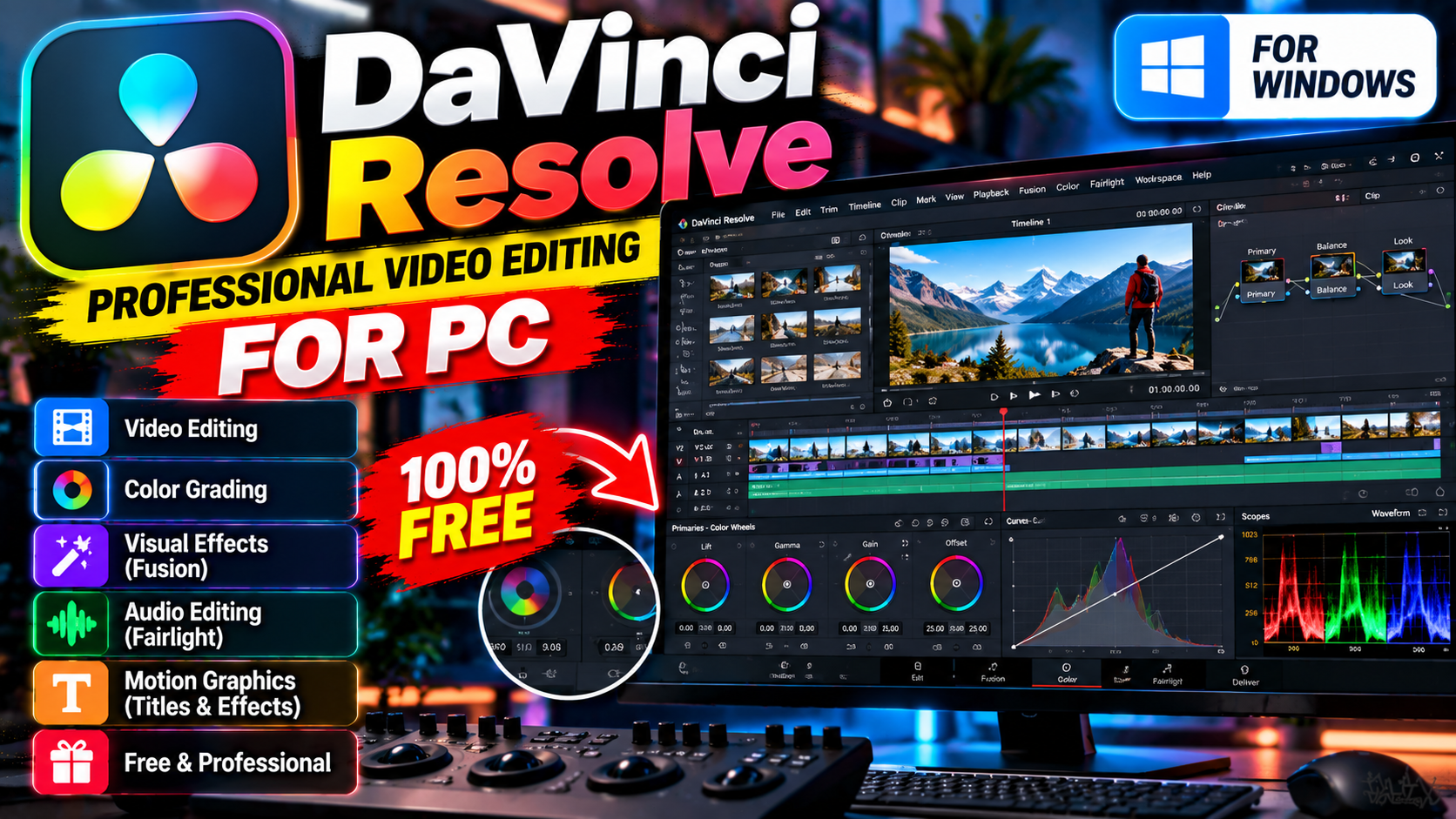
Professional video editing and color grading used in real film production. The free version is remarkably complete — editing, effects, and audio in one app.
Key Features
- Professional color grading tools
- Multi-track editing with Fusion visual effects built in
- Fairlight page for audio mixing and mastering
- The free version covers most editing needs
Best for creators who want pro-level editing without the price tag — from blackmagicdesign.com.
What it does and why people use it
DaVinci Resolve is a professional video editor from Blackmagic Design, and it’s the rare pro tool with a genuinely useful free version. It handles the whole post-production job in one program: cutting footage, grading color, adding effects, and mixing audio. It started life as a color grading tool for film studios, and that heritage still shows — its color tools are the reason many editors pick it over simpler apps.
For creators, the draw is simple: you get tools that professionals use on real productions, without paying for an editor first and discovering its limits later.
Key features explained in detail
Professional color grading tools. Resolve’s color page is its signature strength. You can adjust exposure, contrast, and color balance clip by clip, match shots from different cameras, and give your footage a consistent look. It’s the same class of tool used in film production, and it’s available in the free version.
Multi-track editing with Fusion visual effects built in. The edit timeline supports multiple video and audio tracks, so you can layer footage, titles, and music. Fusion, the effects workspace, is built in rather than a separate purchase — useful for titles, motion graphics, and compositing without leaving the program.
Fairlight page for audio mixing and mastering. Audio gets its own workspace, Fairlight, where you can mix levels, clean up dialogue, and master a final soundtrack. Many editors otherwise need a separate audio app for this; Resolve keeps it in the same project.
The free version covers most editing needs. The original post is blunt about this, and it’s the key point for most users: the free version handles editing, effects, and audio for typical creator projects. The paid Studio version adds higher-end features, but most YouTubers and hobbyists won’t miss them.
How to download and install safely from the official site
Download DaVinci Resolve only from the official Blackmagic Design site, using the download link at the end of this article — the Download URL for this post points to blackmagicdesign.com/products/davinciresolve. Pick the Windows download, fill in the short form if asked, and run the installer. It’s a large download, so give it time, and check that your PC meets the demands of video editing before you start a big project. Avoid repackaged downloads from third-party sites, which can bundle extras you didn’t ask for.
How to use the main features
Start a project, import your clips into the media pool, and drag them onto the timeline to cut. When the edit feels right, switch to the color page to grade your footage, then to Fairlight to balance audio before exporting. Don’t try to learn every page at once — most creators live in the edit and color pages, and dip into Fusion and Fairlight as projects demand.
If you record your own footage, OBS Studio for PC captures it for free, and Everything for PC helps you find clips and project files fast.
Tips for getting the most out of it
- Organize your media before you start editing. A tidy media pool saves more time than any shortcut.
- Edit first, grade second. Lock your cuts before spending time on color, or you’ll grade footage that ends up cut.
- Back up project files and original footage separately — a crashed drive shouldn’t cost you both.
- Use proxies or lower playback quality if editing feels sluggish on an older PC; it makes cutting far smoother.
- Learn a few keyboard shortcuts for cutting and trimming — they speed up editing more than any hardware upgrade.
- Export a test clip and watch it on your phone before exporting a full project, to catch audio or framing issues early.
Frequently asked questions
Is DaVinci Resolve free? Yes, there’s a free version that covers most editing needs, as the original post notes.
Is it really used in film production? Yes, it’s a professional tool for editing and color grading, used in real film production.
Does it include effects and audio tools? Yes — Fusion visual effects are built in, and the Fairlight page handles audio mixing and mastering.
Is it hard to learn? It has more depth than a basic editor, but you can start with simple cuts and learn the color and audio pages gradually.
Where do I download it safely? From the official Blackmagic Design site, via the download link on this page.