
OBS Studio for PC
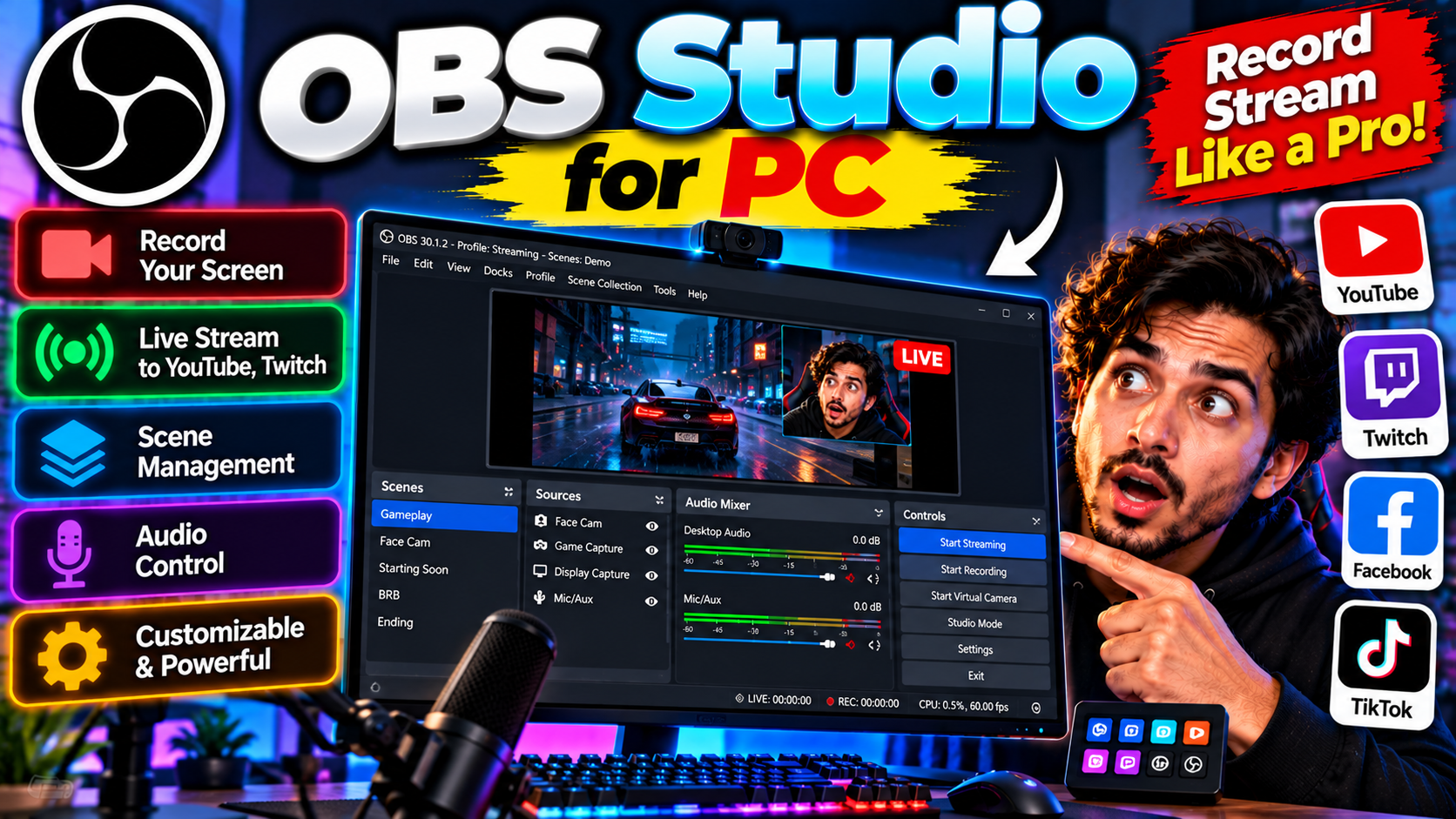
Free software for recording your screen and streaming live. The standard choice for YouTubers and Twitch streamers — scenes, overlays, and no watermark.
Key Features
- Scenes mix webcam, screen, game capture, and overlays
- Streams to YouTube, Twitch, and Facebook
- Records locally with no time limits or watermarks
- Plugin ecosystem for extra features
Best for streamers and tutorial creators — free from obsproject.com.
What it does and why people use it
OBS Studio is the free, open-source program behind a huge share of live streams and screen recordings. It captures your screen, webcam, and audio, mixes them into scenes, and either streams the result live or records it to a file on your PC. Streamers, tutorial creators, and teachers use it because it does the job of expensive broadcast software — and, as the original post notes, it puts no watermark on your work.
It’s popular for another reason too: it’s free, with no trial clock and no locked features. What you download is the full program.
Key features explained in detail
Scenes mix webcam, screen, game capture, and overlays. A scene is a layout: your game or screen on one layer, your webcam in a corner, text or an image on top. You can build several scenes — an intro screen, a gameplay view, a “be right back” card — and switch between them while you stream or record.
Streams to YouTube, Twitch, and Facebook. OBS connects to the major streaming platforms. You sign in or paste a stream key from your platform, pick your settings, and hit Start Streaming. The same setup works across platforms, so switching services doesn’t mean learning a new tool.
Records locally with no time limits or watermarks. If you’re not streaming, OBS records straight to your PC. There’s no recording time limit and no watermark stamped on the video, which makes it a solid choice for tutorials, lectures, and gameplay clips you plan to edit later.
Plugin ecosystem for extra features. OBS supports plugins that add features the base program doesn’t have — extra transitions, audio tools, chat overlays, and more. You only install what you need, so the program stays as simple or as powerful as you want it.
How to download and install safely from the official site
Download OBS Studio only from the official obsproject.com site, using the download link at the end of this article — the Download URL for this post points to obsproject.com/download. Pick the Windows installer, run it, and let the auto-configuration wizard suggest settings based on your PC and connection; it’s a sensible starting point you can adjust later. Avoid repackaged downloads from third-party sites, which can bundle extras you didn’t ask for.
How to use the main features
Start by adding sources to a scene: a display or window capture for your screen, a video capture device for your webcam, and your microphone for audio. Arrange them in the preview, then either hit Start Recording for a local video or Start Streaming once you’ve connected your platform account. Build a second scene for breaks or intros early on — switching scenes live is much smoother than rebuilding layouts mid-stream.
Once you’ve recorded something, DaVinci Resolve for PC is a natural next step for editing it, and Everything for PC helps you track down the recording files afterward.
Tips for getting the most out of it
- Run the auto-configuration wizard first, even if you plan to tweak settings later — it sets a sane baseline.
- Do a short test recording before your first real stream. Play it back and check audio levels, which are the most common problem.
- Keep scenes simple at first. One clean layout beats three cluttered ones you can’t switch between smoothly.
- Record locally as well as streaming, so you have a clean copy to edit or re-upload later.
- Close heavy programs you don’t need while streaming — OBS shares your PC’s resources with everything else running.
- Save your scene setup as a backup. Rebuilding scenes from scratch after a reinstall is a chore you can skip.
Frequently asked questions
Is OBS Studio free? Yes, it’s free from obsproject.com, as the original post notes.
Does it add a watermark? No, recordings and streams have no watermark.
Can I stream to YouTube and Twitch? Yes, both are supported, along with Facebook.
Is it only for streamers? No — it’s just as useful for recording tutorials, lectures, and gameplay locally.
Where do I download it safely? From the official obsproject.com site, via the download link on this page.