
Microsoft PowerToys for PC
What Is Microsoft PowerToys?
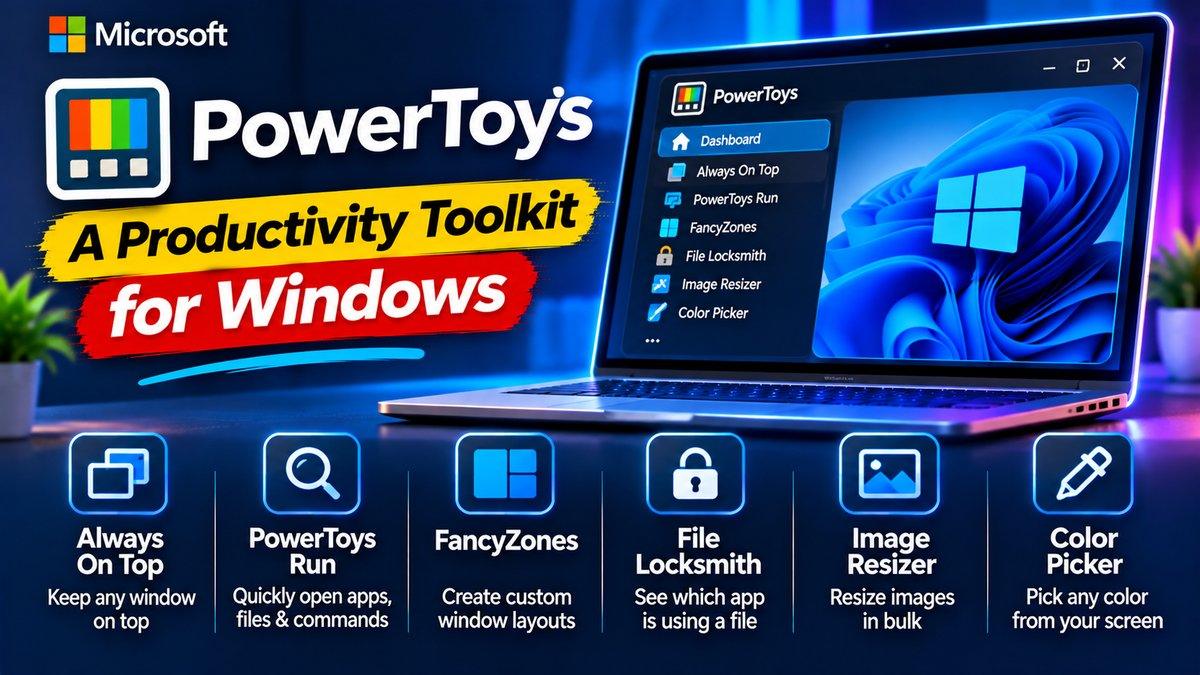
Windows is good. With Microsoft PowerToys, it gets noticeably better. This is Microsoft’s own free, open-source toolkit of power-user utilities — the kind of features that make you wonder why they aren’t built into Windows already. Fancy window layouts, bulk file renaming, an always-on-top toggle, a system-wide color picker: small tools, outsized impact on daily work.
PowerToys has an interesting history — it debuted in the Windows 95 era, vanished, and was revived as a modern open-source project for Windows 10 and 11. The revival stuck because the premise is timeless: give demanding users the knobs and levers Windows hides.
Key Features
FancyZones. The star of the show. Define custom window layouts — thirds, grids, columns, whatever fits your workflow — then drag windows into zones while holding Shift. If you live with many windows open (and who doesn’t), this changes how your desktop feels within a day.
PowerRename. Rename dozens or hundreds of files at once with search-and-replace, numbering, and regex support, right from File Explorer’s context menu. Photographers renaming shoots and organizers taming downloads will use this constantly.
Always on Top. Pin any window above all others with a keystroke. Keep a calculator, notes, or video call visible while you work in another app — simple, and weirdly life-changing.
Color Picker and Text Extractor. A system-wide eyedropper that grabs any color on screen (with hex/RGB values ready to paste), plus a tool that extracts text from images and screenshots via OCR. Designers and developers reach for these daily.
And much more. A clipboard manager with history, a bulk image resizer, keyboard shortcut remapping, a hosts-file editor, mouse utilities — the collection keeps growing, and each utility can be toggled individually.
Why PowerToys Stands Out
It’s from Microsoft itself, which matters for trust and compatibility — this isn’t a random utility bundle of uncertain provenance. It’s open-source on GitHub, actively developed, and each tool does exactly one thing well without bloat. Installation adds no ads, no upsells, no background nonsense.
The deeper appeal: Windows power users have always cobbled together third-party tools for these jobs — one app for window snapping, another for renaming, another for color picking. PowerToys replaces the whole scattered toolkit with one maintained, coherent package. Less software to update, fewer background processes, one settings panel. And because it’s open-source, the community contributes new utilities regularly — the toolkit you install today will be more capable a year from now, still free.
It’s also one of the best things you can install on an aging PC to make it feel new again — alongside our old laptop upgrade guide for hardware-level revival. And for everyday media tasks on that same machine, VLC media player remains essential.
Is Microsoft PowerToys Free?
Yes — completely free and open-source, straight from Microsoft. No paid tier exists. Download it from the official Microsoft Learn page or GitHub releases and every utility is yours.
More Utilities Worth Your Time
Beyond the headliners, PowerToys hides several utilities you’ll wonder how you lived without. PowerToys Run is a lightning-fast app launcher — hit Alt+Space, type a few letters, and launch apps, files, or calculations without touching the mouse. If you’ve envied macOS Spotlight or used tools like Flow Launcher, this is that, built in.
Awake keeps your computer awake on demand without digging through power settings — perfect for long downloads, presentations, or renders. Paste as Plain Text strips formatting when pasting (one hotkey, no more weird fonts from web pages landing in your documents). And the Screen Ruler measures pixels on screen, which designers and front-end developers reach for constantly.
The smart approach: don’t enable everything at once. Turn on two or three utilities, learn their hotkeys over a week, then explore more. PowerToys rewards gradual adoption — each utility quietly becomes something you can’t imagine working without.
How to Download PowerToys
Install from the official Microsoft Learn install page (or the Microsoft Store). After installing, open PowerToys Settings and walk through the utility list — enable what appeals to you and learn its hotkey. Start with FancyZones: create a three-column layout, hold Shift while dragging a window, and watch it snap. You’ll configure the rest over the following days as needs arise.
Download: Microsoft PowerToys (official link)