
How to Use Windows Clipboard History (Windows + V)
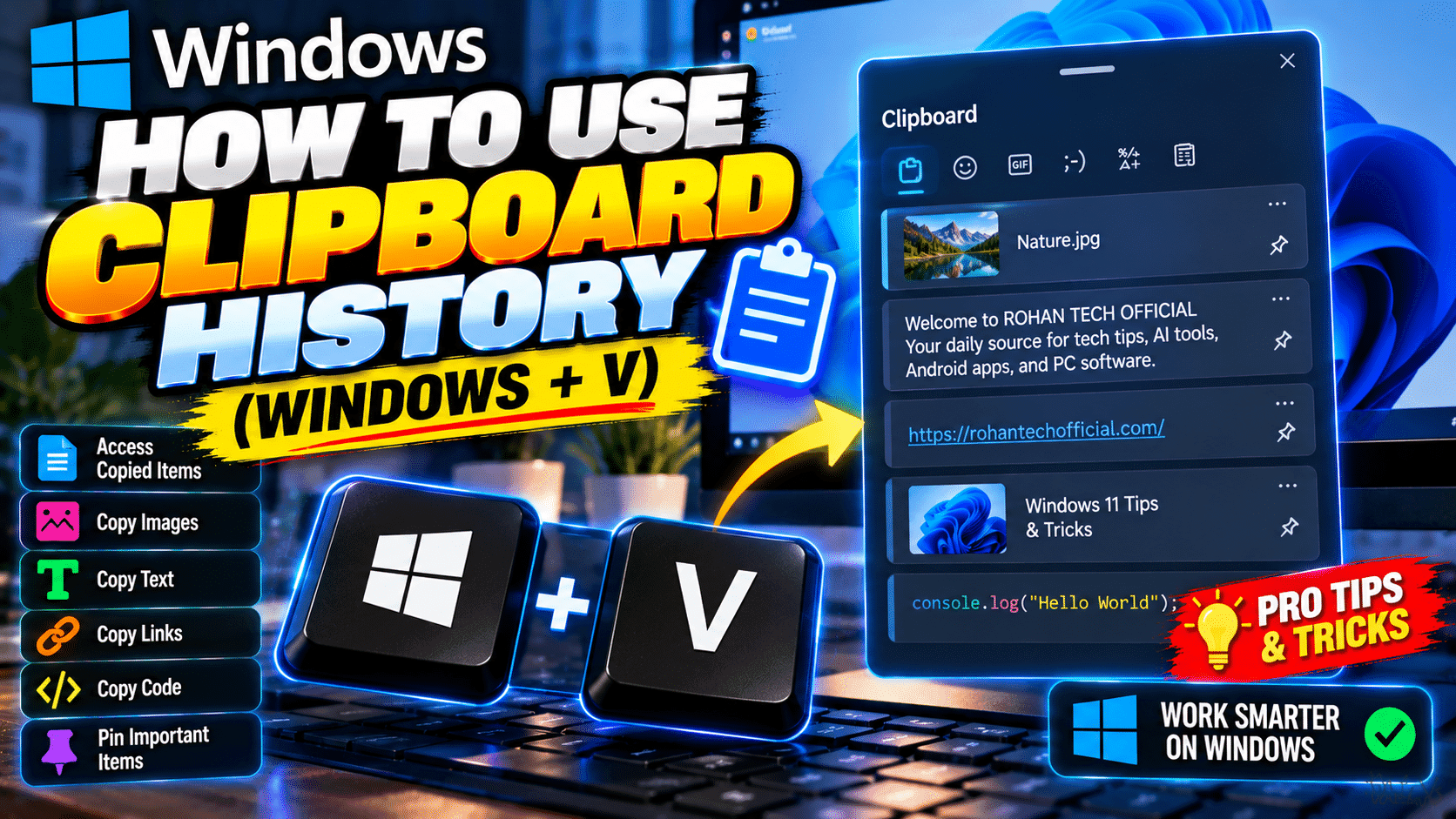
You’ve been there. You copy something important, then copy something else, and the first thing is gone forever.
Windows has a fix for this. It’s been there for years. Most people don’t know about it.
The Shortcut
Press Windows + V.
That’s it. Instead of the normal paste, this opens your clipboard history — every text snippet and image you’ve copied recently, all in one panel. Click any item to paste it.
Setting It Up
The first time you press Windows + V, you’ll see a prompt to turn on clipboard history. Click “Turn on.” Done.
If you want to enable it manually:
- Open Settings → System → Clipboard
- Toggle on Clipboard history
- Optionally, toggle on Sync across devices if you want your clipboard to follow you between PCs
What It Saves
Clipboard history stores text snippets (up to 25 entries), images, and HTML content.
It doesn’t save forever — older entries get pushed out as new ones come in. But for day-to-day work, 25 entries is plenty.
Pinning Items
Here’s the pro move: you can pin frequently used items so they never get pushed out.
In the clipboard history panel (Windows + V), hover over any item and click the pin icon. Pinned items stay at the top permanently.
Use this for email signatures, common addresses, code snippets you reuse, or template responses.
Clearing History
Want to wipe it? Two options. Clear one item via Windows + V → three dots → Delete. Or clear everything via Settings → System → Clipboard → Clear clipboard data.
Why This Matters
It’s a tiny feature. Takes 10 seconds to enable. But once you start using it, you’ll wonder how you lived without it.
No more re-copying the same address three times. No more losing that paragraph you overwrote. Just Windows + V, click, done.
Small tricks, big time savings.