CapCut Desktop Review: The Free Video Editor That Embarrasses Paid Apps
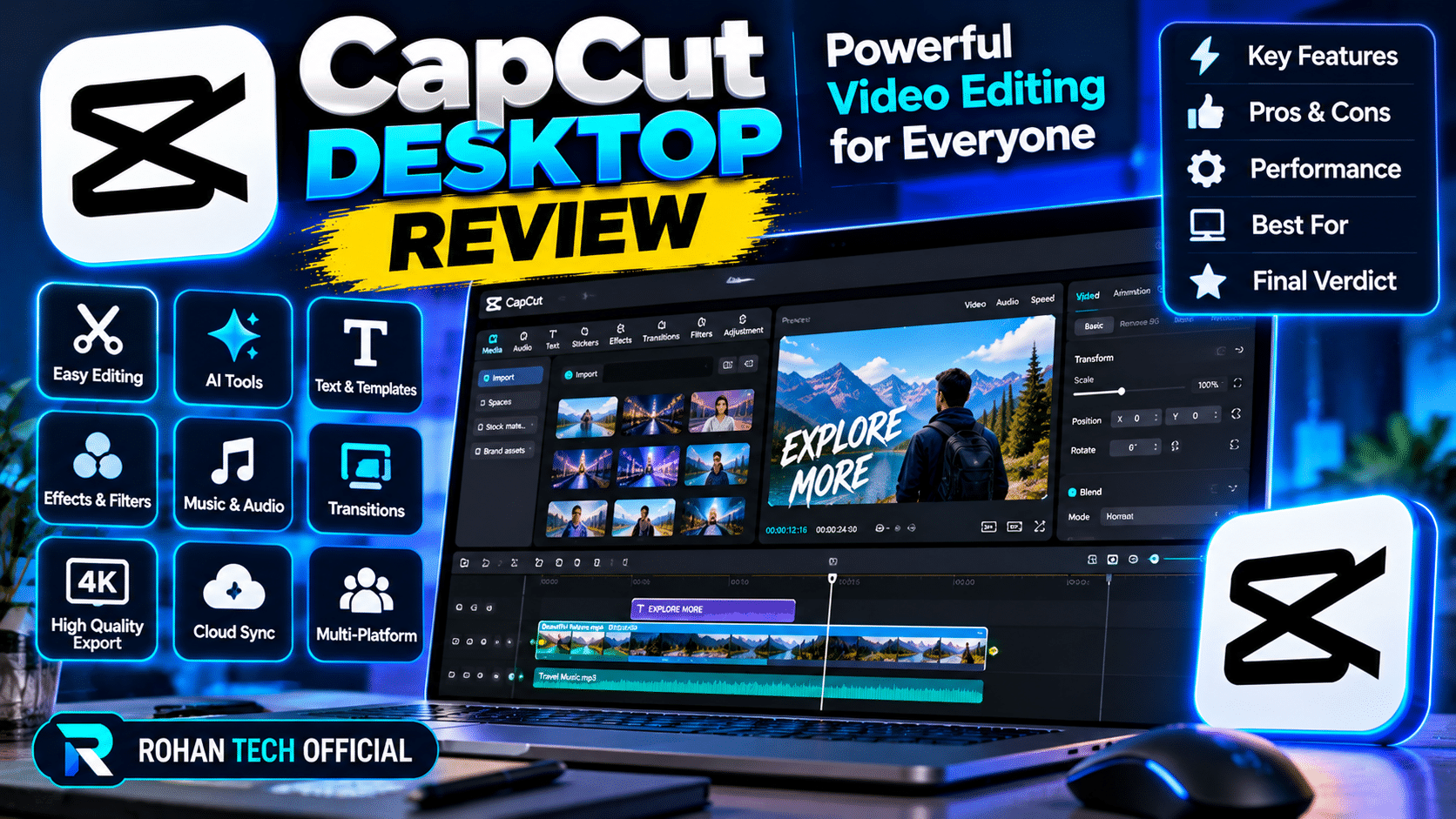
There’s something slightly absurd about a free app outperforming software people pay $20/month for. But CapCut Desktop makes a real case for it: for most creators — YouTubers, client work, short-form content — it handles the job shockingly well. Here’s the full review, strengths and weaknesses included.
What It Gets Right
Auto-captions: the killer feature, no contest. One click, 95%+ accurate captions in dozens of languages, styled and animated. What used to take an hour of tedious work (or a paid service) now takes about 30 seconds. If you make any talking-head content at all, this alone is worth the install.
Speed of workflow: everything sits where you’d expect, effects are drag-and-drop, and the template ecosystem means trending formats are one click away. A 60-second short — filmed, captioned, effected, exported — can go from idea to posted in under 20 minutes. In Premiere, that same short would take an hour.
Background removal: no green screen needed. It’s not perfect (fine hair plus busy backgrounds still challenge it), but for typical creator setups it’s remarkably clean.
Price: the free tier is genuinely generous — 4K export, no watermark on most content, huge effect library. Pro upsells exist, but professional-looking work is absolutely doable without them.
Where It Falls Short
Honest limitations, because every tool has them. Color grading is basic compared to DaVinci Resolve — fine for social, not for cinematic work. Audio tools are thin; serious projects still deserve dedicated audio software. Some effects and stock assets are Pro-locked, and the upsell nudges are persistent. And the big one for professionals: it’s owned by ByteDance (TikTok’s parent), which raises the same data questions as TikTok itself. If that bothers you, it bothers you — no technical argument fixes a trust issue.
Who Should Use It
YouTubers, short-form creators, small businesses making their own ads, students, anyone editing talking-head or vlog content: CapCut is probably all you need. Filmmakers, colorists, and audio perfectionists: learn Resolve instead. The two aren’t really competitors — they’re built for different jobs, and CapCut’s job (fast, good-looking content) happens to be the bigger market.
Verdict: 8.5/10
CapCut Desktop does 90% of what 90% of creators need — free, with the best auto-captions in the business. The paid-editor industry should be nervous. And if you’re still paying monthly for basic editing, at least try the free alternative first. Compare it with other free options in our video editor roundup and more evaluated software in reviews.
Mobile App vs Desktop: Which One?
Most people meet CapCut on their phone first, so the obvious question is whether the desktop version is better. For serious editing: yes — bigger timeline, keyboard shortcuts, easier precise cuts, and your footage isn’t fighting phone storage limits. But the mobile app has one huge advantage: you film on your phone, so editing where the footage lives skips the transfer step entirely. A smart workflow for shorts: film on the phone, rough-cut in mobile CapCut on the couch, then open the same project on desktop for captions, polish, and export (projects sync via your account). Best of both worlds. If you only make quick vertical videos and never touch a computer for editing, mobile alone is honestly enough — desktop shines when projects get longer or more layered.
Who Should Skip CapCut
Not everyone, to be fair. Skip it if you need broadcast-standard color grading (that’s Resolve’s territory), you edit multicam interviews with four-plus angles regularly (Premiere and Resolve handle this better), your workplace bans ByteDance software (increasingly common in government and some corporations — check your IT policy), or you’re opposed to the data practices on principle (valid — Shotcut or Resolve are solid alternatives). Also skip it if you’re already fast in another editor: switching tools costs weeks of muscle memory, and the “free” savings don’t cover that. But if none of those apply? There’s very little reason not to have it installed. It’s free, it’s fast, and the auto-captions alone will spoil every other editor for you.
There’s something slightly absurd about a free app outperforming software people pay $20/month for. But CapCut Desktop makes a real case for it: for most creators — YouTubers, client work, short-form content — it handles the job shockingly well. Here’s the full review, strengths and weaknesses included.
There’s something slightly absurd about a free app outperforming software people pay $20/month for. But CapCut Desktop makes a real case for it: for most creators — YouTubers, client work, short-form content — it handles the job shockingly well. Here’s the full review, strengths and weaknesses included.
What It Gets Right
Auto-captions: the killer feature, no contest. One click, 95%+ accurate captions in dozens of languages, styled and animated. What used to take an hour of tedious work (or a paid service) now takes about 30 seconds. If you make any talking-head content at all, this alone is worth the install.
Auto-captions: the killer feature, no contest. One click, 95%+ accurate captions in dozens of languages, styled and animated. What used to take an hour of tedious work (or a paid service) now takes about 30 seconds. If you make any talking-head content at all, this alone is worth the install.
Speed of workflow: everything sits where you’d expect, effects are drag-and-drop, and the template ecosystem means trending formats are one click away. A 60-second short — filmed, captioned, effected, exported — can go from idea to posted in under 20 minutes. In Premiere, that same short would take an hour.
Speed of workflow: everything sits where you’d expect, effects are drag-and-drop, and the template ecosystem means trending formats are one click away. A 60-second short — filmed, captioned, effected, exported — can go from idea to posted in under 20 minutes. In Premiere, that same short would take an hour.
Background removal: no green screen needed. It’s not perfect (fine hair plus busy backgrounds still challenge it), but for typical creator setups it’s remarkably clean.
Background removal: no green screen needed. It’s not perfect (fine hair plus busy backgrounds still challenge it), but for typical creator setups it’s remarkably clean.
Price: the free tier is genuinely generous — 4K export, no watermark on most content, huge effect library. Pro upsells exist, but professional-looking work is absolutely doable without them.
Price: the free tier is genuinely generous — 4K export, no watermark on most content, huge effect library. Pro upsells exist, but professional-looking work is absolutely doable without them.
Where It Falls Short
Honest limitations, because every tool has them. Color grading is basic compared to DaVinci Resolve — fine for social, not for cinematic work. Audio tools are thin; serious projects still deserve dedicated audio software. Some effects and stock assets are Pro-locked, and the upsell nudges are persistent. And the big one for professionals: it’s owned by ByteDance (TikTok’s parent), which raises the same data questions as TikTok itself. If that bothers you, it bothers you — no technical argument fixes a trust issue.
Honest limitations, because every tool has them. Color grading is basic compared to DaVinci Resolve — fine for social, not for cinematic work. Audio tools are thin; serious projects still deserve dedicated audio software. Some effects and stock assets are Pro-locked, and the upsell nudges are persistent. And the big one for professionals: it’s owned by ByteDance (TikTok’s parent), which raises the same data questions as TikTok itself. If that bothers you, it bothers you — no technical argument fixes a trust issue.
Who Should Use It
YouTubers, short-form creators, small businesses making their own ads, students, anyone editing talking-head or vlog content: CapCut is probably all you need. Filmmakers, colorists, and audio perfectionists: learn Resolve instead. The two aren’t really competitors — they’re built for different jobs, and CapCut’s job (fast, good-looking content) happens to be the bigger market.
YouTubers, short-form creators, small businesses making their own ads, students, anyone editing talking-head or vlog content: CapCut is probably all you need. Filmmakers, colorists, and audio perfectionists: learn Resolve instead. The two aren’t really competitors — they’re built for different jobs, and CapCut’s job (fast, good-looking content) happens to be the bigger market.
Verdict: 8.5/10
CapCut Desktop does 90% of what 90% of creators need — free, with the best auto-captions in the business. The paid-editor industry should be nervous. And if you’re still paying monthly for basic editing, at least try the free alternative first. Compare it with other free options in our video editor roundup and more evaluated software in reviews.
CapCut Desktop does 90% of what 90% of creators need — free, with the best auto-captions in the business. The paid-editor industry should be nervous. And if you’re still paying monthly for basic editing, at least try the free alternative first. Compare it with other free options in our video editor roundup and more evaluated software in reviews.
Mobile App vs Desktop: Which One?
Most people meet CapCut on their phone first, so the obvious question is whether the desktop version is better. For serious editing: yes — bigger timeline, keyboard shortcuts, easier precise cuts, and your footage isn’t fighting phone storage limits. But the mobile app has one huge advantage: you film on your phone, so editing where the footage lives skips the transfer step entirely. A smart workflow for shorts: film on the phone, rough-cut in mobile CapCut on the couch, then open the same project on desktop for captions, polish, and export (projects sync via your account). Best of both worlds. If you only make quick vertical videos and never touch a computer for editing, mobile alone is honestly enough — desktop shines when projects get longer or more layered.
Most people meet CapCut on their phone first, so the obvious question is whether the desktop version is better. For serious editing: yes — bigger timeline, keyboard shortcuts, easier precise cuts, and your footage isn’t fighting phone storage limits. But the mobile app has one huge advantage: you film on your phone, so editing where the footage lives skips the transfer step entirely. A smart workflow for shorts: film on the phone, rough-cut in mobile CapCut on the couch, then open the same project on desktop for captions, polish, and export (projects sync via your account). Best of both worlds. If you only make quick vertical videos and never touch a computer for editing, mobile alone is honestly enough — desktop shines when projects get longer or more layered.
Who Should Skip CapCut
Not everyone, to be fair. Skip it if you need broadcast-standard color grading (that’s Resolve’s territory), you edit multicam interviews with four-plus angles regularly (Premiere and Resolve handle this better), your workplace bans ByteDance software (increasingly common in government and some corporations — check your IT policy), or you’re opposed to the data practices on principle (valid — Shotcut or Resolve are solid alternatives). Also skip it if you’re already fast in another editor: switching tools costs weeks of muscle memory, and the “free” savings don’t cover that. But if none of those apply? There’s very little reason not to have it installed. It’s free, it’s fast, and the auto-captions alone will spoil every other editor for you.
Not everyone, to be fair. Skip it if you need broadcast-standard color grading (that’s Resolve’s territory), you edit multicam interviews with four-plus angles regularly (Premiere and Resolve handle this better), your workplace bans ByteDance software (increasingly common in government and some corporations — check your IT policy), or you’re opposed to the data practices on principle (valid — Shotcut or Resolve are solid alternatives). Also skip it if you’re already fast in another editor: switching tools costs weeks of muscle memory, and the “free” savings don’t cover that. But if none of those apply? There’s very little reason not to have it installed. It’s free, it’s fast, and the auto-captions alone will spoil every other editor for you.
Related Reading
Keep exploring: Best Free Video Editors for Windows (No Watermark), How to Edit TikTok Videos Like a Pro, and Spotify vs YouTube Music: Which Music App Wins in 2026?.