
How to Upgrade Your Old Laptop: SSD, RAM, and More (Step by Step)
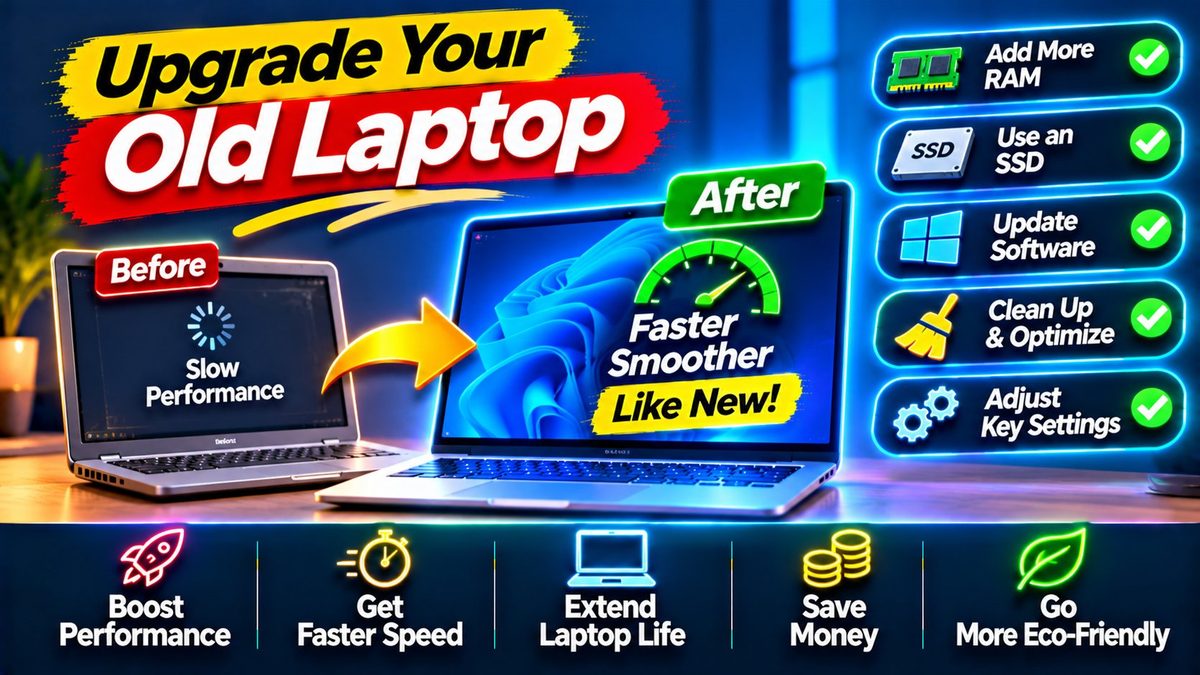
Before you drop $800 on a new laptop, hear me out: a $60 SSD and a $30 RAM stick can make a five-year-old laptop feel brand new. I’ve brought plenty of “dead” laptops back to life with upgrades cheaper than a nice dinner out, and the before-and-after never gets old — boot times falling from three minutes to twenty seconds, Chrome happily holding twenty tabs instead of five, the whole machine waking up again. This guide covers exactly what to upgrade, how to check compatibility, and the full step-by-step process. No experience needed. Just a screwdriver and a little courage.
Should You Upgrade or Replace? (The Honest Math)
Let’s do the decision properly. Upgrade if: your laptop is 3–7 years old, the processor is at least an Intel 8th-gen (or AMD Ryzen 2000 series) — check Task Manager → Performance → CPU — and your complaint is slowness, not brokenness. A $90 upgrade buying you 2–3 more years is a fantastic deal. Replace if: the laptop is 8+ years old with an ancient CPU (no upgrade fixes a fundamentally slow processor), or it’s falling apart in multiple places at once — dead battery plus cracked screen plus dying keyboard equals money pit. Or you need something the old machine physically can’t do, like a dedicated GPU for gaming or genuine all-day battery for travel. The rule of thumb: upgrade the machine you have unless it’s truly obsolete. Most “slow” laptops aren’t obsolete at all — they’re just starved of fast storage and memory.
Upgrade #1: SSD (The Single Biggest Difference)
If your laptop still runs on a spinning hard drive, swapping in a solid-state drive is the most dramatic upgrade in all of computing. I’m not talking about a 20% improvement here. Boot times go from minutes to seconds. Programs open instantly. The entire system feels a generation newer. It genuinely feels like 300%.
What to buy: a 2.5″ SATA SSD, 500GB to 1TB, from Samsung, Crucial, WD, or Kingston — all reliable picks. NVMe M.2 drives are faster but only fit laptops with M.2 slots, so check your manual first. For most older laptops, SATA is the right interface. Not sure what you have? Open Task Manager → Performance → Disk — if it says “HDD,” this upgrade just became urgent.
The process, step by step: (1) back up your data — non-negotiable, no skipping; (2) make a Windows bootable USB (our Windows tutorials cover this); (3) power off, unplug, and remove the battery if it’s removable; (4) unscrew the bottom panel — and keep track of the screws, a photo beforehand helps; (5) find the 2.5″ drive bay, unscrew the drive caddy, swap the drives; (6) put it all back together; (7) boot from the USB and install Windows fresh. Nervous about opening your specific model? iFixit has photo teardowns for nearly every laptop ever made — look yours up before you pick up the screwdriver.
Upgrade #2: RAM (The Multitasking Fix)
How do you know you need more RAM? Everything slows down the moment you open multiple programs. Chrome tabs keep reloading. The disk light thrashes during totally normal use — that’s the system “swapping,” using your slow disk as emergency fake RAM. Check Task Manager → Performance → Memory: if you’re consistently above 80%, an upgrade will help.
What to buy — and here’s where you need to pay attention, because compatibility actually matters. You need the right TYPE (DDR3, DDR4, and DDR5 are physically incompatible with each other), the right SPEED (match or beat your current stick’s MHz), and the right FORM FACTOR (laptops take SO-DIMM, the shorter sticks — not desktop DIMM). The easy route: Crucial’s free compatibility checker at crucial.com. Punch in your laptop model and it tells you exactly what fits. Or use CPU-Z (free) to identify what’s in there now. The sweet spot in 2026 is 16GB total for general use. Going from 4GB to 16GB is night and day. From 8GB to 16GB, clearly noticeable. Beyond 16GB only matters for heavy creative work.
The actual swap is even easier than the SSD. Same panel removal, find the RAM slots (little green sticks held by clips on each side), push the clips outward to release the old stick, line up the new stick’s notch with the slot, and press firmly until the clips snap shut. Five minutes, tops. If the laptop refuses to boot afterward, don’t panic — reseat the stick. Nine times out of ten, “RAM upgrade failed” just means the stick wasn’t pushed in all the way.
Upgrade #3: Battery (The Mobility Restore)
Does your laptop die 45 minutes after unplugging? A new battery gives it back its entire reason for existing. Replacements run $30–$60 for most models. One warning: buy from reputable sellers. Suspiciously cheap no-name batteries use poor-quality cells, and bad cells are a genuine fire risk. Not worth gambling to save fifteen bucks. Check whether your battery is removable (older laptops: slide-out tray; newer ones: internal, needs the panel off). And here’s a nice bonus — while you’re in there anyway, it’s the perfect moment to do the SSD and RAM too. One disassembly, three upgrades.
Upgrade #4: Clean the Cooling System (The Free Performance Boost)
Old laptops collect dust in their fans and heatsinks like it’s a hobby. That dust causes overheating, and overheating causes thermal throttling — the CPU deliberately slowing itself down to avoid cooking itself. Translation: your “slow” laptop might just be hot. With the bottom panel already off for your other upgrades, blast the fans and vents with compressed air (short bursts, and hold the fan blades still so they don’t overspin). Feeling brave? Replace the thermal paste on the CPU — a $10 tube of Arctic MX-4 and a YouTube tutorial for your exact model is all it takes. Fresh paste on a five-year-old laptop can drop temperatures 10–15°C, which converts directly into sustained speed. Costs almost nothing. The difference is real.
What About the CPU and GPU? (The Hard Truth)
Here’s the limit you need to know about: in 99% of laptops, the processor and graphics chip are soldered straight onto the motherboard. Not upgradeable. Period. That’s the fundamental ceiling on laptop upgrades — you can fix storage, memory, battery, and thermals, but you can’t make the brain itself faster. Which is exactly why the “should you upgrade” check at the top matters so much. If the CPU is the bottleneck (watch Task Manager during a slowdown — is CPU pinned at 100%?), no SSD or RAM stick on earth will save it. Desktops are a different story — CPUs there are often swappable — but that’s another guide. Know your machine’s ceiling before you spend a rupee.
The Software Side (Do This Too)
New hardware deserves fresh software. Clean-install Windows — a fresh OS on a fresh SSD is the dream combination. Strip out the bloatware. Kill unnecessary startup programs (Task Manager → Startup). Keep your drivers current. Here’s the thing: an SSD running a bloated five-year-old Windows install is better than before, sure. But an SSD running a clean install? That’s a different machine entirely. Do the hardware and software together and the result genuinely feels like a new laptop. Microsoft’s official reinstall walkthrough is at Microsoft Support.
Total Cost vs. New Laptop
Let’s do the final math. 500GB SSD ($55) + 16GB RAM ($45) + thermal paste ($10) = about $110 and one afternoon. A comparable new laptop? $600–$900. You’re getting maybe 70–80% of that “new laptop feeling” for roughly 15% of the price — and keeping a working machine out of a landfill. Even if it only buys you two more years, that’s $110 extremely well spent. Your wallet thanks you. The planet thanks you. And you’ll walk away with skills that apply to every computer you’ll ever own. For more PC guides, our Tutorials section is the place — plus Tech News for what’s new.
Related Reading
Keep exploring: How to Make Your Old Laptop Feel New Again, Tablet vs Laptop 2026: Which Should You Buy? An Honest Buying Guide, and Budget Mechanical Keyboards: 5 Worth Buying in 2026.