
Canva Pro Review 2026: Still the Best Design Tool for Non-Designers?
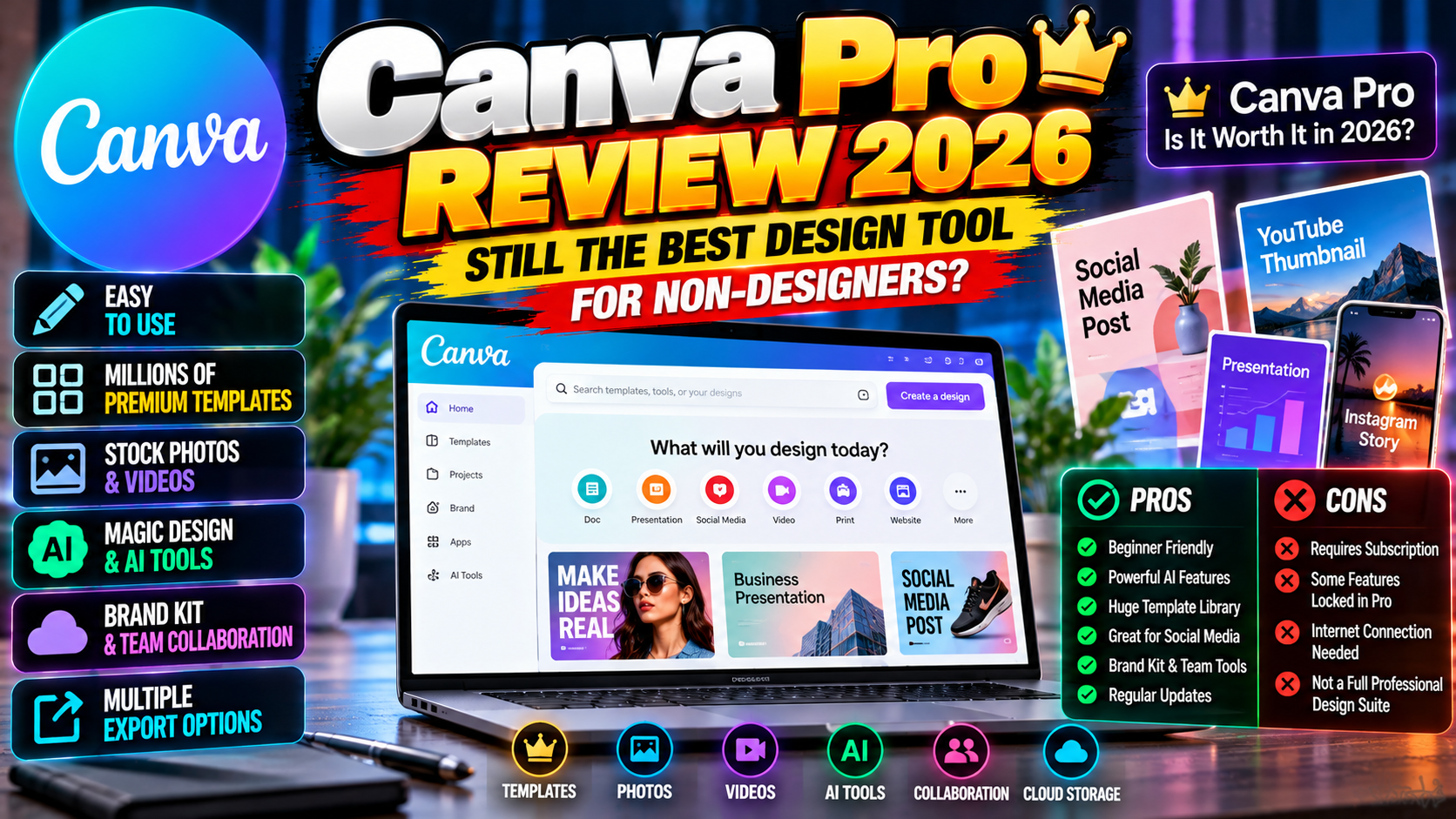
Canva did something remarkable: it made “I can’t design” obsolete. 200+ million users. The default design tool for small businesses, content creators, teachers — anyone who needs professional-looking graphics without a design degree. The Pro subscription, around $120 a year, opens the full template library, AI features, and brand tools. In 2026, with Magic Studio’s AI matured and competition heating up — is Canva Pro still worth paying for? This review covers what you get, what the AI actually does, where it falls short, and who should subscribe.
What Canva Pro Gets You
The free tier is generous — 250,000+ templates, basic editing. Pro multiplies everything: 4+ million premium templates and stock photos, videos, audio. 100GB cloud storage instead of 5GB. The Brand Kit: save your logos, colors, fonts, get one-click brand consistency. Background remover — one click, genuinely excellent. Magic Resize — adapt one design to every platform instantly. Plus the premium AI features.
For anyone creating content regularly — social media managers, small business owners, YouTubers cranking out thumbnails — the time savings alone justify the cost. One background removal that saves you 20 minutes has nearly paid for the month.
Magic Studio: The AI Features, Honestly Evaluated
Magic Studio is Pro’s biggest 2026 selling point, so let’s go feature by feature. Magic Design: describe what you need (“Instagram post for a bakery sale”), get editable starting points. Good for blank-page paralysis, still needs a human pass. Magic Write: AI copywriting inside your designs — decent for captions and headlines, not for anything nuanced. Magic Edit/Eraser: brush over anything to remove or transform it. The eraser is excellent; the generative edit is hit-or-miss. Text to Image: built-in AI image generation — fine for backgrounds and illustrations, not competing with Midjourney on quality. Magic Animate: one-click animations for social posts — surprisingly good.
The pattern: Canva’s AI is best at speeding up mechanical tasks (resize, remove, animate) and weakest at creative generation. Which is exactly right for its audience. Non-designers need speed, not avant-garde art.
Templates: The Real Moat
Forget the AI for a second — the template library is Canva’s true competitive advantage. Millions of professionally designed starting points for everything: Instagram posts, pitch decks, resumes, menus, wedding invitations, YouTube thumbnails, infographics. The quality bar is high and keeps climbing; the 2026 library has genuinely sophisticated designs, not clip-art flyers.
The honest downside: popularity means recognizability. The most-used templates show up everywhere, and sharp-eyed viewers can spot “a Canva design” from across the room. The fix is customization — change the fonts, colors, layout, imagery enough to make it yours. Pro’s Brand Kit makes this systematic: set your brand once, every template adapts automatically.
Where Canva Falls Short
Four honest limitations. Precision. This isn’t Photoshop or Illustrator — fine alignment, advanced masking, pixel-level control are limited. Working designers will feel the walls. Print. Improved, still not a professional print tool. CMYK support exists, but serious print work needs proper software. Originality ceiling. Templates plus AI get you to “professional” fast. Distinctive, award-worthy design still needs a human designer. Subscription dependence. Stop paying and the Pro assets in your designs get watermarked — your work is hostage to the subscription. Real consideration for businesses.
Also: the free tier keeps losing features to Pro, which annoys long-time users. Though even so, the free offering remains the most generous in the industry.
Canva vs The Alternatives
Adobe Express: capable, integrates with the Adobe ecosystem. Better if you already live in Adobe’s world — but Canva’s template library and ease of use still lead. Photoshop/Illustrator: not really comparable. Professional tools with learning curves measured in months; Canva is for everyone else. Plenty of pros use both now — Canva for speed, Adobe for precision. Microsoft Designer: free and improving, strong AI image generation. Worth trying if your budget is zero, but the template ecosystem is thinner. Figma: different tool (interface design) with growing overlap — Canva’s Sites and Whiteboards now compete in Figma’s territory.
For the non-designer audience Canva targets, Pro remains the clear pick.
Canva Pro for Teams and Collaboration
Teams of three or more get the Teams plan: shared Brand Kits, approval workflows, commenting, centralized billing. Genuinely useful for small marketing teams and agencies. Real-time collaboration — multiple people in one design, Google Docs-style — works smoothly and has killed countless email threads of “final_v3_REALLYFINAL.png.”
The content planner schedules social posts straight from Canva. For freelancers, the client polish matters: share designs via Canva links where clients can comment but can’t break things — more professional than emailing PNGs. Solo creator? Individual Pro is enough. The moment you collaborate regularly, Teams pays for itself in avoided chaos.
Pricing and Value Verdict
Roughly $120 a year — with regional pricing varying, often much cheaper in South Asia. It’s one of the best-value subscriptions in software. Do the math: if it saves you two hours a month versus DIY design or hiring help, it’s paid for itself many times over. Teams pricing adds collaboration features worth it from three people up. Education and nonprofit plans are free — if you qualify, there’s zero reason not to use it.
The 30-day trial is genuinely free. Set a calendar reminder to decide before it ends. Check current pricing at Canva’s official site and the help center for feature guides.
Final Verdict: Who Should Subscribe?
Subscribe if: you create visual content weekly — social media, marketing, teaching, content creation. You run a small business doing its own design. You’re a creator who needs thumbnails, posts, and presentations constantly.
Stay free if: you design occasionally (free tier handles it), you’re a professional designer (you need Adobe), or someone else handles your visuals.
Score: 9/10. Rare software that delivers exactly what it promises. Canva Pro doesn’t make you a designer — it makes design accessible, which for most people is better. For more software guides, explore our Tutorials section and Tech News.
Related Reading
Keep exploring: 5 Free AI Image Generators Compared: Which Makes the Best Pictures?, 5 Free Photo Editing Apps for Android That Beat Paid Ones, and How to Install WordPress Plugins: 3 Methods Explained.