5 Best Free Screen Recorder Windows Tools in 2026
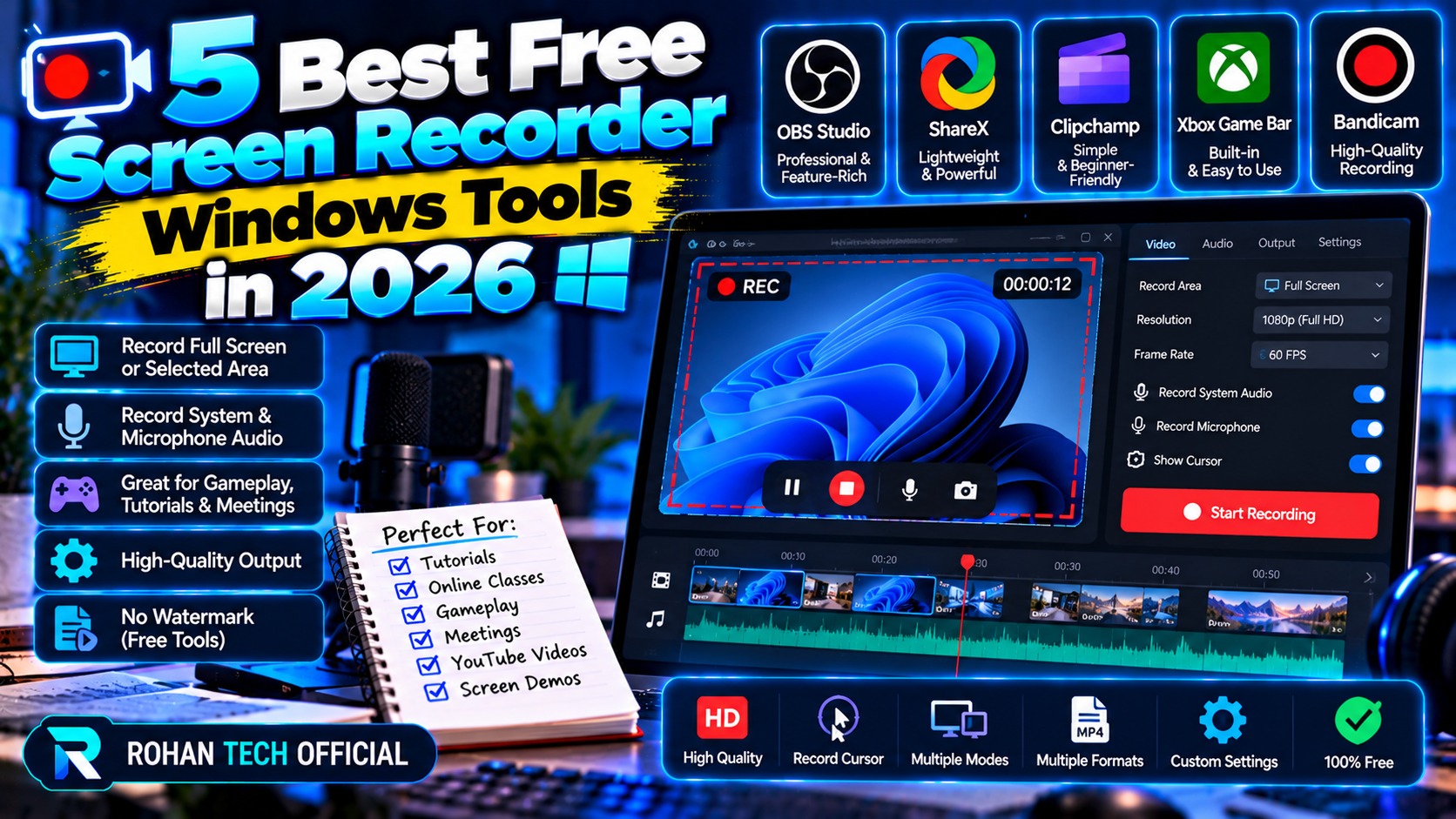
Need to record your screen on Windows without paying for software? Good news — you don’t have to. Whether you’re making tutorials, capturing gameplay, or recording a video call for work, there’s a free screen recorder Windows users can grab right now that gets the job done. The tricky part? Picking the right one. Some are built for streaming, others for quick clips, and a few try to upsell you the moment you hit record. Here’s a straight rundown of five genuinely free options and what each one does best.
OBS Studio — The Best Free Screen Recorder Windows Has to Offer
OBS Studio is the heavyweight. It’s free, open-source, and has no watermarks, no time limits, and no “pro version” nagging you. Originally built for live streaming, it’s just as good at plain screen recording — capture your full screen, a single window, or a game, mix in your mic and webcam, and save it all locally. The trade-off is the learning curve. The interface can intimidate first-timers. But if you want professional-grade recording for free, nothing else touches it. Streamers, YouTubers, and teachers rely on it for a reason.
ShareX — Best for Quick Captures
ShareX is a different beast: a lightweight, open-source capture tool that’s all about speed. Hit a hotkey, grab a region, window, or full screen, and it’s saved — or even auto-uploaded — before you blink. It records video and GIFs, packs in a surprising number of extras like OCR, a color picker, and an image editor, and asks for nothing in return. No account, no ads, no upsell. If your screen recording needs boil down to “record this thing quickly and move on,” ShareX is hard to beat.
Xbox Game Bar — Best Built-In Free Screen Recorder Windows Option
Already on your PC, and you might not know it. Xbox Game Bar comes with Windows 10 and 11 — just press Win+G and the overlay pops up. Hit record and you’re capturing. It’s designed for gameplay, but it records apps and windows just fine, and clips save automatically to your Videos folder. No install, no setup, no cost. The catch? It’s fairly basic — don’t expect editing tools or advanced settings. But for “record this game clip right now,” it’s the fastest path from zero to done. Microsoft’s own how-to walks through the basics.
Clipchamp — Best for Record and Edit
Clipchamp is Microsoft’s video editor, and it includes screen recording built right in. Record your screen (with or without webcam), then trim, caption, and polish the footage in the same app. The free plan exports in 1080p with no watermark, which is generous. You’ll need a Microsoft account to sign in, and the fancier stock assets and 4K exports sit behind a paid tier. But as a record-and-edit combo that costs nothing? Pretty compelling.
Snipping Tool — The Simplest Built-In Choice
Don’t sleep on the Snipping Tool. The Windows 11 version records video, not just screenshots — open it, switch to video mode, drag a region, and hit record. That’s it. No features to learn, nothing to install. It’s the simplest free screen recorder on this list, full stop. You won’t get a webcam overlay or editing, but for quick “show me what you did” clips, it’s perfect.
Which Free Screen Recorder Windows Tool Fits You?
Here’s the short version: OBS Studio if you want maximum power for free. ShareX if speed is everything. Xbox Game Bar if you want zero setup. Clipchamp if you’ll edit the footage after recording. Snipping Tool if you want the absolute simplest thing.
All five are genuinely free — no trials masquerading as freebies. For more Windows software picks, head to our PC software section, and our tutorials walk you through getting the most out of them.
Related Reading
Keep exploring: Best Free Video Editors for Windows (No Watermark)