
How to Free Up Storage on Android Without Deleting a Single Photo
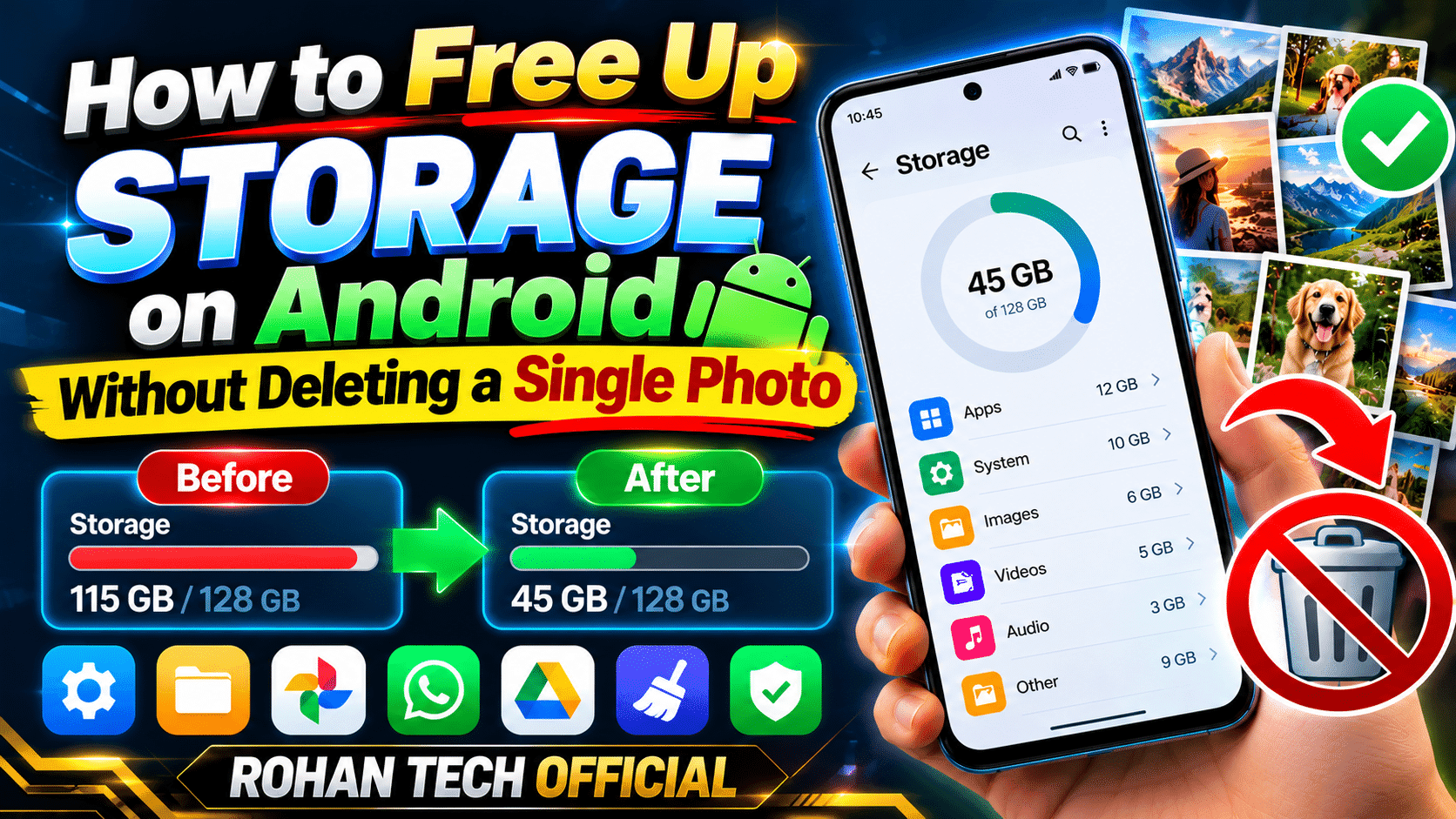
We’ve all been there. You’re trying to install an app or take a photo, and your phone hits you with that dreaded message: “Storage almost full.” The usual advice is to start deleting things — photos, videos, apps you might need later. But here’s the thing: most of that “full” storage isn’t your photos at all. It’s junk your phone quietly collected over months. Here’s how to free up storage on Android, step by step, without losing a single memory.
First, See What’s Actually Eating Your Space
Before deleting anything, get the full picture. Go to Settings → Storage. Android breaks it down by category: Apps, Photos & Videos, Audio, System, and so on. On most phones I’ve checked, the surprise culprit is usually “Apps” or cached data — not the camera roll. Knowing where the gigabytes are hiding tells you where to strike first.
Clear Cached Data the Smart Way
Apps store temporary files — thumbnails, offline pages, half-loaded videos — and never clean up after themselves. A browser or social media app can easily balloon to 2–3 GB of cache alone.
Go to Settings → Apps, tap any heavy app (start with browsers, social media, and streaming apps), then Storage → Clear Cache. Important: choose Clear Cache, not Clear Data. Cache is disposable; clearing data logs you out and wipes your settings. I do this sweep every couple of months and routinely recover 4–5 GB. It takes five minutes and nothing you care about disappears.
Offload WhatsApp Media (The Silent Storage Killer)
If you use WhatsApp, this one is huge. Every photo, video, and voice note anyone sends you gets saved to your phone — including all those “Good Morning” images from family groups.
Open WhatsApp → Settings → Storage and Data → Manage Storage. You’ll see exactly how much space WhatsApp is using, sorted by chat. Delete the forwarded videos and memes you’ve already seen (they’re backed up in the chat anyway), and keep the photos that matter. On my own phone, this single step freed up nearly 6 GB once. Also worth doing: in the same menu, turn off auto-download for videos on mobile data so the pile stops growing.
Move Photos to the Cloud — Then Use “Free Up Space”
This is the real game-changer. If you use Google Photos, open the app, tap your profile picture, and check that Backup is turned on. Once your photos are safely backed up, Google Photos offers a “Free up space” option that removes the local copies from your phone while keeping everything accessible in the cloud. Your photos aren’t deleted — they’re just no longer hogging your internal storage.
Uninstall the Apps You Forgot You Had
Be honest with yourself — scroll through your Android apps. That fitness app from January? The game you played twice? Each one is taking up space plus running background processes. Settings → Apps shows you which apps you haven’t opened in months. Remove the ones you don’t recognize or haven’t touched in 90 days. You can always reinstall them later in two minutes — check our tutorials section for more Android guides.
Turn On Automatic Cleanup
Most Android phones now have a built-in storage manager. On Pixel phones, Settings → Storage → Storage Manager can automatically remove backed-up photos after 30, 60, or 90 days. Samsung has a similar feature under Battery and device care → Storage. Turn it on once and your phone quietly handles the maintenance for you.
The Bottom Line
Between clearing app cache, taming WhatsApp media, and backing up photos to the cloud, most people can free up storage on Android and recover 10–15 GB without deleting anything meaningful. Do this cleanup once every few months and that “storage full” warning becomes a thing of the past.