
How to Secure Your Home Wi-Fi: 8 Essential Steps
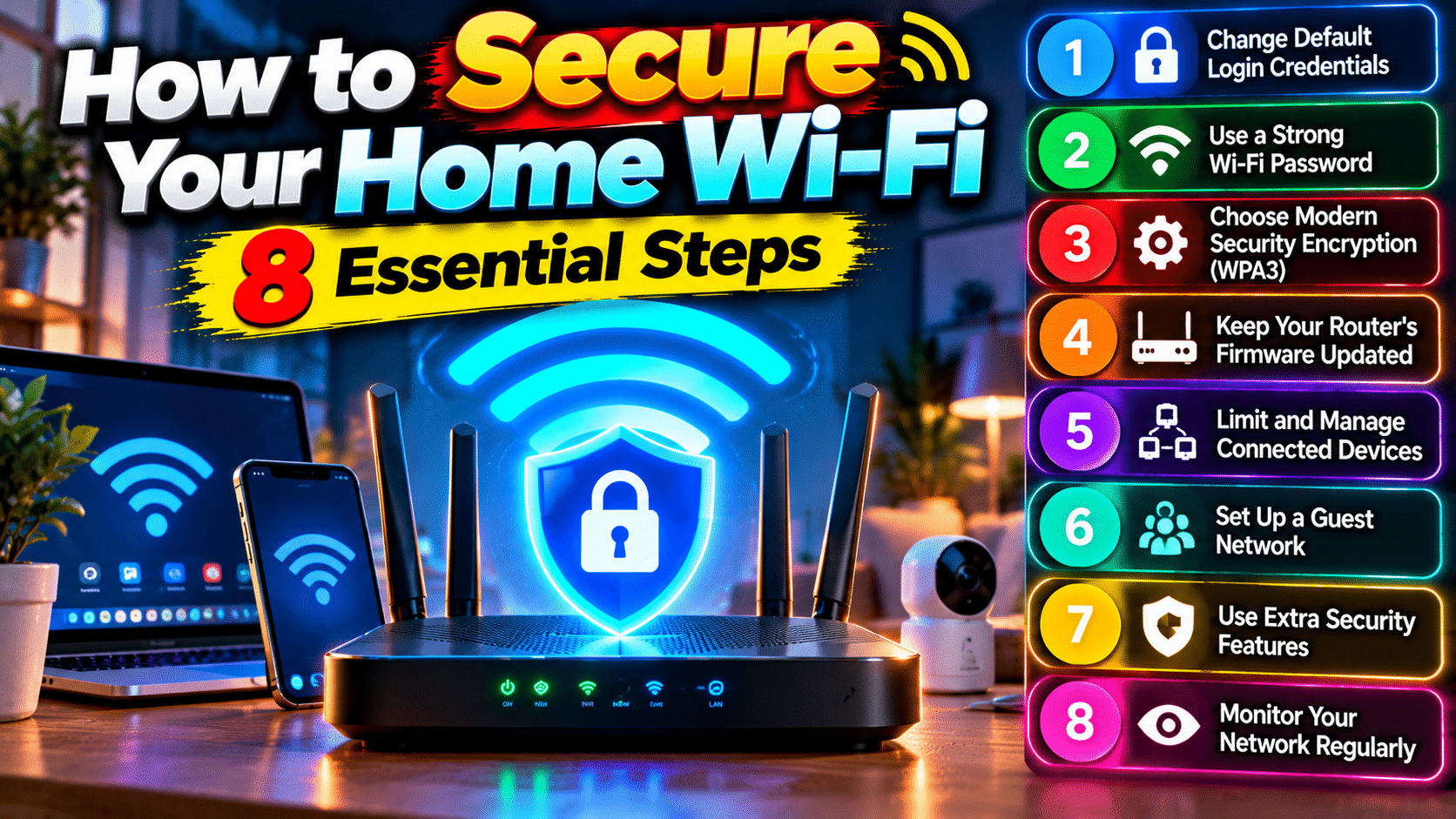
Your Wi-Fi network is the front door to everything digital you own — your bank logins, your photos, your smart home. And most people leave that door wide open without knowing it. The good news: securing it takes about 20 minutes and no technical skills. Here’s how to secure your home Wi-Fi network properly.
1. Change the Default Router Password
This is the big one. Every router ships with a default admin password like “admin/admin” — and attackers know them all. Type your router’s IP address (usually 192.168.1.1 or 192.168.0.1) into a browser, log in with the default credentials (printed on the router sticker), and immediately change the admin password to something strong. This alone blocks the easiest attacks.
2. Use WPA3 (or at Least WPA2) Encryption
In your router’s wireless settings, check the security mode. If it says WEP or WPA — change it now; both are broken and crackable in minutes. WPA3 is the current standard; WPA2-AES is the minimum acceptable. While you’re there, set a strong Wi-Fi password: 16+ characters, random, unique. Yes, it’s annoying to type once per device — that’s the point.
3. Update Your Router’s Firmware
Router manufacturers patch security holes regularly, but almost nobody installs the updates. Check your router admin panel for a Firmware Update section and install whatever’s available. Better yet, enable automatic updates if your router offers them. An unpatched router is one of the most common ways home networks get compromised.
4. Change the Default Network Name (SSID)
A network name like “TP-Link_5G_3F2A” advertises your exact router model to anyone in range, which tells attackers which vulnerabilities to try. Rename it to something neutral that doesn’t identify you — not your name, not your address. (And no, hiding the SSID entirely isn’t real security — it takes seconds to discover.)
5. Disable WPS
WPS (the push-button connect feature) has a well-known design flaw that lets attackers brute-force their way in. Unless you actively use it, turn it off in your router’s wireless settings. Typing the password manually is barely less convenient and far more secure.
6. Set Up a Guest Network
Visitors, smart home gadgets, and IoT devices shouldn’t be on your main network. Most modern routers let you create a guest network with a few clicks — put guests and smart devices there, isolated from your computers and phones. If a cheap smart bulb gets hacked (it happens), your laptop stays safe.
7. Turn Off Remote Management
Many routers allow admin access from the internet (“remote management” or “WAN access”). Unless you specifically need this, disable it. There’s no reason your router’s login page should be reachable from anywhere in the world.
8. Check Who’s Connected — Regularly
Once a month, look at your router’s connected devices list. Don’t recognize something? Change your Wi-Fi password immediately — that kicks every device off and forces re-authentication. Consider it a regular security hygiene habit, like changing smoke alarm batteries.
You’re Now Harder to Hack Than 95% of Homes
None of these steps is difficult, and together they close virtually every common attack path against home networks. Set a calendar reminder to check for firmware updates quarterly, and you’re done. For more internet safety guides, explore our tutorials section.