How to Make Windows 11 Faster: 9 Settings to Change Right Now
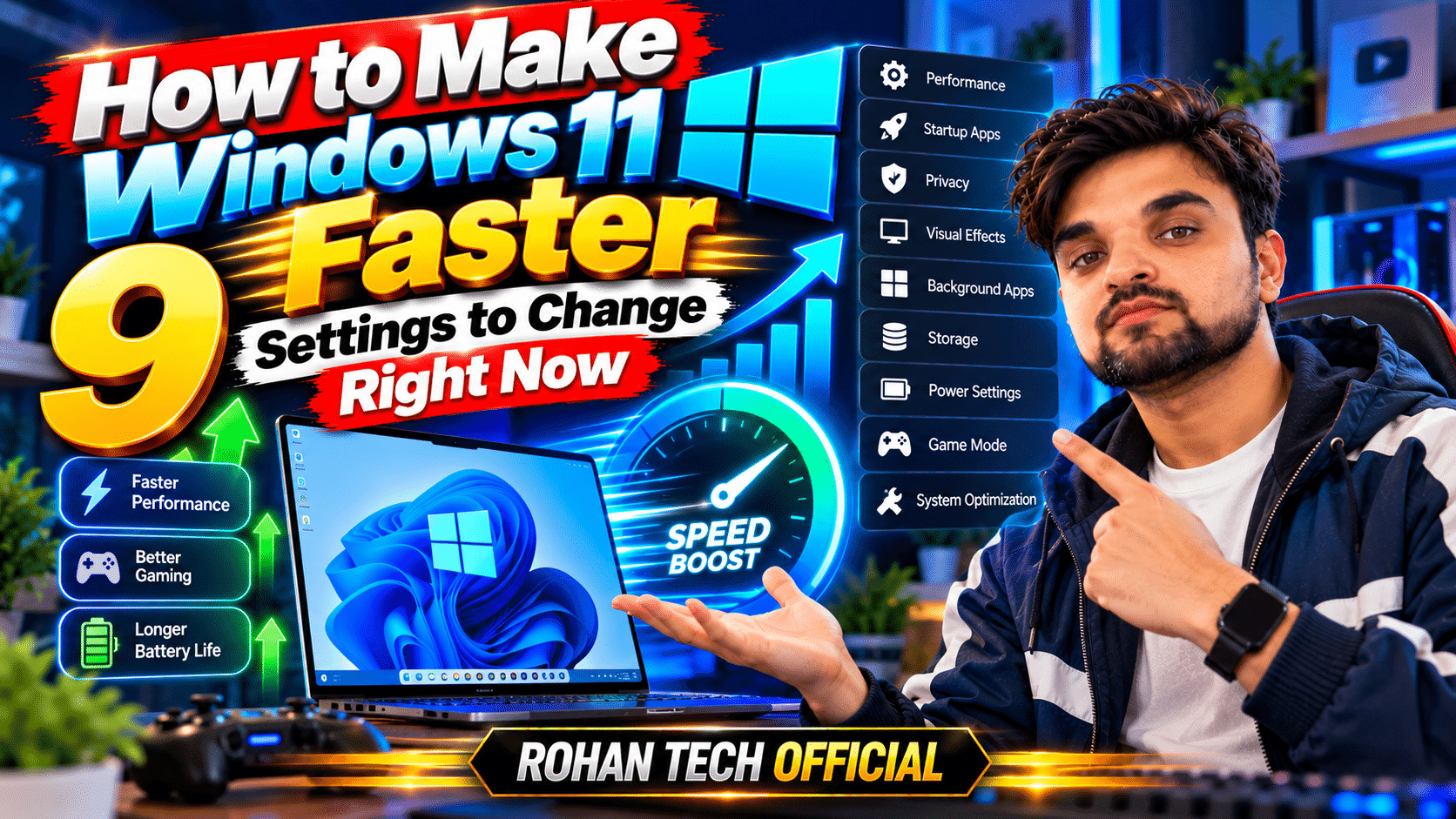
Does your Windows 11 PC feel slower than it should? Before you blame the hardware, know this: most of the sluggishness comes from settings and background junk, not your processor. I’ve sped up dozens of PCs with these exact tweaks, and none of them require installing anything or spending money. Here’s how to make Windows 11 faster in about 15 minutes.
1. Kill Unnecessary Startup Apps
Half the programs on your PC insist on launching at boot, and each one adds seconds to your startup time. Go to Settings → Apps → Startup and turn off everything you don’t need the second your PC turns on — Spotify, Discord, Adobe updaters, manufacturer bloatware. Keep your antivirus and cloud sync on; nuke the rest. This single change makes the biggest noticeable difference.
2. Turn Off Transparency and Animation Effects
Those pretty translucent windows and smooth animations cost GPU cycles. Go to Settings → Personalization → Colors and turn off Transparency effects. Then go to Settings → Accessibility → Visual effects and disable Animation effects. Your PC will feel snappier instantly, especially on older hardware.
3. Switch to High Performance Power Mode
Windows often ships in “Balanced” or even power-saver mode, which throttles your CPU. Go to Settings → System → Power & battery → Power mode and set it to Best performance. On a desktop, there’s zero reason not to. On a laptop, use it when plugged in.
4. Turn On Storage Sense
A nearly-full drive is a slow drive. Settings → System → Storage → Storage Sense lets Windows automatically clean temporary files, empty the recycle bin, and remove old downloads on a schedule. Turn it on and set it to run monthly — free maintenance forever.
5. Disable Background Apps You Never Use
Plenty of apps run in the background doing nothing useful. Go to Settings → Apps → Installed apps, click the three dots on apps you don’t need running, choose Advanced options, and set Background apps permissions to Never. Be selective — don’t touch your antivirus or messaging apps.
6. Uninstall the Bloatware
New PCs come loaded with trial antivirus, game bars, and manufacturer utilities you’ll never open. Go through Settings → Apps → Installed apps and uninstall anything you don’t recognize or haven’t used in months. Less software means fewer background processes fighting for your CPU.
7. Disable Search Highlights and Widgets
The Widgets board and search highlights constantly pull web content in the background. Right-click the taskbar → Taskbar settings → turn off Widgets. Then in Settings → Privacy & security → Search permissions, turn off Show search highlights. Small savings, but they add up.
8. Keep Your Drivers and Windows Updated
I know, updates are annoying. But outdated graphics and chipset drivers genuinely cause stuttering and slowdowns. Check Settings → Windows Update regularly, and grab GPU drivers directly from NVIDIA, AMD, or Intel rather than waiting on Windows Update.
9. Restart Regularly (Yes, Really)
“Have you tried turning it off and on again” is a cliché because it works. Fast Startup means “shut down” doesn’t fully reset Windows — use Restart instead, at least once a week. It clears memory leaks and stuck processes that accumulate over days of sleep/wake cycles.
The Bottom Line
You don’t need a new PC — you need a leaner Windows. Work through these nine tweaks and most people notice the difference immediately, especially at startup. For more step-by-step PC guides, browse our tutorials section, and for the best free tools to install afterward, check our PC software picks.