Audacity for PC
What Is Audacity?
Need to record a podcast, clean up an interview, or edit your band’s demo — without paying for software? Audacity has been the answer for over two decades. It’s a free, open-source audio recorder and editor from the Audacity Team, and it runs on Windows, Mac, and Linux.
Don’t let the plain interface fool you. Underneath sits a proper multi-track editor: you can record several tracks at once, cut and rearrange them, mix them down, and export the result in just about any format that matters. Podcasters love it because it does the unglamorous work — trimming silences, leveling volume, killing background hiss — without a learning cliff. Musicians use it for demos and rough mixes. Teachers record lectures with it. If your work involves sound and your budget is zero, Audacity is where most people start, and plenty never leave.
Key Features
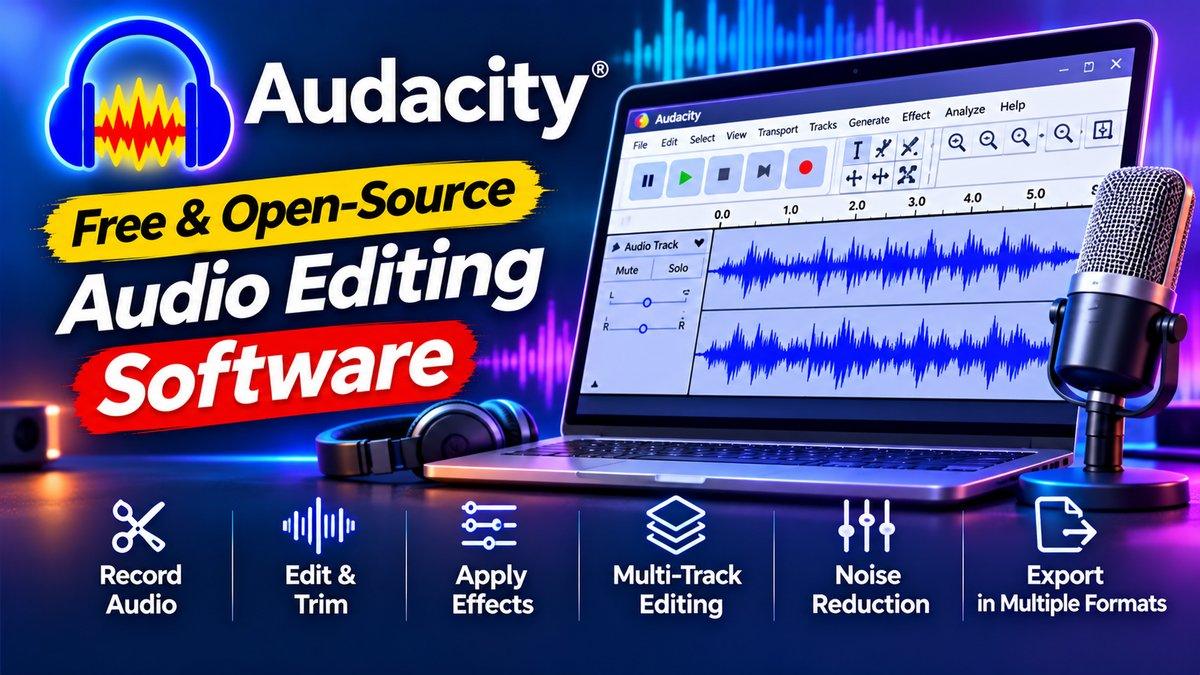
Multi-track recording and editing. Record one track while another plays back — essential for overdubbing vocals over music, or layering narration on background audio. Each track gets its own volume, pan, and mute controls, and you can slice, copy, and move regions with simple click-and-drag.
Noise reduction that actually works. Recorded in a room with a humming fan or air conditioner? Select a few seconds of pure background noise, let Audacity build a noise profile, and it strips that noise from the whole track. It’s the single most-used feature by podcasters, and it rescues recordings that would otherwise be unusable.
Built-in effects. Beyond noise removal you get equalization, compression, normalization, reverb, echo, fade in/out, and pitch/tempo adjustment — the bread-and-butter tools for making amateur recordings sound polished. Effects preview in real time, so you hear the change before committing to it.
Flexible exporting. Export to MP3, WAV, OGG, FLAC, and more. Whether you’re uploading a podcast episode, sending a WAV to a collaborator, or archiving in lossless FLAC, the format you need is there.
Works with real hardware. Audacity plays nicely with USB microphones and audio interfaces — the exact setup most home podcasters and musicians use. Plug in, select the input, hit record.
Why Audacity Stands Out
Plenty of audio editors exist, so why has this one survived since the early 2000s? Focus. Audacity doesn’t try to be a full music-production studio with virtual instruments and MIDI sequencing. It does recording and editing — the two things most people actually need — and does them without subscriptions, accounts, or upsell screens.
That focus keeps it light, too. It launches fast and runs comfortably on older machines that would choke on heavier software. If your laptop is aging, our old laptop upgrade guide can help, but Audacity will likely run fine as-is. And because it’s open-source with a huge community, tutorials exist for nearly every task — from removing a cough from an interview to mastering a podcast episode to broadcast loudness.
Pair it with VLC media player for playback and you’ve got a complete free audio toolkit.
Is Audacity Free?
Yes — completely free, no catch. Audacity is open-source software, free to download and use for personal and commercial work alike. There’s no premium tier, no trial period, and no feature locked behind payment. If a site ever asks you to pay for Audacity, you’re on the wrong site — grab it from the official link below.
Recording Tips That Make a Real Difference
Here’s something beginners learn the hard way: software can’t fully fix a bad recording. Before you touch any effect, get these basics right. Record in a small, soft-furnished room — closets work surprisingly well — and keep the microphone 15-20 cm from your mouth with a pop filter or even a sock over it to tame harsh “p” sounds.
Always record a 10-second silence sample at the start of each session; that’s your noise profile for later cleanup. And record in WAV, not MP3 — MP3 throws away audio data permanently, while WAV keeps everything for editing. Export to MP3 only at the very end, when you’re done. Finally, save your Audacity project file (.aup3) alongside the export. When a client asks for “just one small change” three months later, you’ll thank yourself.
How to Download Audacity
Getting started takes minutes. Download the installer for your operating system, run it, and plug in your microphone. For your first recording, do a quick 10-second test to set input levels — aim for peaks around -6dB so nothing distorts — then record for real. When you’re done, select your background noise, run noise reduction, normalize the volume, and export as MP3 for sharing or WAV for archiving.
Download: Audacity (official link)