
Notepad++ for PC
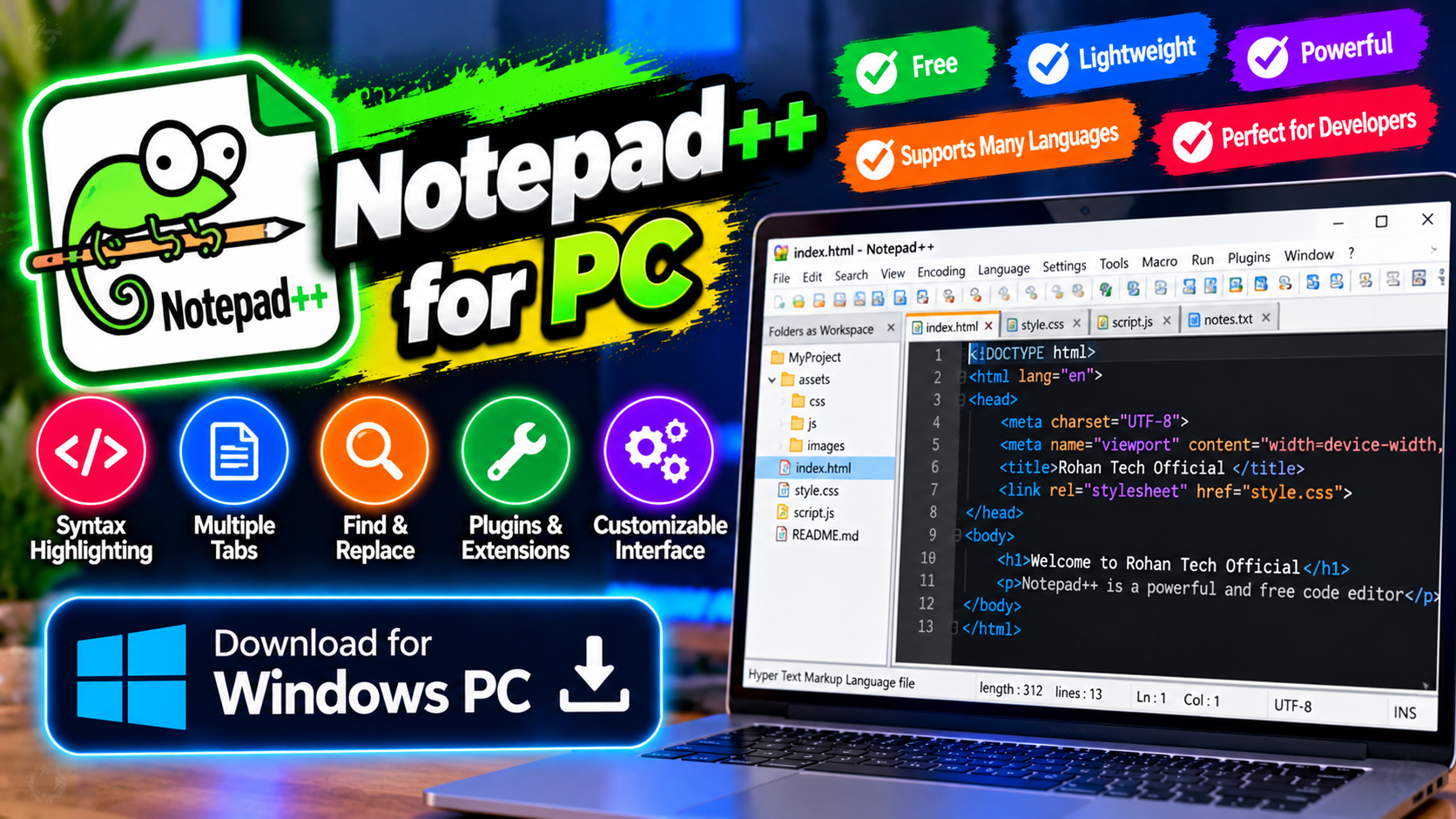
A smarter Notepad for Windows. Tabbed editing, syntax highlighting for dozens of languages, and instant startup. Perfect for quick edits and config files.
Key Features
- Tabbed interface for editing multiple files at once
- Syntax highlighting for dozens of languages
- Find and replace with regular expressions
- Starts instantly, uses minimal memory
Best for quick text edits and config files — free from notepad-plus-plus.org.
What it does and why people use it
Windows Notepad is fine for a quick note, but the moment you work with code, config files, or several documents at once, it starts to feel thin. Notepad++ is the free editor that fills that gap without turning into a heavy development environment. It opens instantly, holds many files in tabs, and colors your code so its structure is easy to read at a glance.
That’s the appeal in one line: it’s the editor you reach for when a file needs a quick, careful edit — not a whole project setup.
Key features explained in detail
Tabbed interface. Edit multiple files at once in one window, switching between tabs instead of juggling separate windows. For config work that touches several files, that’s a real time-saver.
Syntax highlighting for dozens of languages. Code is colored by its structure — keywords, strings, comments — so mistakes and patterns stand out. It makes reading unfamiliar code far less of a chore.
Find and replace with regular expressions. Beyond plain find-and-replace, regular expressions let you search for patterns across a file, which is how you rename things or clean up messy data in bulk.
Starts instantly, uses minimal memory. The editor opens before you’ve finished thinking about the edit. On older or busy PCs, that lightness matters more than any single feature.
How to download and install safely from the official site
Download Notepad++ only from the official notepad-plus-plus.org site, using the download link at the end of this article — the Download URL for this post points to notepad-plus-plus.org/downloads. Choose the installer for your version of Windows, run it, and keep the default options unless you have a reason to change them. Skip repackaged copies from download portals, which sometimes add extras you didn’t ask for.
How to use the main features
Open a file and it lands in its own tab; open more files and they stack neatly beside it. Pick the right language for highlighting if it isn’t detected automatically, and use find-and-replace for quick changes across a file. For config files, edit carefully and save a backup copy first — one wrong character can stop a program from starting. When a project outgrows a text editor, that’s the moment to step up to a full code editor.
If a file is hard to find in the first place, Everything for PC tracks it down instantly, and when your work grows into full projects, Visual Studio Code for PC is the natural next step.
Tips for getting the most out of it
- Keep it as your default for text and config files, so double-clicking opens the right tool every time.
- Back up a config file before editing it. A copy costs nothing; a broken config costs an afternoon.
- Learn find-and-replace with regular expressions gradually — even basic patterns save a lot of manual editing.
- Use tabs to group related files, and close finished ones so the tab bar stays readable.
- Check highlighting when code looks wrong — the wrong language setting can make good code look broken.
- For long files, use the editor’s search to jump to a line instead of scrolling.
Frequently asked questions
Is Notepad++ free? Yes, it’s free from notepad-plus-plus.org, as the original post notes.
Is it better than Windows Notepad? For editing multiple files, code, and config files, yes — tabs, syntax highlighting, and regular-expression search are the difference.
Does it handle code? Yes, it highlights syntax for dozens of languages.
Is it heavy on resources? No, it starts instantly and uses minimal memory.
Where do I download it safely? From the official notepad-plus-plus.org site, via the download link on this page.