
Timeshift for Linux
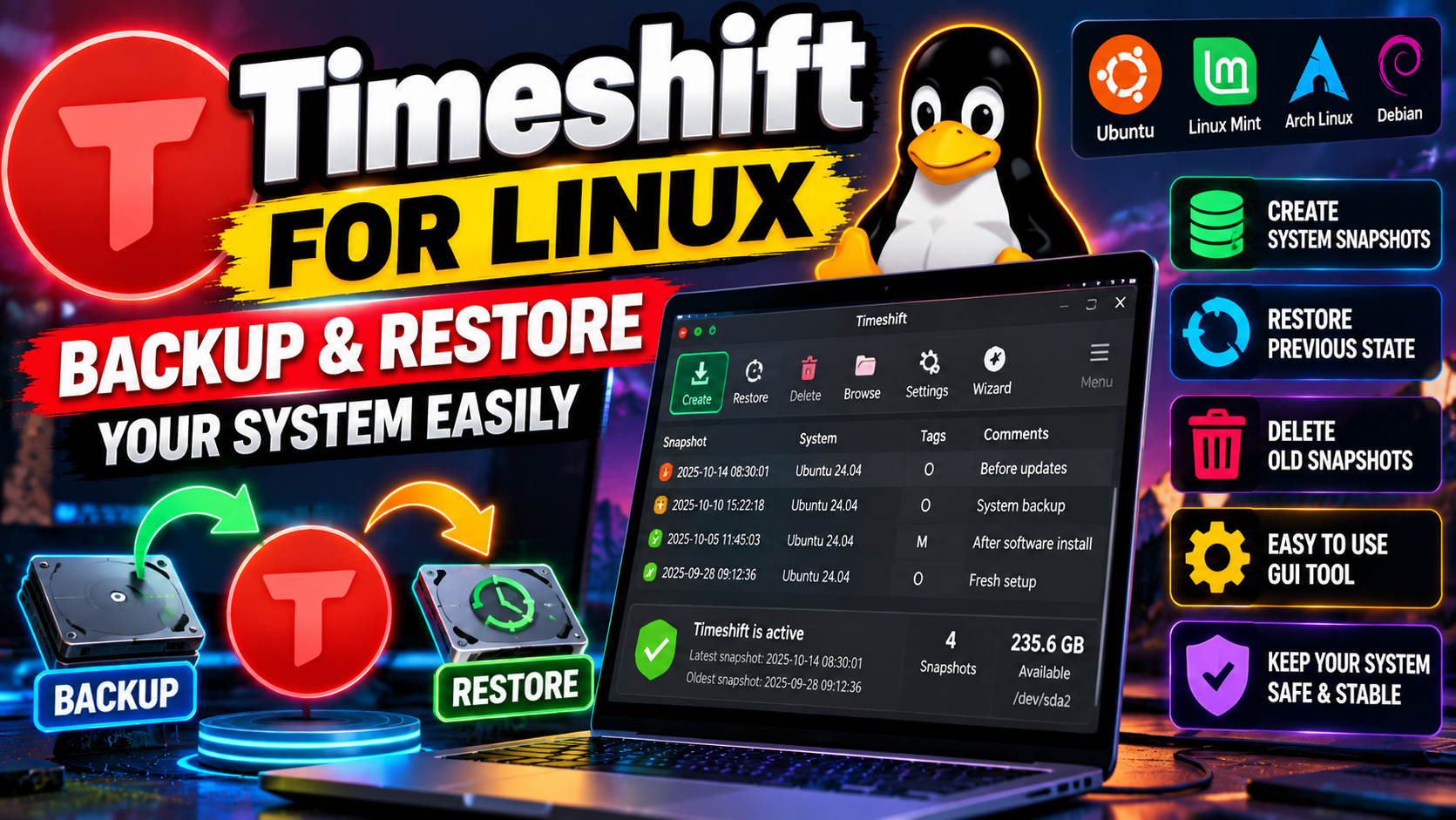
You know that sinking feeling. You run a routine system update, reboot, and… nothing. Black screen. Or half your apps refuse to start. On Windows you’d reach for System Restore. On Linux? Meet Timeshift.
Bad updates don’t care which OS you run — one broken driver can ruin anyone’s morning. Timeshift is the free, open-source safety net Linux users have relied on for years: it snapshots your system, and when something breaks, puts everything back.
What Timeshift Actually Does
Think of it as a time machine for your OS. Timeshift takes incremental snapshots of your system files and settings. Mess something up? Pick an earlier snapshot, hit restore, and everything rolls back — apps, settings, desktop, all of it.
Here’s the part people miss: Timeshift protects your system, not your personal files. Documents, photos, music — excluded by default, deliberately. Roll back, and your files stay exactly as they are; only system changes get undone. Personal stuff needs its own backup — our full backup guide covers that.
Timeshift: Rsync vs BTRFS — Which Mode to Pick
First launch asks you to pick a snapshot mode. Two options:
Rsync mode works on any filesystem — EXT4, XFS, whatever you’re running. It copies files with rsync and uses hard links, so unchanged files are shared between snapshots instead of duplicated. Each snapshot still looks like a complete system backup, and you can browse any of them in your file manager like a normal folder. The trade-off? Snapshots take real time and real disk space, since changed files actually get copied.
BTRFS mode is the fast lane — but only if your system runs on BTRFS with the standard Ubuntu-style subvolume layout (the @ and @home subvolumes). It uses the filesystem’s own native snapshotting, which means snapshots are near-instant and cost basically zero disk space until files start changing. The catch: wrong filesystem or wrong layout, and this mode isn’t available to you.
Which to pick? BTRFS with the right layout wins easily. Everyone else: rsync mode works fine — slower and hungrier, but it runs on any setup.
Setting Up Timeshift
Getting going takes about five minutes:
- Install it. It’s in the repositories of most major distros, and Linux Mint ships it by default. A quick install through your package manager or software center does it.
- Run the setup wizard. Pick rsync or BTRFS mode, then choose where snapshots live. A separate partition or an external drive is smartest — a dying system disk shouldn’t take your snapshots down with it.
- Set a schedule. Timeshift supports scheduled snapshots at multiple levels: hourly, daily, weekly, monthly, plus one at every boot. Daily plus boot snapshots is a solid default for most people.
- Take your first snapshot now. Don’t wait. Your baseline snapshot is the one you’ll thank yourself for later.
Restoring is just as simple. System boots? Open Timeshift, pick a snapshot, restore. Won’t boot? Use a live USB, install Timeshift there, and restore. That’s what this tool exists for — pair it with general system maintenance and your machine stays boringly reliable.
Timeshift Pros and Cons
What’s great:
- Free and open-source — originally created by Tony George, now maintained with Linux Mint behind it. Grab it at github.com/linuxmint/timeshift.
- Rolls back broken updates in minutes instead of hours of troubleshooting.
- Scheduled snapshots run quietly in the background.
- Your personal files are never touched by a restore.
- BTRFS snapshots are nearly instant and tiny.
What’s not:
- Not a full backup tool. Your documents and photos need their own backup plan.
- Rsync mode eats disk space over time — keep an eye on it.
- BTRFS mode demands a specific filesystem layout.
- A snapshot sitting on the same dying drive as your system won’t save you. Separate storage matters.
The verdict? If you run Linux and don’t have Timeshift set up, you’re one bad update away from a very long evening. It won’t replace a real backup, but for system-level “undo,” nothing else comes close. Install it, schedule it, forget about it — until the day it saves you.
Related Reading
Keep exploring: How to Back Up Your Entire Phone So You Never Lose Anything, How to Make Windows 11 Faster: 9 Settings to Change Right Now, and Windows 11 26H2 Is Here: What’s New and Should You Install It?.