
Android Apps Keep Crashing? 10 Fixes That Actually Work
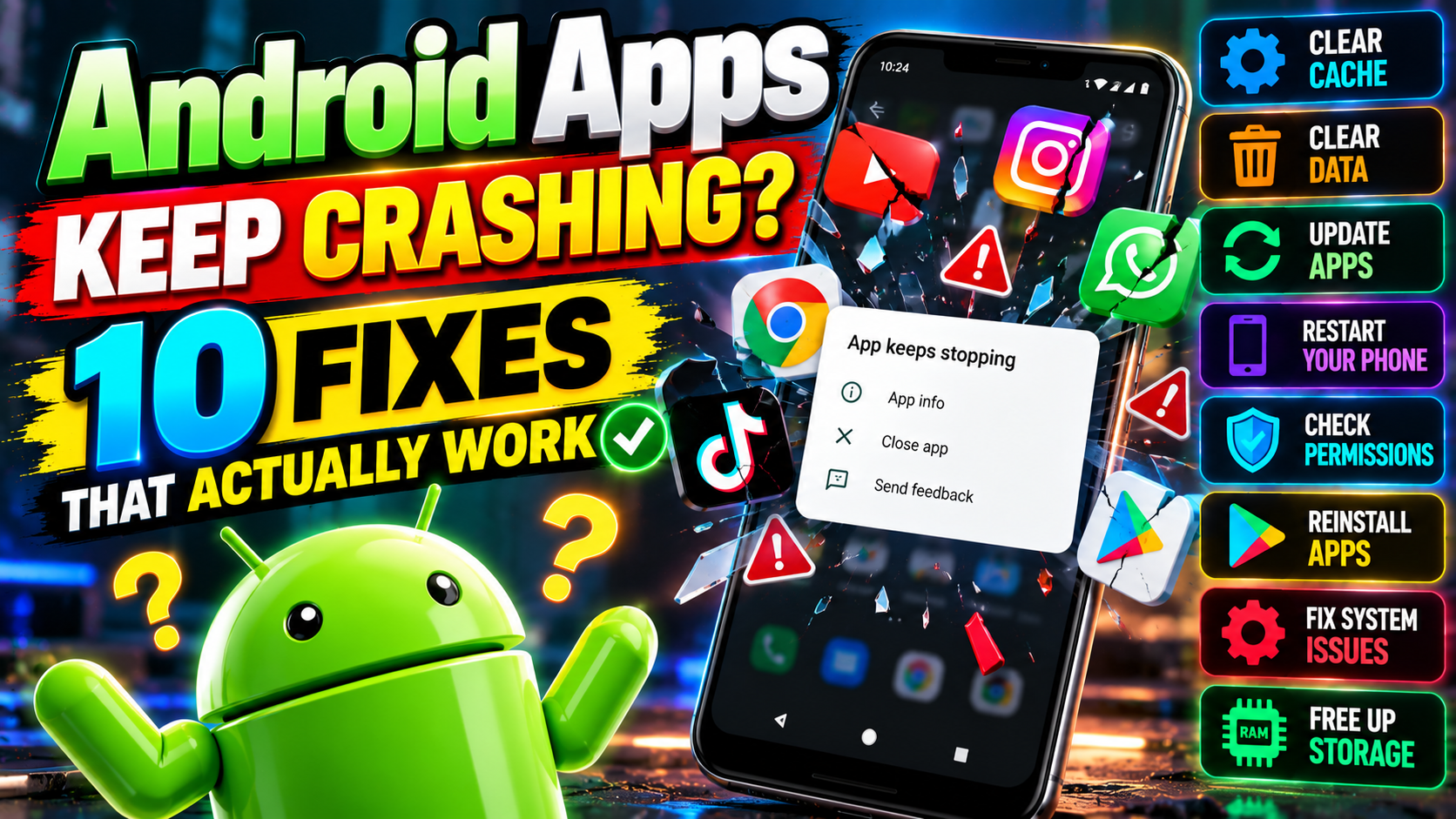
You’re mid-message. Mid-game. Mid-everything. And the app just… vanishes. Back to the home screen, no explanation, no apology. App crashes are infuriating because they feel completely random — but they’re almost never random. There’s always a cause, and causes have fixes. Work through these 10 in order, from the 10-second checks to the deeper repairs. The honest truth? The vast majority of crashes are fixed by number three or earlier.
Fix 1: Force Stop and Reopen (The Honest Restart)
Don’t just tap the app icon again. The crashed process might still be stuck in memory, half-dead and causing trouble. Go to Settings → Apps → [the crashing app] → Force stop → OK. Then open it fresh. This kills the corrupted process outright and starts clean. It sounds too simple — which is exactly why people skip it. But a huge share of one-off crashes never come back after a proper force stop. If it crashes again immediately, keep moving down the list.
Fix 2: Restart Your Phone
The universal fix exists for a reason, and the reason is that it works. A restart clears temporary system glitches, frees up memory, and resets every running process — including whatever the crashing app got tangled up with. Hold the power button and hit Restart (proper restart, not just screen-off-screen-on — it’s cleaner). If your phone hasn’t been restarted in weeks, this alone fixes a whole category of weird behavior. Make it a weekly habit. Your phone is a computer, and computers like fresh starts.
Fix 3: Clear the App’s Cache (The #1 Real Fix)
Corrupted cached data is the single most common cause of repeated app crashes. Somewhere along the way the app saved something broken, and now it chokes on its own data every time it launches. The fix: Settings → Apps → [app] → Storage → Clear cache. Completely safe — this only deletes temporary files. Your logins, settings, and data stay exactly where they are. Reopen the app. For most persistent crashes, this is the one. I’d estimate it resolves 60% or more of the cases that survive fixes 1 and 2. Still crashing? Then we bring out the stronger medicine.
Fix 4: Clear App Data (The Nuclear Option for One App)
Cache-clear didn’t do it? Go back to Settings → Apps → [app] → Storage → Clear data (sometimes labeled “Clear storage”). But read this first: WARNING — this resets the app completely. Logged out, settings wiped, downloaded content deleted, back to day one. It’s like reinstalling without actually reinstalling. Only do this if you know your login credentials and your important stuff is synced to an account rather than stored only on the phone. Gamers, take note: make sure your progress is linked to Google Play Games or Facebook first, or it’s gone. Drastic? Yes. But it eliminates corrupted app data as a cause, full stop.
Fix 5: Update the App
Open the Google Play Store, tap your profile, then Manage apps & device → Updates available. Developers fix crash bugs constantly — the version dying on your phone might already have a patch sitting there waiting. While you’re at it, turn on auto-updates (Play Store → Settings → Network preferences → Auto-update apps) so this never happens again. One more check: when was the app last updated? If it’s been 2+ years, the crashes might be permanent incompatibility with your Android version. Time to find a modern replacement.
Fix 6: Update Android Itself
Settings → System → Software update (on Samsung it’s Settings → About phone → Software update). System updates fix OS-level bugs that crash apps — and sometimes apps crash simply because they were built for a newer Android than you’re running. Install everything pending, then restart. This one’s also about security: old Android versions have known vulnerabilities, and running them is asking for trouble. If your phone has stopped receiving updates entirely (manufacturers usually support 3–5 years), that’s a sign the hardware’s days are numbered. While it still works, keep it current.
Fix 7: Free Up Storage Space
Android needs breathing room. When free storage drops below roughly 10%, apps start crashing because they literally can’t write temporary files. Check Settings → Storage: if you’re nearly full, that’s probably your culprit — and notice it causes crashes across ALL apps, not just one. Emergency space, fastest first: clear cached data for the big hoarders (Chrome, Facebook, TikTok often sit on gigabytes), delete downloaded files you don’t need, move photos to cloud backup and delete the local copies, uninstall apps you haven’t opened in months. Get back above 15% free and watch the crashes disappear. This is the most overlooked cause of all — people chase app-specific fixes while their phone is quietly suffocating.
Fix 8: Check App Permissions
Some apps crash when they’re denied permissions they need. Others crash when granted permissions that trip buggy code. Go to Settings → Apps → [app] → Permissions and take a look: does a photo editor really need your location? Does the crash happen when you tap one specific feature — camera, microphone, files? Try toggling that permission off and back on. Also worth checking: Settings → Apps → Special app access, for things like “Display over other apps” and “Modify system settings.” Misbehaving permissions there cause the weird, exotic crashes. When in doubt, reset to what the app asked for and grant only what’s genuinely needed.
Fix 9: Boot Into Safe Mode (Find the Culprit)
If MULTIPLE apps are crashing, the problem might not be any of them — it might be another app interfering with everything. A rogue “booster,” a sketchy antivirus, an accessibility service gone wrong. Safe Mode boots Android with only the pre-installed apps, switching off everything you installed. Getting in: hold the power button, then long-press “Power off” and tap “Safe Mode” → OK. (The exact method varies a bit by brand — check your manufacturer’s instructions.) If the crashes stop in Safe Mode, some third-party app is the villain. Restart normally, then uninstall recently installed or suspicious apps one by one — especially “RAM boosters,” “battery savers,” and “antivirus” apps, which cause far more problems than they ever solve — until the crashes stop. Culprit found.
Fix 10: Factory Reset (The Last Resort)
Nothing else worked and the whole system is crashing? Then it’s time for the nuclear option: a factory reset wipes the phone back to day-one condition, which eliminates any possibility of deep system corruption. But first — BACK UP EVERYTHING. Google backup (Settings → System → Backup), photos to Google Photos, app-specific backups like your WhatsApp chats. Then Settings → System → Reset → Erase all data. Set the phone up fresh, and here’s the critical part: DON’T restore from backup right away. Install the crashing app on the clean system first and test it. Works now? Then the corruption was hiding in your old data — restore selectively. Still crashes on a factory-fresh phone? Then it’s a hardware fault or a fundamentally broken app. Time for professional repair, or a replacement app. Google’s official reset walkthrough is at Android Help.
Preventing Future Crashes
Three habits prevent the large majority of crashes. One: keep your apps and Android updated — just leave auto-update on and stop thinking about it. Two: keep 15% or more of your storage free — a quick cleanup once a month does it. Three: don’t install sketchy apps — stick to the Play Store, and check reviews and update dates before installing anything new. Most crashes aren’t mysteries. They’re maintenance failures. Treat your phone like the computer it is, and it’ll crash about as often as a well-kept computer does — which is to say, hardly ever. For more fixes and phone tips, our Tutorials section is the place — and these essential Android apps are worth a look too.
Related Reading
Keep exploring: 10 Hidden Android Settings That Make Your Phone Feel Brand New, How to Stop Apps From Draining Your Android Battery, and How to Change Default Apps on Android.