
How to Clean Install Windows 11: The Complete Step-by-Step Guide
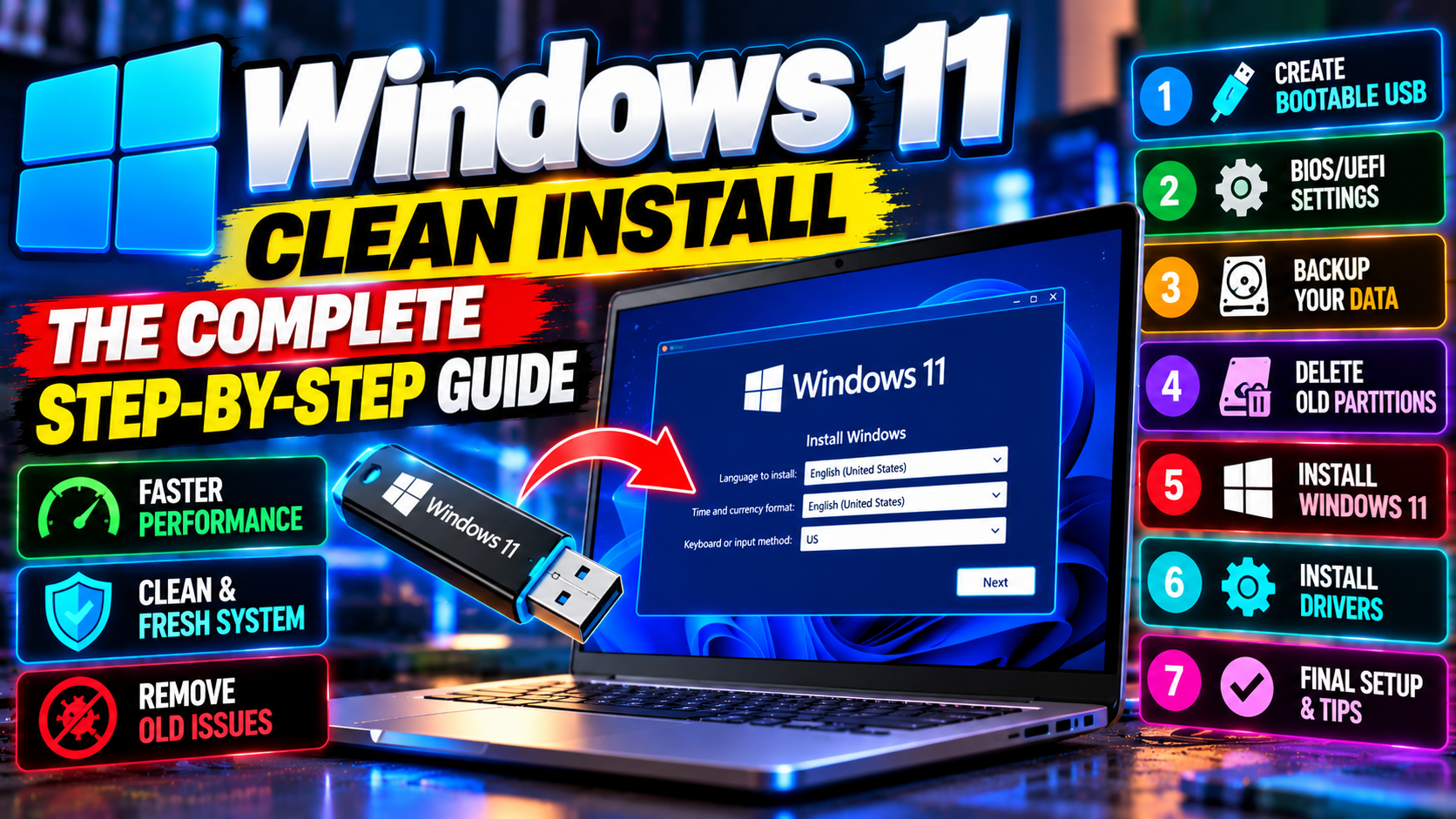
You know that special kind of slowness only a two-year-old Windows install has? The startup crawl you can’t explain. Programs you don’t remember installing. Context menus haunted by software you deleted back in 2024. A clean install of Windows 11 wipes all of it away and hands you the out-of-box experience again — fast boots, clean menus, zero cruft. Sounds scary. It really isn’t, as long as you follow the steps in order. This guide covers the whole thing: backup, bootable USB, installation, drivers, and setup. Plain language, no assumptions.
Before You Start: What You Need
Three things. A USB flash drive with at least 8GB free (everything on it gets erased), roughly two hours of uninterrupted time, and your license situation figured out. About that license: if Windows 11 is already activated on your PC, a clean install reactivates itself automatically — the digital license is tied to your hardware, not to the installation. No product key hunt needed. Built the PC yourself and bought a key? Keep it nearby just in case. And confirm your PC meets Windows 11’s requirements (TPM 2.0, Secure Boot). If Windows 11 is already running on it, you’re fine — skip the worry.
Step 1: Back Up Everything That Matters
Read this twice: a clean install erases EVERYTHING on your Windows drive. Documents, photos, downloads, desktop files, app settings, browser bookmarks, game saves. All of it, gone. This is the step people skip, and it’s the step people regret skipping forever.
Minimum viable backup: copy your whole Users folder — Documents, Pictures, Desktop, Downloads — to an external drive or cloud storage. Then think about the sneaky stuff: browser bookmarks and passwords (turn on browser sync, or export them manually), email archives if you use a desktop client, license keys for paid software, files stashed in weird locations. My personal rule is simple: if losing it would upset you, back it up twice. Once to an external drive, once to the cloud. OneDrive, Google Drive, even a second USB stick. Paranoia costs nothing; data recovery costs a fortune.
One more thing before you move on: list the programs you actually use, because you’ll reinstall them later. Open Settings → Apps → Installed apps and screenshot the whole list. You’ll be amazed how many entries you don’t recognize. That’s precisely why you’re doing this.
Step 2: Create the Bootable USB
Grab any working computer — yours, before the wipe, or a friend’s. Head to Microsoft’s Windows 11 download page and download the Media Creation Tool. Run it, accept the license, pick “USB flash drive,” select your 8GB+ drive, and wait. The tool downloads Windows 11 and makes the drive bootable by itself. Budget 20–40 minutes depending on your internet.
There’s a fancier alternative — Rufus — which gives you more control over partition schemes and requirement bypasses on unsupported hardware. But for 95% of people, Microsoft’s own tool is the right call. Official, simple, always current.
Step 3: Boot From the USB
Plug the USB into the PC you’re about to wipe. Restart it, and start tapping the boot menu key as it powers up — usually F12, F8, F9, or Esc, depending on the manufacturer. It often flashes on screen for a split second; miss it and you’ll boot straight into Windows, so just restart and hammer the key earlier. Pick your USB drive from the boot menu.
USB not showing up in the boot menu? Check two BIOS settings: Secure Boot should be ON for Windows 11, and boot mode should be UEFI rather than Legacy/CSM. You get into BIOS/UEFI with Del or F2 during startup. Look, don’t touch anything else in there — BIOS is not a playground.
Step 4: Install Windows 11
The installer asks for your language, then “Install now.” When it asks for a product key, click “I don’t have a product key” — your digital license sorts itself out later. Pick the edition you had before (Home or Pro). Get this wrong and activation gets confused, so double-check.
Now the critical screen: “Which type of installation do you want?” Choose CUSTOM. Not Upgrade — CUSTOM. You’ll see your drives and partitions laid out. Select each partition on your Windows drive and hit Delete until the entire drive reads as “Unallocated Space.” Then select that unallocated space and click Next. Windows builds whatever partitions it needs on its own.
WARNING: this is the point of no return. Make absolutely sure you’re deleting partitions on the right drive. Got multiple drives? Touch only the Windows drive — leave your data drive completely alone. Honestly, if you’re nervous, just physically unplug your secondary drives before this step. Ten seconds of work, and the most catastrophic mistake becomes impossible.
Then you wait. The installer copies files and restarts a few times. Keep the USB plugged in until the first restart finishes, then you can pull it. Expect 15–30 minutes on an SSD — longer on a spinning hard drive, which is also your sign to finally buy an SSD.
Step 5: Initial Setup
Windows walks you through region, keyboard, network, and account setup. A few of these choices actually matter. When it pushes the Microsoft account sign-in, you can just go with it — sync and BitLocker recovery key backup are genuinely useful. Prefer a local account? Disconnect from the internet during setup and the local account option shows up. For the privacy toggles, my suggestion: turn everything off except “Find my device.” You can switch features back on later; the defaults lean toward maximum data collection.
Before anything else, let Windows Update run to completion. Settings → Windows Update, install everything, then check again — there’s always a second round. This pulls down security patches plus a surprising number of hardware drivers automatically.
Step 6: Drivers
Once updates are done, open Device Manager (right-click Start → Device Manager) and look for yellow warning icons — those mark devices still missing drivers. Priority order: chipset drivers first (from your motherboard or laptop maker’s site), then graphics drivers — and get those straight from Nvidia, AMD, or Intel, not Windows Update, if you want the latest game-ready versions. Then Wi-Fi, audio, and whatever else is flagged.
The support page for your exact laptop or motherboard model is the authority here. Bookmark it. If you want the official background reading, Microsoft Support documents all of this. And one hard rule: never install “driver updater” utilities. They’re the barnacles of the PC world — useless at best, a malware vector at worst. Drivers come from manufacturers. Full stop.
Step 7: Reinstall Your Programs (Selectively)
This is where the clean install pays for itself — but only if you resist the urge to reinstall everything. Go down your screenshot list and interrogate each program: did I use this in the last three months? No? Skip it. Install essentials first (browser, office suite, media player), then add the rest only as you actually need them. You’ll end up with half the programs and double the performance. That’s the whole point.
Suggested order: browser first, then cloud storage sync (let it pull your files down in the background), then security and utility software, then creative and productivity apps, games dead last (biggest downloads). And here’s a time-saver: Ninite (ninite.com) batch-installs common free programs in one shot. Legitimate, well-known, huge time-saver.
Step 8: Restore Your Files and Settings
Copy your backed-up files into the fresh Users folders. Sign into your browser to pull back bookmarks, extensions, and passwords. Then the fun part: reconfigure things the way you like them — taskbar, wallpaper, dark mode. If you use backup software with system images, this is when you’d restore app settings — though honestly, setting everything up fresh is half the clean-install therapy.
Keep It Clean Going Forward
A clean install is a fresh start, so treat it like one. Uninstall programs the moment you stop using them instead of letting them pile up. Run Disk Cleanup now and then. Leave Windows Update on automatic. And develop a lifelong immunity to “free PC optimizer” pop-ups. Do all that, and your PC will still feel quick a year from now instead of begging for another wipe. For more Windows know-how, dig into our Tutorials section — and Tech News for what’s happening in the Windows world.
Related Reading
Keep exploring: Windows 11 26H2 Is Here: What’s New and Should You Install It?, How to Make Windows 11 Faster: 9 Settings to Change Right Now, and How to Make Windows 11 Faster: 9 Settings to Change Right Now.