
Cx File Explorer for Android
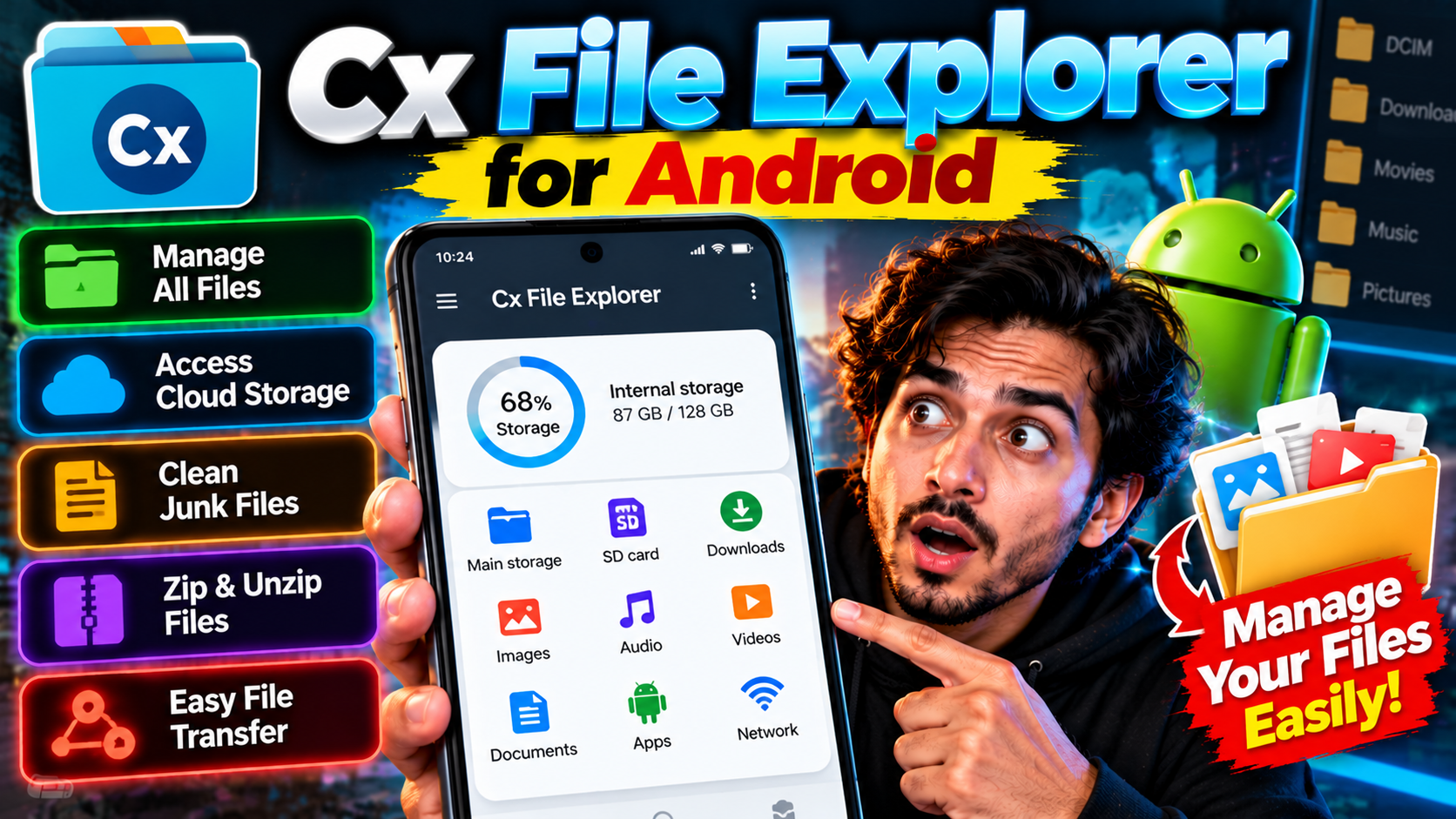
Cx File Explorer is the file manager for people who find the default one too basic. Clean Material Design interface, no ads, and genuinely powerful features: browse local storage, manage your installed apps, and analyze what’s eating your space with visual charts that make the culprits obvious. It also connects to cloud storage — Google Drive, Dropbox, OneDrive — and network locations via FTP, SMB, and WebDAV, so your NAS or home server shows up right alongside your phone’s folders. The storage analyzer is the standout: a visual breakdown of your space so you can spot 3GB of forgotten downloads in seconds. There’s also a recycle bin, so deleted files aren’t gone forever if you change your mind. Lightweight, fast, and free without nagging. If Files by Google feels too simple, this is the upgrade.
Key features
- Clean, ad-free file browsing with Material Design
- Visual storage analysis to find space hogs
- Cloud storage and NAS/network access (FTP, SMB, WebDAV)
- Recycle bin, app manager, and archive support
What it does and why people use it
Every phone fills up sooner or later: photos, downloads, chat media, and app leftovers pile up until the “storage full” warning appears at the worst moment. The built-in file manager on many phones shows you folders, but it doesn’t help much with the real question — what’s actually taking up all that room, and what’s safe to remove?
Cx File Explorer answers that question first. It gives you a clear view of your storage, lets you move, copy, rename, and share files without fuss, and reaches beyond the phone itself to cloud drives and home servers. For people who move files between devices, back up photos, or just hate clutter, that combination is the whole appeal.
Key features explained in detail
Clean, ad-free browsing. Folders, files, and common categories like downloads, pictures, and videos are easy to reach, and there’s no advertising in the way. The Material Design layout keeps the focus on your files, not on the app itself.
Visual storage analysis. Instead of a single “used vs. free” number, you get a breakdown that shows which folders and file types are eating your space. That’s how a forgotten downloads folder or a pile of old videos stops being a mystery and becomes a five-minute cleanup job.
Cloud and network access. Connect Google Drive, Dropbox, or OneDrive, and reach a NAS or home server over FTP, SMB, or WebDAV. Files from those places appear alongside local folders, so copying between phone, cloud, and server feels like moving files between two folders on the same device.
Recycle bin. Deleted files go to the bin first, so a mistaken tap doesn’t mean a lost document. Empty the bin when you’re sure, and remember that files sitting in it still take up space until you do.
App manager and archive support. See your installed apps, back up APKs where the app allows it, and open common archive formats without a separate tool.
How to download and install safely from the official store
Install Cx File Explorer only from the Google Play Store, using the official link at the end of this article. Check the developer and package name before installing, and skip APK copies from other sites, which can be altered and won’t update through the Play Store. On first launch, grant storage access only to the folders the app needs — a file manager needs broad access to do its job, so it’s worth confirming you installed the genuine app first.
How to use the main features
Start on the home screen, where storage and common folders are laid out for quick access. Open the storage analysis when space gets tight, sort by size, and work through the biggest folders first. To reach a cloud drive or a home server, add it once from the network or cloud section, sign in or enter the server details, and it stays available for later. For everyday tidying, long-press files to select several at once, then move, copy, share, or delete them in one go.
If you want a simpler second opinion on storage, Files by Google for Android covers the basics well. And when a file needs to reach someone else, sharing it through Telegram for Android is a quick route for documents and media.
Tips for getting the most out of it
- Run the storage analysis once a month. Small cleanups beat a panicked purge when storage runs out.
- Sort folders by size before deleting anything — the biggest wins are usually in downloads and old videos.
- Check the recycle bin before you empty it, especially after a bulk delete.
- Keep your server or cloud login details handy when you set up network access, and test the connection on Wi-Fi first.
- Don’t delete system folders or files you don’t recognize. If you’re unsure what something is, leave it alone and search for its name first.
- Back up photos and important documents to cloud storage before a big cleanup, so a mistake costs you nothing.
Frequently asked questions
Is Cx File Explorer free? Yes, it’s free without nagging, as the original post notes, and it has no ads.
Can it access my NAS or home server? Yes, it supports network locations via FTP, SMB, and WebDAV, alongside cloud storage like Google Drive, Dropbox, and OneDrive.
What happens to deleted files? They go to the recycle bin first, so you can restore them if you change your mind. They only free up space once the bin is emptied.
Is it better than Files by Google? It depends on what you need. Files by Google is simpler; Cx File Explorer adds storage analysis, network access, and a recycle bin for people who want more control.
Does it work offline? Local browsing and storage analysis work offline. Cloud and network access need a connection, as you’d expect.