
LibreOffice for PC
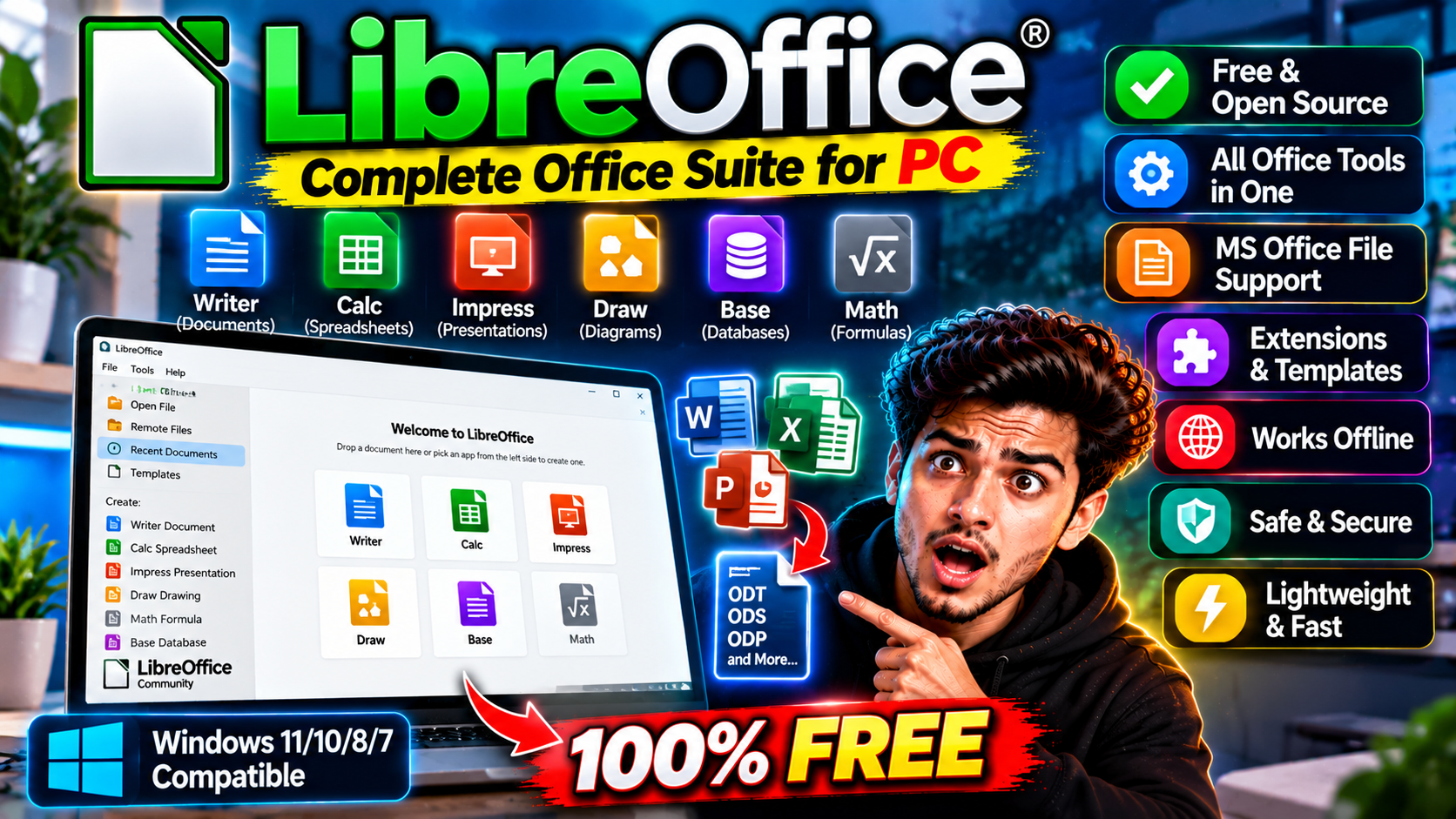
A complete free office suite — word processor, spreadsheets, presentations, and more. Opens and saves Microsoft Office files, costs nothing, no subscription.
Key Features
- Writer, Calc, Impress, Draw, Base, and Math in one install
- Opens and saves Word, Excel, and PowerPoint formats
- No license fees, no accounts, no subscription
- Exports directly to PDF
Download and Install — It Takes Minutes
Head to libreoffice.org, grab the version for your system — Windows, Mac, or Linux — and run the installer. There’s no account to create, no trial clock ticking, and no card details at any point. Most installs finish in a few minutes, and you’re straight into Writer from the Start menu or dock.
What’s Inside
The suite covers the everyday trio: Writer for documents, Calc for spreadsheets, and Impress for presentations. Then there’s Draw for diagrams and page layouts, Base for simple databases, and Math for equations. Six apps, one download, and they all share the same menus, so learning one makes the rest feel familiar.
Will It Open Your Old Office Files?
Yes — Word (.docx), Excel (.xlsx), and PowerPoint (.pptx) files open directly, and you can save back in those same formats, so sharing with Office users works fine. One honest caveat: documents with very fancy formatting or heavy Excel macros can shift slightly or lose a trick or two in translation. For everyday letters, assignments, budgets, and slides, you won’t notice a difference.
The PDF Trick Worth Knowing
Here’s a small feature people end up using constantly: any document, spreadsheet, or presentation can be exported straight to PDF from the File menu — no extra software, no print-to-PDF workarounds. Handy when you need to send something that looks exactly the same on the other person’s screen.
Who Should Skip It?
Two groups should think twice. If your work leans on heavy Excel macros or complex spreadsheet automation, those don’t always carry over cleanly. And if you need several people editing the same document live in a browser at once, a cloud suite built for real-time co-editing fits better. For everyone else — students, home offices, small teams — it’s a straight yes.
Quick Answers
Is it really free? Yes — free forever, not a trial. Does it replace Office for most home and student use? For writing, budgeting, and slides, yes. Where should you download it from? Only libreoffice.org — that’s the official source, and it’s the one place you can trust the installer.
Best for students and home offices that need Office compatibility for free — and now you know exactly what you’re getting before you install it.
What it does and why people use it
Most PCs need an office suite, but not everyone wants a subscription for one. LibreOffice covers the work people actually do on a computer: writing documents, building spreadsheets, putting together slides, and handling the occasional diagram or database. It comes from The Document Foundation, it’s open source, and it costs nothing — which is why it’s the first recommendation for students, home offices, and anyone setting up a PC on a budget.
The practical appeal is compatibility. You can open files from Microsoft Office, edit them, and save them back in the same formats, so working with people who use Office doesn’t become a problem.
Key features explained in detail
Writer, Calc, Impress, Draw, Base, and Math in one install. One download gives you six apps: Writer for documents, Calc for spreadsheets, Impress for presentations, Draw for diagrams and page layouts, Base for simple databases, and Math for equations. They share menus and habits, so learning one makes the rest feel familiar, as the original post notes.
Opens and saves Word, Excel, and PowerPoint formats. The .docx, .xlsx, and .pptx formats open directly, and you can save back in them. That matters more than any single feature — it means your files stay usable with colleagues, teachers, and clients who use Office.
No license fees, no accounts, no subscription. There’s nothing to pay, no account to create, and no renewal date to remember. For a home PC or a classroom, that removes the whole licensing headache.
Exports directly to PDF. Any document, spreadsheet, or presentation exports to PDF from the File menu. It’s the cleanest way to share a finished file that should look the same everywhere.
How to download and install safely from the official site
Download LibreOffice only from the official libreoffice.org site, using the download link at the end of this article — the Download URL for this post points to libreoffice.org/download/download-libreoffice. Pick the Windows installer, run it, and follow the prompts; most installs finish in a few minutes. Avoid repackaged downloads from third-party sites, which can bundle extras you didn’t ask for.
How to use the main features
Open Writer for documents, Calc for budgets and lists, and Impress for slides — each opens from the Start menu after installation. When you receive an Office file, just open it; when you finish, use Save As to keep it in its original format if you’re sending it back to an Office user. For a final version that shouldn’t be edited, export to PDF from the File menu instead.
For everyday PC work around your documents, Everything for PC finds files instantly, and Notepad++ for PC handles quick plain-text edits.
Tips for getting the most out of it
- Save in Office formats when sharing with Office users, and in LibreOffice’s own formats for your personal archive.
- Check formatting before sending an important document — complex layouts can shift slightly between suites.
- Use PDF export for anything final: applications, invoices, assignments, and anything you don’t want edited.
- Learn Calc’s basic functions early; a little spreadsheet skill covers most household and study budgets.
- Keep your templates in one folder so new documents start from a layout you already like.
- Back up documents regularly — free software doesn’t make lost files any less painful.
Frequently asked questions
Is LibreOffice really free? Yes — free forever, not a trial, as the original post notes.
Will it open my Word and Excel files? Yes, .docx, .xlsx, and .pptx files open directly, and you can save back in those formats.
Can I export to PDF? Yes, any document, spreadsheet, or presentation exports straight to PDF from the File menu.
Does it replace Office for home use? For writing, budgeting, and slides, yes — with the caveats about heavy macros and live co-editing noted above.
Where do I download it safely? From the official libreoffice.org site, via the download link on this page.