
Visual Studio Code for PC
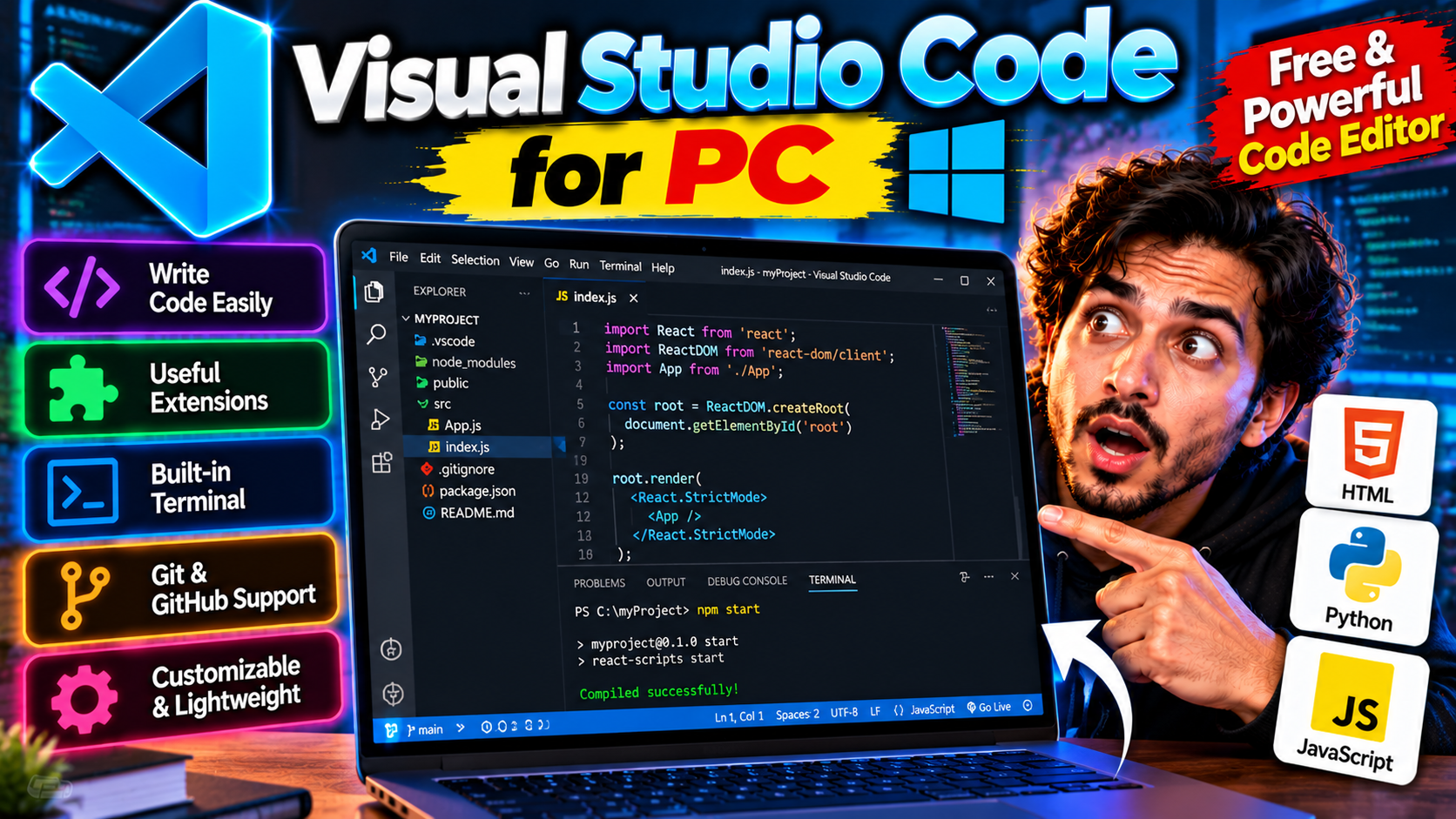
The code editor most developers actually use. Fast, free, and endlessly extendable with plugins for every language — Python, JavaScript, C++, you name it.
Key Features
- Extension marketplace covering every major language
- Built-in Git integration and terminal
- Smart code completion and debugging
- Handles large projects without slowing down
Best for developers who want one editor for everything — free from code.visualstudio.com.
What it does and why people use it
Visual Studio Code — VS Code for short — is a free code editor from Microsoft. It’s the tool most developers open first in the morning: you write code in it, run it, debug it, and manage your project files, all in one window. It sits in a sweet spot between a bare text editor and a heavy full IDE — light enough to open fast, powerful enough for real projects.
That balance is why it’s so widely used. Beginners aren’t overwhelmed, and professionals don’t outgrow it, because extensions can add whatever a particular language or workflow needs.
Key features explained in detail
Extension marketplace covering every major language. VS Code’s extension library adds support for languages, frameworks, themes, and tools. Working in Python, JavaScript, C++, or something else? There’s an extension for it, usually the official one, and installing it takes a click.
Built-in Git integration and terminal. You don’t need a separate tool for version control or the command line. VS Code tracks file changes, lets you commit from the sidebar, and opens a terminal right inside the editor, so your workflow stays in one place.
Smart code completion and debugging. As you type, VS Code suggests completions based on your code and language, catching typos and saving keystrokes. Its debugger lets you step through code, inspect values, and find problems without littering your code with print statements.
Handles large projects without slowing down. Big codebases with thousands of files can choke lighter editors, but VS Code is built to stay responsive on large projects. Open a whole project folder and it still feels quick.
How to download and install safely from the official site
Download VS Code only from the official code.visualstudio.com site, using the download link at the end of this article — the Download URL for this post points to code.visualstudio.com/Download. Pick the Windows installer, run it, and accept the defaults unless you have a reason to change them. Avoid repackaged downloads from third-party sites, which can bundle extras you didn’t ask for.
How to use the main features
Open a project folder rather than single files — that’s when VS Code’s navigation, search, and Git tools really pay off. Install the extension for your language first, then explore the sidebar: Explorer for files, Search for finding code across the project, Source Control for Git, and the terminal for running your program. Set breakpoints in the debugger when something misbehaves instead of guessing.
If you’re learning to code, Python for PC pairs naturally with VS Code, and for quick edits outside a project, Notepad++ for PC is the lighter option.
Tips for getting the most out of it
- Install only the extensions you actually use. A bloated extension list slows startup and clutters menus.
- Learn the keyboard shortcuts for the actions you repeat most — switching files, searching, and running code.
- Use the integrated terminal instead of a separate window; it keeps your focus in one place.
- Commit early and often with Git, so a bad experiment never costs you working code.
- Pick a theme and font size you’re comfortable reading for hours — small comfort tweaks add up.
- Keep one workspace per project instead of opening files from all over your drive.
Frequently asked questions
Is Visual Studio Code free? Yes, it’s free from code.visualstudio.com, as the original post notes.
Is it different from Visual Studio? Yes — VS Code is a lightweight editor, while Visual Studio is a much larger full IDE. Most day-to-day coding fits VS Code fine.
Does it work with Python? Yes, there’s an extension for Python and every other major language.
Can it handle big projects? Yes, it’s built to stay responsive on large projects.
Where do I download it safely? From the official code.visualstudio.com site, via the download link on this page.