
FileZilla for PC
What Is FileZilla?
Every website lives on a server, and at some point you’ll need to move files to it — upload a theme, download a backup, fix a broken plugin by hand. FileZilla, from the FileZilla Project, is the classic free FTP client for exactly that job. It’s been the web developer’s file-moving workhorse for twenty years, and it’s still the first tool most people install.
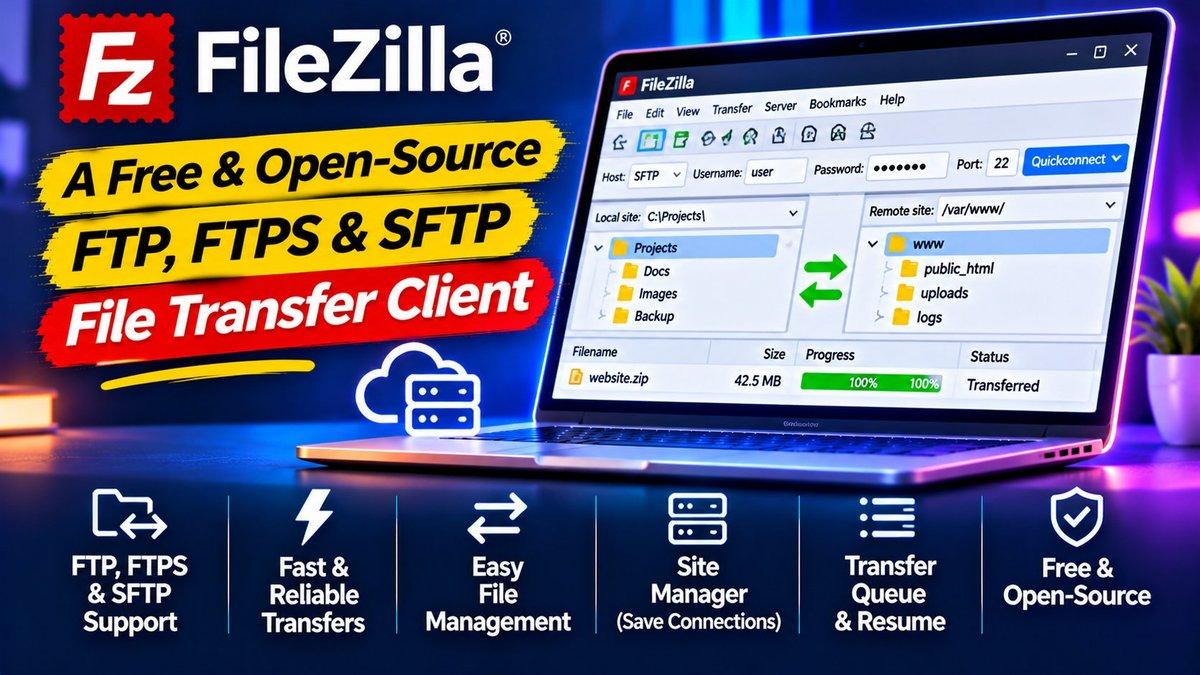
The interface is reassuringly simple: your computer on the left, the server on the right, drag files between them. Behind that simplicity sits support for modern, secure transfer protocols — so you’re not stuck with the insecure FTP of the 1990s unless you choose to be.
Key Features
Drag-and-drop transfers. The two-pane layout shows local files and remote files side by side. Drag a folder from left to right to upload it; right to left to download. Queued transfers run in the background while you keep working.
FTP, SFTP, and FTPS support. Plain FTP sends passwords unencrypted — fine for a local test server, dangerous on the internet. FileZilla supports SFTP (over SSH) and FTPS (FTP with encryption), so your credentials and files travel safely. Most hosts today expect SFTP; FileZilla handles it natively.
Site Manager. Save every server’s address, username, password, and protocol in one organized list. One click reconnects — no retyping credentials each session. If you manage multiple sites (or client sites), this alone justifies the install.
Transfer resume. Uploading a huge backup when the connection drops? FileZilla picks up where it left off instead of starting over. Anyone on an unreliable connection knows how much frustration this saves.
Directory comparison and synchronized browsing. Compare local and remote folders to spot which files differ, and keep both panes navigating in lockstep — genuinely useful when deploying site updates file by file.
Why FileZilla Stands Out
Newer tools come and go, but FileZilla endures because it does one job completely: moving files between computers reliably. It’s free, open-source, cross-platform, and protocol-complete. Web panels and deployment pipelines cover many workflows today, but the moment something breaks late at night and you need to hand-edit a file on the server, you’ll be glad FileZilla is installed.
One honest note: the installer from the official site sometimes bundles optional offers — read each screen and decline what you don’t want. The software itself is clean and trustworthy; just install attentively.
If you’re managing WordPress sites, pair FileZilla with our WordPress speed optimization guide — fast file access plus a fast site is a good combination. And when your workflow grows, our free AI tools roundup has helpers worth a look.
Is FileZilla Free?
Yes — FileZilla Client is completely free and open-source. There’s a paid Pro version that adds support for cloud storage protocols, but the standard client — everything described above — costs nothing. For typical website management over FTP/SFTP, the free version is all you’ll ever need.
Transfer Habits That Save You Headaches
A few habits separate smooth FileZilla users from those learning the hard way. First: always connect with SFTP when your host offers it (most do). It encrypts everything, and there’s rarely a reason to use plain FTP anymore. If your host only offers FTP, that’s worth a conversation with them.
Second: download before you edit. Before changing any file on the server, download a copy to your computer first. If your edit breaks something, you can re-upload the original in seconds. Professionals keep dated backup folders for exactly this reason — “backup-2026-11-04” has saved more websites than any plugin.
Third: watch the transfer type. FileZilla’s “Auto” mode usually gets it right, but text files (PHP, HTML, CSS) and binary files (images, ZIPs) transfer differently — a corrupted image after upload almost always means a wrong transfer mode. When in doubt, binary mode is the safe choice for anything that isn’t plain text.
And one more: the failed-transfers tab at the bottom deserves a glance after big uploads. A single missed file in a theme upload can white-screen a site; catching it in the queue beats debugging later.
How to Download FileZilla
Download the client (not the server) for Windows, Mac, or Linux from the official page. On first run, open Site Manager, add your host’s SFTP details — address, username, password, port 22 — and connect. Drag your files across, and you’re managing your site like a pro. Pro tip: bookmark the official download page, since copycat sites with shady installers exist.
Download: FileZilla (official link)