ChatGPT Audio Uploads: Send a Recording, Get a Transcript and Summary Back
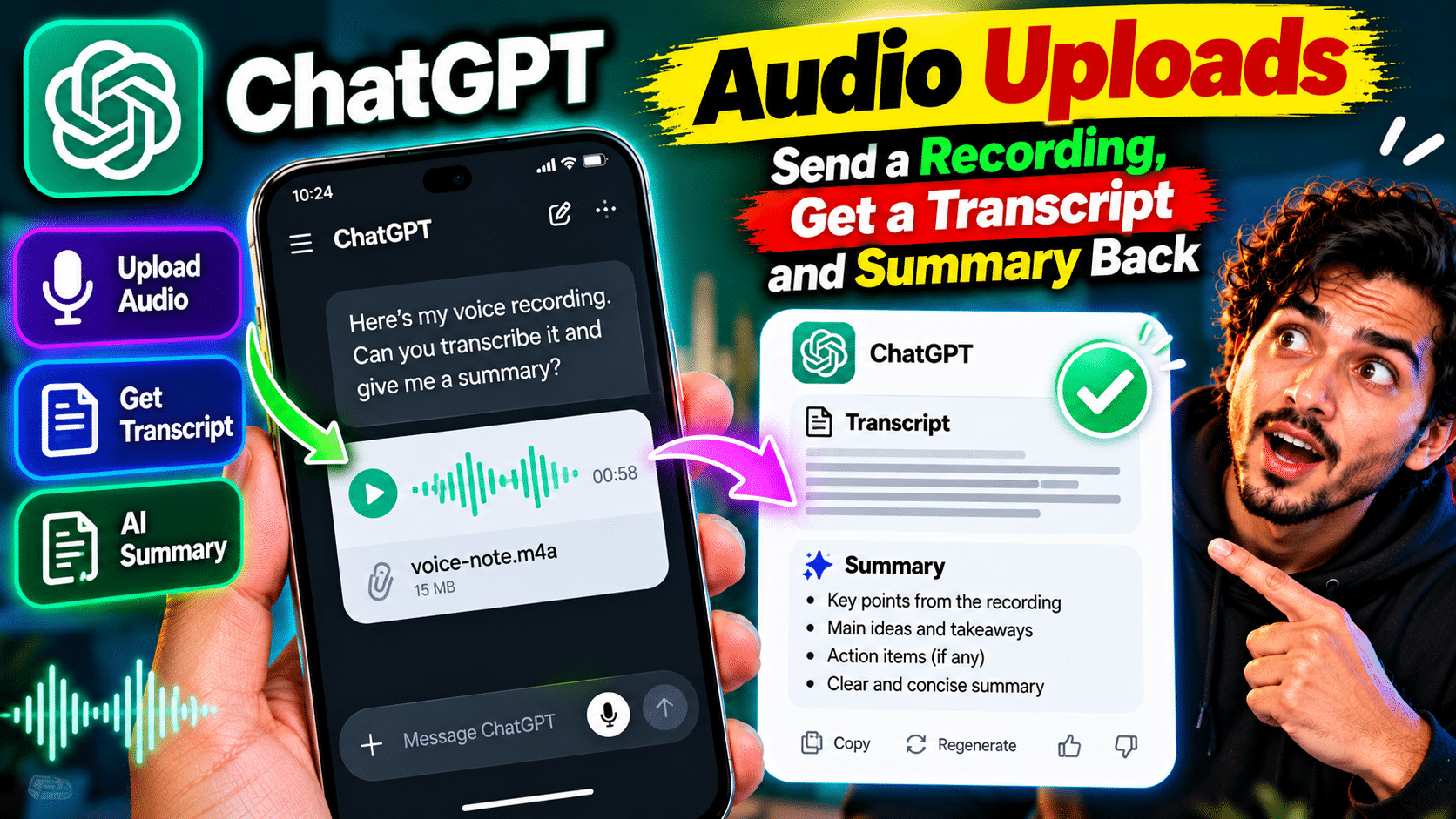
You have a recording of a meeting, a lecture, or an interview, and you do not want to listen to the whole thing again. Until recently, ChatGPT could not help with that directly — you could talk to it live, but you could not hand it a finished recording. That changed on 6 October 2026, when OpenAI added audio file uploads to ChatGPT. Now you can attach a recording to a chat and ask for a transcript, a summary, or answers about what was said. Here is how it works, who can use it, and where it falls short.
What you can do with it
Once a recording is uploaded, ChatGPT transcribes it and lets you work with the text. Practical uses:
- A meeting: get a transcript, a summary, and a list of action items with owners.
- A lecture or class: turn an hour of audio into study notes and key points.
- An interview: search the transcript for exact quotes instead of scrubbing through audio.
- A voice memo: turn spoken ideas into a written draft, an email, or a to-do list.
- Questions about the recording: ask “what was decided about the budget?” and get an answer from the transcript, not a guess.
The key change is that the recording becomes something you can question. A file sitting on your phone is dead storage. A transcript inside a chat is searchable, quotable, and reusable.
How to use it, step by step
- Open a ChatGPT conversation on a paid plan or workspace (see the limits below).
- Attach the audio file the same way you would attach any file to a chat.
- Wait for transcription. A five-minute recording typically takes under a minute, according to early reports.
- Ask for what you need: “transcribe this”, “summarise the decisions”, “list the action items”, or “draft a follow-up email from this call”.
- Check anything important against the original recording before you share it — more on why below.
That is the whole workflow. There is no separate app to install and no audio tool to learn. If you can attach a file to a chat, you can use this feature.
What it accepts
Supported formats include WAV, MP3/MPEG, OGG/OGA, PCM, FLAC, AAC, and M4A, plus audio-only WebM and MP4. That covers recordings from Zoom, Google Meet, Teams, voice memo apps, and most phones. One detail to watch: a WebM or MP4 file that is detected as video is not accepted as audio, so export an audio-only file if your recording app gives you the choice.
Files can be up to 512MB, which is generous — most hour-long voice recordings are far smaller. But very long recordings may time out, and processing for long files is best-effort, sometimes handled in chunks. For a two-hour meeting, splitting it into shorter parts will give you more reliable results than one giant upload.
Who can use it — and who cannot
Audio uploads are available on paid ChatGPT subscriptions and workspaces: Plus, Pro, Team, Business, Enterprise, and Edu. The Free plan does not get it. OpenAI also notes that availability can depend on your workspace, region, client, and model, so if the attachment option is missing, check your account and workspace before assuming the feature is broken.
That paid-only line is the main frustration. The people who would benefit most — students and job seekers on free plans — are exactly the people left out. If you are on a free plan, the alternatives are the speech-to-text tools built into your phone, or the developer speech-to-text API, which needs some setup and has its own billing.
How it differs from Voice, Record, and the API
OpenAI now has several audio paths, and they solve different problems:
- Audio file upload: you already have a finished recording and want a transcript and analysis. This is the simplest path.
- Voice: a live spoken conversation with ChatGPT. Great for brainstorming, not designed as a verbatim meeting record.
- ChatGPT Record: captures a meeting as it happens in the macOS desktop app, with notes and action items when you stop. It needs the desktop app and a supported plan.
- Speech-to-Text API: for developers building transcription into their own apps, with API billing and a file-processing design to build.
Pick the upload path when the recording already exists. Pick Record when the meeting has not happened yet. Pick Voice when you want to talk, not transcribe.
Where it falls short — check before you share
Two warnings from OpenAI and early users, and both matter. First, transcripts can contain errors. Names, numbers, dates, decisions, and quotations are exactly the details most likely to be misheard, so verify them against the original recording before you put them in meeting notes or a follow-up email. Second, speaker labels can be wrong — the transcript may credit the wrong person with a statement, which is a real problem if you are assigning action items.
Reports also say OpenAI deletes the audio once transcription is done, and only the text stays in chat history. That is good for privacy, but it means the original recording on your own device is still your only authoritative copy. Keep it until the notes are final.
Privacy: ask before you record
A quick word on consent, because this feature makes it easy to forget. Recording a conversation without telling the other people in it can break trust and, in some places, break the law. Tell people you are recording, say what the recording is for, and share the notes back with them. The feature is powerful precisely because it turns private speech into searchable text — and that power deserves a clear heads-up to everyone involved.
Used well, audio uploads remove one of the most boring jobs in knowledge work: replaying a meeting to write it up. Upload the recording, get the transcript, pull out the decisions, and move on to the work itself. Just remember the rule that applies to every AI tool: the output is a draft, not a record. Check it, then share it.