How to Set Up a New Android Phone: 12 Things to Do First
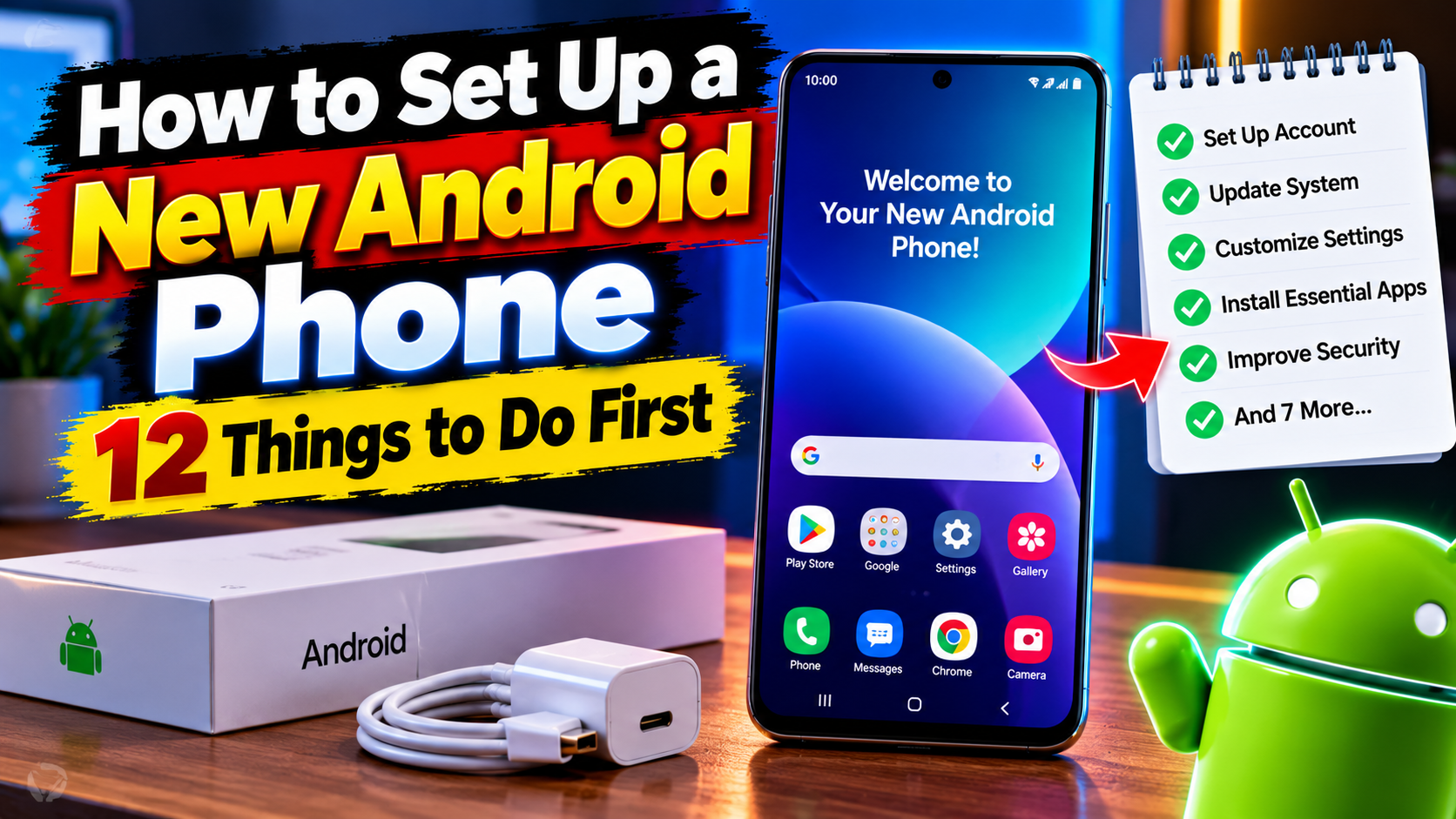
Unboxing a new Android phone is exciting — until you realize you have to set the whole thing up. Skip the right steps now and you’ll be fighting with it for months. Do them right, and your phone will feel like it was made for you from day one. Here’s how to set up a new Android phone properly, in the order I’d do it.
1. Connect to Wi-Fi and Sign In to Google
Do this before anything else. Connect to Wi-Fi (not mobile data — you’ll be downloading a lot), then sign in with your Google account. This unlocks the Play Store, Gmail, Google Photos backup, and — most importantly — the option to restore from your old phone.
2. Transfer Your Data From the Old Phone
During setup, Android offers to copy apps, photos, messages, and settings from your old device via cable or Wi-Fi. Take the offer — it’s the fastest path. If you skipped it, go to Settings → System → Backup on the old phone first, then use Google’s data transfer tool. Double-check that WhatsApp chats transferred too (WhatsApp → Settings → Chats → Chat backup).
3. Update Everything Immediately
Your phone probably shipped with months-old software. Go to Settings → System → Software update and install everything. Then open the Play Store → profile → Manage apps → Update all. Starting fresh on the latest software avoids weird bugs later.
4. Set Up a Strong Screen Lock
A 4-digit PIN isn’t enough in 2026. Go to Settings → Security → Screen lock and use a strong PIN (6+ digits), password, or pattern — plus fingerprint and face unlock for convenience. Then enable Find My Device so you can locate, lock, or wipe the phone if it’s lost.
5. Review App Permissions
During setup, apps ask for permissions in a rush and most people tap “Allow” blindly. Go to Settings → Privacy → Permission manager and review location, camera, and microphone access. Revoke anything that doesn’t make sense — a calculator app doesn’t need your location.
6. Turn On Automatic Backups
Go to Settings → System → Backup and make sure Backup by Google One is on. Also open Google Photos and confirm backup is enabled. Future-you will be grateful the day something goes wrong.
7. Customize Your Home Screen
Remove the bloatware widgets, arrange your most-used apps on the first screen, and set up folders. Long-press the wallpaper for customization options. A clean home screen genuinely makes the phone feel faster to use.
8. Set Up Digital Wellbeing (Optional but Smart)
Under Settings → Digital Wellbeing, you can set app timers and a bedtime mode. Even if you don’t think you need it, seeing your screen-time breakdown for a week is eye-opening.
9. Install Your Essential Apps
Don’t reinstall everything at once — start with the essentials: messaging, banking, email, and your most-used tools. Need ideas? Our Android apps section has curated picks.
10. Configure Notifications
Go to Settings → Notifications and silence the noisy ones now, before they train you to ignore everything. Turn off promotional notifications from shopping and food apps on day one.
11. Test the Camera and Biometrics
Take a few test photos in different lighting, re-register your fingerprint (do it twice for accuracy), and make a test call to check the earpiece and microphone. Catching hardware issues in the return window beats discovering them in month three.
12. Enable Theft Protection Features
Newer Android versions include theft detection lock and offline device lock under Settings → Security. Turn them on — they can lock your phone automatically if someone snatches it.
You’re All Set
That’s how to set up a new Android phone the right way. It takes about 30 minutes, and you’ll never have to redo it. For more step-by-step guides, explore our tutorials section.