
How to Fix Slow Wi-Fi: 10 Proven Ways to Speed Up Your Internet
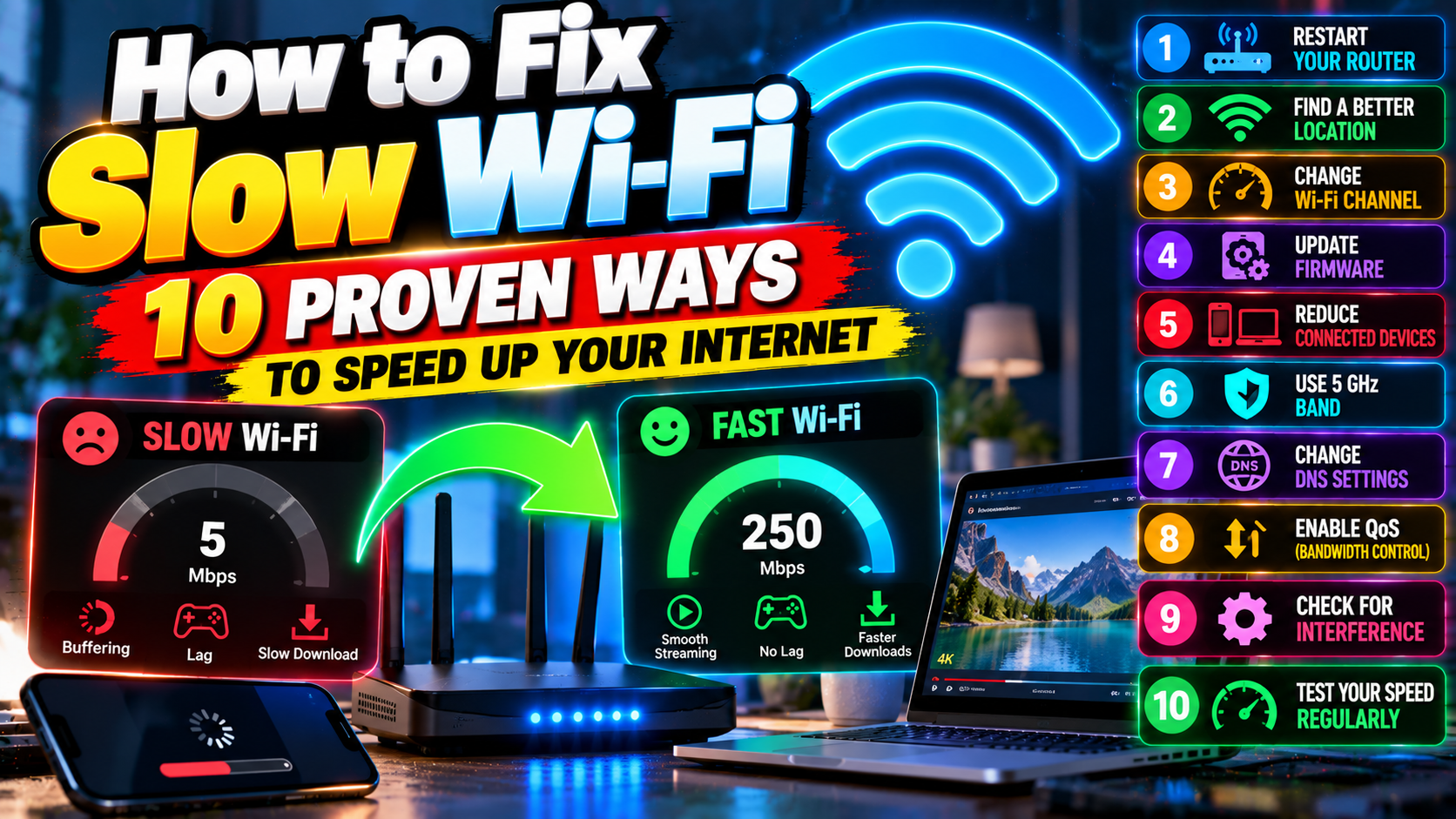
Your internet plan promises 50 Mbps. Your phone shows two bars and a loading spinner. Before you ring up your ISP to complain — or pay for a faster plan you might not even need — work through this list. From experience, I’d say 8 out of 10 “slow internet” problems are actually Wi-Fi problems. And Wi-Fi problems are usually free to fix. These 10 fixes run from the 30-second checks to the deeper optimizations, in order. Most people find their culprit by number five.
Fix 1: Test Properly First (Know Your Real Speed)
Don’t troubleshoot vibes. Measure. Open Speedtest by Ookla and run three tests: (a) standing right next to the router, (b) in your usual spot, (c) on a wired connection if you can (Ethernet cable into a laptop). Write all three numbers down. Those three numbers tell you almost everything: fast wired but slow Wi-Fi means it’s a Wi-Fi problem (fixes 2–8). Slow wired too means it’s your ISP or your plan (fixes 9–10). Fast next to the router but dead in your room means it’s a coverage problem (fixes 3–4). Diagnose first, always. It’ll save you hours of guessing.
Fix 2: Restart Your Router (Yes, Really)
Pull the router’s power cable. Count to 30 — full seconds, don’t rush it. Plug it back in and give it 2–3 minutes to fully reconnect. I know, I know, this is the cliché tech-support answer. But routers are tiny computers that run for months without ever rebooting, collecting memory leaks, stuck processes, and stale connections the whole time. A restart clears the lot. And if you notice your speed quietly degrading over days and a restart keeps fixing it? Get a cheap timer plug (around $15) that reboots your router automatically at 4 AM every night. Laziest effective fix in all of networking.
Fix 3: Move Your Router (Location Is Everything)
Wi-Fi is radio, and radio waves hate obstacles. The ideal router spot: central in your home, up high (on a shelf beats the floor), out in the open (not locked inside a cabinet), and away from thick walls, mirrors, big metal objects, microwaves, and cordless phones — all of which mess with the signal. The classic mistake? The router shoved in the corner of the living room just because that’s where the cable comes in, while the bedrooms get table scraps. Sometimes moving it two meters toward the center of the house transforms everything. Antennas: if yours are external, point one straight up and one sideways. Your devices use both orientations, so cover both.
Fix 4: Switch Wi-Fi Bands (2.4GHz vs 5GHz)
Your router is probably broadcasting two networks: 2.4GHz (slower, but reaches far and punches through walls) and 5GHz (much faster, but shorter range). A huge share of “slow Wi-Fi” complaints come down to being stuck on the wrong one — clinging to 2.4GHz when you’re close enough for 5GHz speed, or hanging onto a faint 5GHz signal from two rooms away. In your Wi-Fi settings they might show as separate networks (“HomeWiFi” and “HomeWiFi_5G”): use 5G near the router, 2.4 when you’re far. Some routers do “band steering” — one network name, and the router picks for you. In theory, great. In practice, it picks badly half the time. Splitting them into two names and choosing manually usually works better.
Fix 5: Change the Wi-Fi Channel (Dodge Your Neighbors)
Living in an apartment? Then your router is shouting over a dozen neighboring routers on the same channels — like twenty people trying to talk in one small room. Log into your router (usually 192.168.1.1 or 192.168.0.1 in a browser; the login details are on the sticker underneath), find the wireless settings, and change the channel. On 2.4GHz, stick to channels 1, 6, or 11 — the only three that don’t overlap. On 5GHz you’ve got more room, so pick any quiet one. Grab a free Wi-Fi analyzer app on your phone to see which channels your neighbors are hogging, then take the emptiest one. I can’t overstate this: in apartment buildings, this single change has rescued more Wi-Fi connections than anything else I know.
Fix 6: Update Router Firmware
Router makers release firmware updates that fix bugs, patch security holes, and sometimes even improve performance — and almost nobody installs them. Poke around your router’s admin panel for a firmware update section, or check the manufacturer’s website for your exact model. While you’re there, do an honest age check: if your router is 6+ years old and still on 802.11n (Wi-Fi 4), no settings tweak in the world will make it fast. The hardware itself is the ceiling. A modern Wi-Fi 6 router ($60–$100) can double or triple real-world speeds over ancient hardware. But try every free fix first — don’t spend money until you’ve earned the right to.
Fix 7: Kick Off Bandwidth Hogs
Sometimes one device is strangling the whole network: a cloud backup uploading, a torrent client seeding away, a smart TV auto-updating, a family member streaming in 4K. Your router’s admin panel usually shows connected devices and their usage — the culprit tends to be obvious. Practical fixes: pause cloud backups during the day and schedule them for 2–6 AM instead. Turn on QoS (Quality of Service) in your router settings to prioritize video calls and gaming over background downloads. Set bandwidth caps on known hogs. And check your own devices too — Google Photos, OneDrive, or Dropbox syncing in the background can completely saturate a slower connection without you ever noticing.
Fix 8: Change Your DNS (The Free Speed Boost)
DNS is the internet’s phonebook — every website you visit starts with a DNS lookup, and your ISP’s default DNS is often sluggish. Switching to a fast public DNS — Google’s 8.8.8.8 and 8.8.4.4, or Cloudflare’s 1.1.1.1 — can make browsing feel noticeably snappier, because pages start loading sooner. Change it on the router and every device benefits, or change it per device: Windows (Network settings → adapter properties → IPv4), Android (long-press the Wi-Fi network → Modify → Advanced → set IP to Static → enter DNS). It won’t raise your Mbps number. But it cuts the delay before every page loads — and that delay is what “feels slow” half the time. Free, safe, reversible, two minutes of work.
Fix 9: Secure Your Network (Stop the Freeloaders)
Awkward possibility: someone else might be using your internet. On an open or weakly secured network, a neighbor could be streaming movies on your bandwidth right now. In your router settings, use WPA3 — or WPA2-AES at minimum. Never WEP; it’s trivially crackable. Set a strong password, then check the connected-devices list for anything you don’t recognize. Spot a stranger? Change the Wi-Fi password immediately. Every legitimate device reconnects with the new one; the freeloader gets locked out. While you’re in there: disable WPS (the push-button connect feature has known security flaws) and change the router’s admin password away from the default. You’d be surprised how many “slow internet” mysteries turn out to be someone else’s Netflix.
Fix 10: Call Your ISP (Armed With Data)
If even the wired tests are slow, it’s genuinely your ISP’s problem — time to call, but call prepared. Have your speed test results ready (wired, at different times of day), your account details handy, and one clear sentence: “I’m paying for 50 Mbps and getting 12 on a wired connection.” Ask them to check your line and reset the connection from their end. If speeds stay far below what’s promised, ask about plan provisioning issues, area outages, or line faults. Know your rights, too: in many regions ISPs are required to deliver a reasonable percentage of advertised speeds, and persistent failure is grounds for a complaint to the telecom regulator. Document everything — dates, speeds, who you spoke to. And for Windows-side network troubleshooting steps, Microsoft Support has solid official guides.
When to Just Upgrade
Let’s be honest about the endpoint here. If you’ve worked through all ten fixes and speeds are still bad, the answer might just be money: a faster plan (though if your ISP underdelivers, switch ISPs — don’t just buy a bigger plan from the same one), a modern router (Wi-Fi 6 minimum in 2026), or a mesh system for larger homes (multiple units working together, $150–$250 — the real fix for big-house dead zones). But most people never reach this point. The free fixes solve it. Work the list in order, measure as you go, and enjoy the speed you’re already paying for. More connectivity guides live in our Tutorials section — and Tech News for everything else.
Related Reading
Keep exploring: Mobile News 2026: Latest smartphones, Foldable, AI & 5G Updates, Bitdefender Antivirus Free for PC, and Windows 11 26H2 Is Here: What’s New and Should You Install It?.