
15 Hidden Android Settings You Should Change Right Now
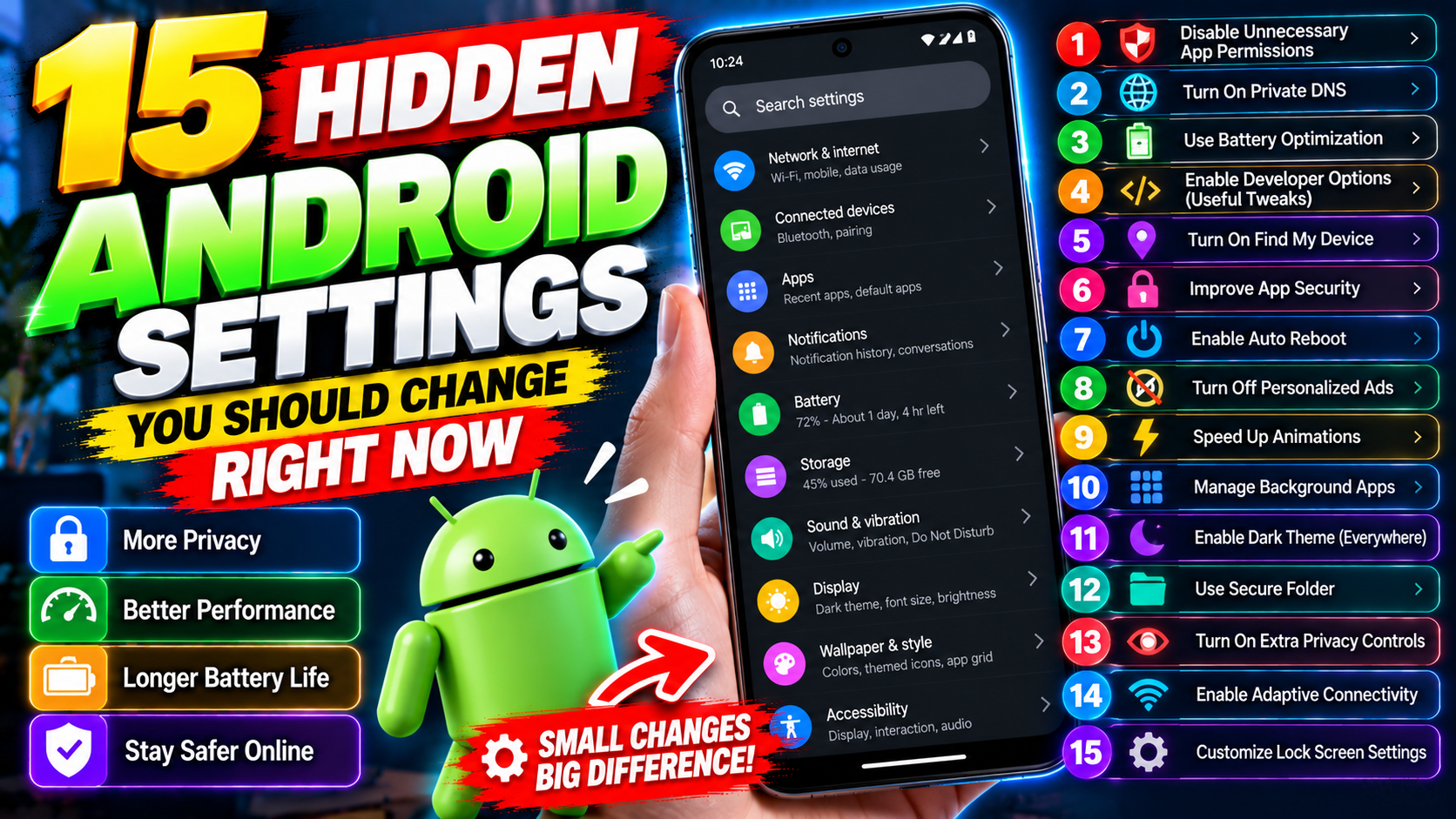
Your Android phone is keeping secrets. Not in a sinister way — the good stuff is just buried three menus deep, behind toggles with names like “Device personalization services” that nobody in their right mind would tap. I’ve poked through the settings on more phones than I can count, and it’s always the same story: the switches that make the biggest difference to speed, battery, and privacy are the ones nobody ever opens. So here are 15 of them. Most take under a minute. Your phone will thank you — silently, because phones can’t talk. Yet.
1. Turn On Developer Options (The Master Key)
Nearly everything below starts here, so let’s get it out of the way. Head to Settings → About phone and tap “Build number” seven times. Done — your phone now considers you a developer. This adds a new Developer Options menu under Settings → System, packed with advanced toggles. Browsing is harmless; just don’t flip switches you don’t understand. A few of the best tweaks on this list live in there, and this master switch is what opens the door.
2. Speed Up Animations (Instant Snappiness)
Inside Developer Options, hunt down three entries: “Window animation scale,” “Transition animation scale,” and “Animator duration scale.” They all sit at 1x by default. Knock each one down to 0.5x. Overnight, your phone will feel dramatically faster — every app open, every screen transition, every menu now plays at double speed. Fair warning: this doesn’t change benchmark scores. It changes how the phone feels in your hand, which is the part you actually live with. If 0.5x feels too twitchy, bad news — there’s no 0.75x. Give it a day. You won’t go back.
3. Limit Background Processes
One more from Developer Options: “Background process limit,” sitting at Standard by default. Got an older phone or one with 4GB of RAM or less? Try “At most 4 processes.” This stops apps you opened six hours ago from squatting in memory. The downside is real but small — apps reload a bit more often when you switch back to them. On a low-RAM phone, though, this one change can end the dark age of your keyboard freezing mid-sentence. Running 8GB or more? Leave it on Standard. You don’t need it.
4. Enable ‘Find My Device’ (Before You Need It)
Settings → Security → Find My Device. Switch it on right now, while the phone is sitting safely in your hand — not later, from a taxi, in a panic. It lets you locate, lock, or wipe the phone from any browser. While you’re in there, double-check that location services are on, because Find My Device can’t find a phone that’s hiding its location. Thirty seconds of setup. It’s the cheapest insurance you’ll ever buy for this device. If you want the full official walkthrough, it’s on Google’s Android Help pages.
5. Turn Off ‘Usage and Diagnostics’ (Privacy Win)
Go to Settings → Google → three-dot menu → Usage & diagnostics. This quietly sends Google data about how you use your phone, supposedly to improve Android. Flip it off and nothing about your experience changes — except less of your behavior gets shipped off in the background. Small privacy win, zero cost. And while you’re in a privacy mood, swing by Settings → Privacy → Permission manager and take location away from apps that have no business knowing where you are. You know the ones. (Flashlight apps. Looking at you.)
6. Enable Data Saver (Stretch Your Mobile Data)
Settings → Network & internet → Data Saver. This chokes off background data for most apps, and your mobile data suddenly lasts a lot longer. The app you’re actively using works fine — it’s the sneaky background syncing that gets throttled. On a limited data plan (which is most of us in Pakistan), this one’s close to essential. Here’s the part people miss: you can whitelist specific apps to bypass Data Saver. Keep WhatsApp instant, let everything else wait. Best of both worlds.
7. Schedule Dark Mode (Battery + Eyes)
Settings → Display → Dark theme → Schedule. Set it to kick in automatically at sunset. On OLED or AMOLED screens — which most mid-range phones and flagships have now — dark mode genuinely saves battery, because black pixels are literally switched off. Even on LCD panels, it’s kinder on your eyes after dark. The scheduling part is what makes it stick. Toggling it manually every evening is a chore you’ll quit within a week. Automatic is a habit you never have to think about.
8. Turn On ‘Screen Attention’ / ‘Keep Screen On While Viewing’
Pixels call it Screen Attention; Samsung calls it “Keep screen on while viewing.” Same idea: the front camera notices you’re looking at the phone and stops the screen from dimming mid-read. You’ll find it under Settings → Display. This kills one of the most irritating phone behaviors in existence — the display going dark while you’re halfway through a long article. The camera processing happens on-device, so there’s no extra privacy trade-off beyond what the phone already does.
9. Customize Your Quick Settings Tiles
Here’s one almost nobody touches. Swipe down twice from the top to open the full Quick Settings panel, then tap the little pencil icon. You can add, remove, and rearrange tiles however you like — yet most people live with whatever the manufacturer chose. Add the ones you actually reach for: Screen recorder, Focus mode, Data Saver, Dark theme. Delete the ones gathering dust. This panel is your phone’s control center. Arrange it like you own the place, because — news flash — you do.
10. Enable ‘Notification History’ (Never Miss an Alert Again)
Settings → Notifications → Notification history. Turn it on and forget about it — until the day you need it. From now on, every notification your phone shows gets logged for 24 hours. Including the one you swiped away by accident while half asleep. We’ve all done it: dismissed something important, then spent ten minutes trying to remember what it said. This is the undo button for that exact moment. Criminally underused.
11. Restrict Battery for Greedy Apps
Open Settings → Battery → Battery usage and look at the offenders. There’s always one app in there that surprises you. Tap it → Battery usage → set it to “Restricted.” That stops it from running wild in the background. Go through your top battery drainers and restrict every one that doesn’t need real-time background activity — social media apps are the usual suspects here. Honestly, your standby time can improve by hours from this alone. Want the official rundown? It’s on Android’s battery features page.
12. Turn On ‘Auto-Rotate’ Alternatives: Rotation Suggestion
Auto-rotate is a love-hate thing. It flips at the worst moments, but being locked in portrait is its own misery. There’s a middle path most people never find: turn auto-rotate OFF, and Android starts showing a small rotation suggestion button whenever you tilt the phone. Tap it only when you actually want to rotate. Control without the chaos. It’s under Settings → Display → Auto-rotate screen (off) — the suggestion button just appears on its own after that.
13. Enable ‘One-Handed Mode’
Phones keep getting bigger. Hands, stubbornly, do not. Go to Settings → System → Gestures → One-handed mode. Once it’s on, a swipe down on the bottom edge shrinks the whole screen to thumb range. If you’re using a 6.7-inch phone with normal-sized hands, this isn’t a nice-to-have — it’s the difference between comfortable use and a daily thumb workout. Pair it with a smaller display size (Settings → Display → Display size) and big phones become genuinely manageable one-handed.
14. Set Up ‘Do Not Disturb’ Schedules
Settings → Sound → Do Not Disturb → Schedules. Set one for sleep — say 11 PM to 7 AM — and maybe one for work hours. Now the part everyone skips: the exceptions. Under “People,” allow starred contacts and repeat callers (someone ringing twice in 15 minutes is usually an emergency) to break through. Do Not Disturb with no exceptions is how you sleep through something urgent. With exceptions, it’s how you sleep through everything else. Set it once, benefit every night.
15. Clear Cached Data the Smart Way (Storage)
Storage full? Before you start deleting photos, check Settings → Storage and see what’s actually eating the space. More often than not, it’s cached data — Chrome, Facebook, TikTok sitting on gigabytes of temp files. Drill into the worst offenders via Settings → Apps → [app] → Storage → Clear cache. Note: cache, NOT data. Clearing data wipes your logins and settings; clearing cache just dumps the temp files. It’s safe, instant, and can free up gigabytes in minutes. Do it monthly and the “Storage full” warning basically disappears from your life.
The 10-Minute Tune-Up
So here’s what I’d do: set a timer for ten minutes and run through this list right now. Developer Options plus animation speed (2 min), the privacy toggles (2 min), battery restrictions (3 min), convenience settings (3 min). Ten minutes of fiddling for a phone that feels faster, lasts longer, guards your privacy better, and annoys you less. Best return on investment in all of tech — and it didn’t cost you a rupee. Want more? Our Tutorials section has plenty, and these essential Android apps pair nicely with a freshly tuned phone.
Related Reading
Keep exploring: 10 Hidden Android Settings That Make Your Phone Feel Brand New, How to Change Default Apps on Android, and How to Stop Apps From Draining Your Android Battery.