How to Stop Apps From Draining Your Android Battery
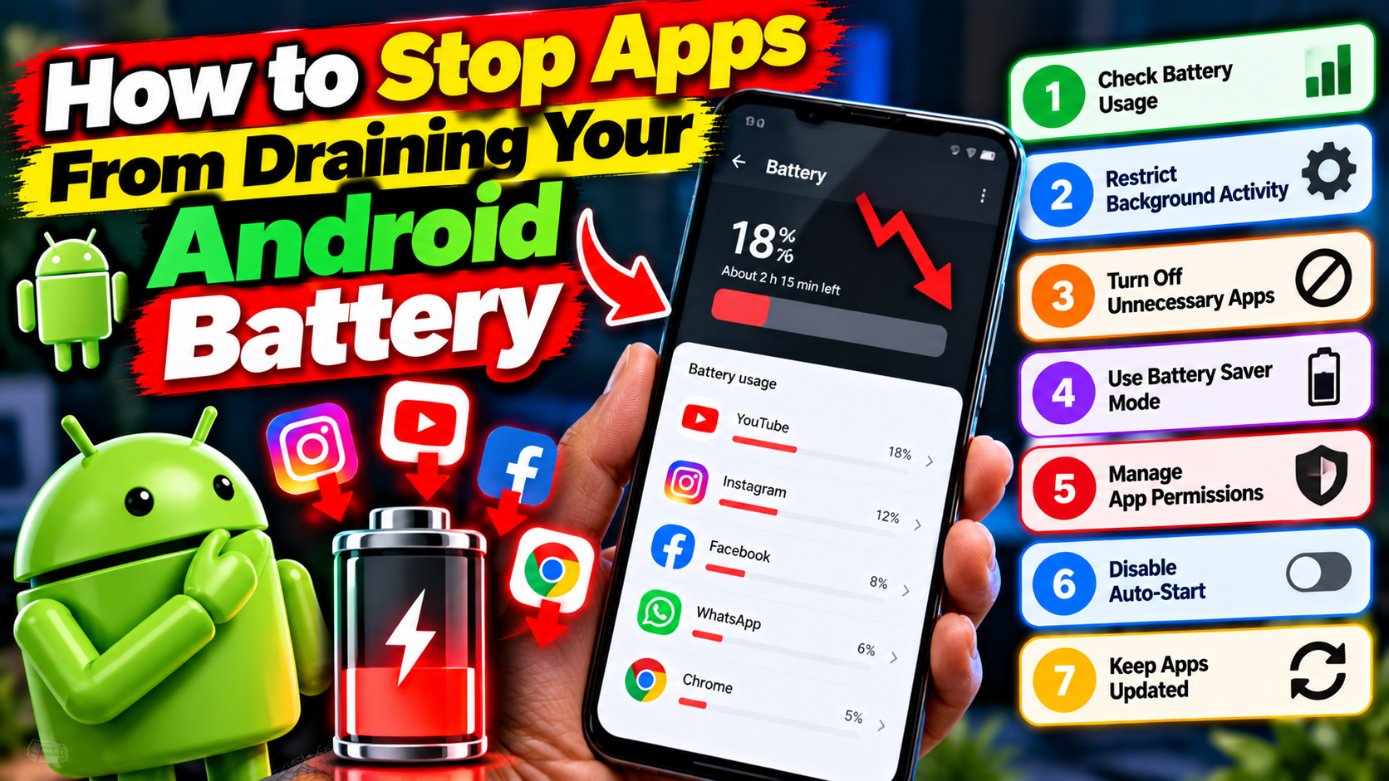
If your phone barely survives the afternoon, here’s some good news and bad news. Bad news first: it’s probably not your battery’s fault. Good news: that means you can fix it today, for free, without buying anything. Rogue apps — not old batteries — cause most Android battery drain. Let’s hunt them down.
Step 1: Find the Culprits
Go to Settings → Battery → Battery usage. This shows exactly which apps ate your battery since the last charge. Look for surprises — a shopping app at 18%? A game you haven’t opened in days sitting at 12% background? Those are your targets. The screen itself will always sit near the top; that’s normal. It’s the apps below it that tell the real story.
Step 2: Restrict Background Activity
Tap the offending app in the battery usage list, then set its battery usage to Restricted. That stops it from running in the background whenever it feels like it. Be aggressive with shopping apps, food delivery apps, and social apps you open manually anyway. Keep messaging, email, and alarm apps unrestricted — you actually want those alive and listening. Google’s battery guide explains each restriction level if you want the details.
Step 3: Kill the Real Battery Vampires
Beyond individual apps, these system-level drains add up fast:
Location set to “Always”: Settings → Location → App permissions. Switch everything you can from “Allow all the time” to “Only while using.” Very few apps genuinely need your location around the clock.
5G when you don’t need it: Mostly on Wi-Fi anyway? Switching your preferred network to 4G/LTE in Settings → Network can noticeably extend battery life. 5G modems are thirstier, and on Wi-Fi you won’t miss the speed at all.
High refresh rate everywhere: That 120Hz screen is lovely — and expensive, battery-wise. Some phones let you set per-app refresh rates. Otherwise, consider 60Hz if you’re desperate for extra hours.
Always-on display: Pretty, and a constant slow drain. “Tap to show” gives you the same glanceable info without the 24/7 cost.
Step 4: Turn On Adaptive Battery (If It’s Off)
Settings → Battery → Adaptive Battery. This uses on-device intelligence to learn which apps you actually use and throttle the rest. Fair warning: it takes a week or two to learn your patterns, so don’t judge it on day one. Samsung users get similar benefits from the device care battery settings — Samsung’s battery guide covers their specific options.
When It Really Is the Battery
Sometimes the battery genuinely is dying, and no setting will save it. The signs: the phone shuts off at 20%, it gets hot doing nothing, or battery health (Settings → Battery → Battery health on newer phones) shows under 80% capacity. No software tweak fixes chemistry — at that point it’s a battery replacement, not a settings problem.
But for most people, twenty minutes with the steps above buys hours of extra screen time. Start with battery usage, restrict the vampires, and enjoy your phone lasting until bedtime again. More phone-saving tips live in our Android section and tutorials.
The 5-Minute Battery Audit (Do This Monthly)
Here’s the thing about battery drain: it creeps back. Apps update, settings reset, new installs misbehave. So once a month, spend five minutes: check Settings → Battery → Battery usage for new surprises, re-restrict anything that crept back to unrestricted, and glance at location permissions for recently installed apps. First Sunday of the month, with coffee — it takes less time than reading this section did. One more thing worth knowing: extreme heat is a battery’s worst enemy. Don’t leave your phone on a car dashboard in summer, and if it gets hot while charging, take the case off. Heat degrades battery chemistry permanently, while every software tweak in this article is reversible. Treat the hardware kindly and the software smartly, and your battery will outlast your interest in the phone.
Related Reading
Keep exploring: Phone Not Charging Fix: How to Fix a Phone That Won’t Charge in 7 Steps, 10 Hidden Android Settings That Make Your Phone Feel Brand New, and How to Change Default Apps on Android.