How to Edit TikTok Videos Like a Pro
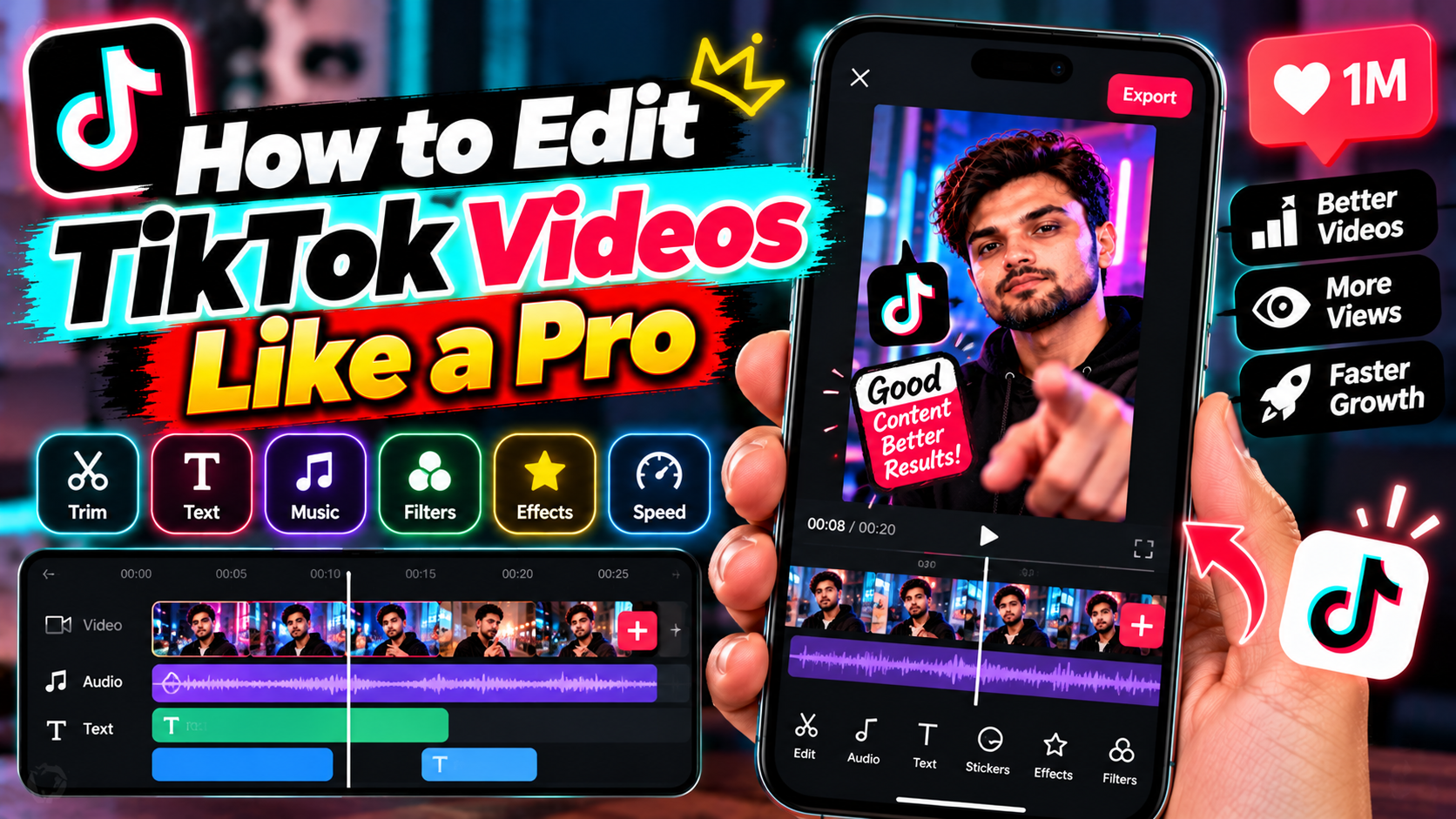
You don’t need Premiere or a laptop to edit TikTok videos that look sharp. TikTok’s built-in editor is genuinely capable — trimming, text, transitions, sounds, captions, the lot. Most people just never learn where everything lives. This guide walks through the whole thing, step by step, so your next upload looks like someone who knows what they’re doing made it.
Before You Edit TikTok Videos: Shoot Smart
Editing can’t rescue bad footage. Well — it can hide a lot, but let’s not test it. Film in good light (a window beats any ring light), keep the phone steady, and record a little extra at the start and end of each clip. That padding gives you room to trim cleanly instead of cutting mid-gesture.
Vertical, obviously. 9:16. If you film horizontally and crop later, you’re throwing away resolution for no reason.
Trim and Split Your Clips
This is where most edits live or die. After uploading or recording clips, tap Edit to open the timeline editor. Then:
- Tap a clip in the timeline to select it.
- Drag the handles at either end to trim the start and finish.
- To cut one clip into two, move the playhead where you want the cut and tap Split.
- Delete dead air ruthlessly. If nothing’s happening for more than a second, cut it.
- Drag clips left or right to reorder them.
Tight pacing is the whole game on TikTok. When in doubt, cut more.
Add Text Overlays People Actually Read
Tap Text, type, and pick a style. Then — the part everyone misses — tap the text layer and choose Set duration to control exactly when it appears and disappears. Timed text that pops in sync with what you’re saying looks ten times more professional than one caption sitting there the whole video.
- Add your text and style it (keep it to a few words per overlay).
- Tap the text in the timeline, then Set duration.
- Drag the layer’s edges to match the moment it should appear.
- Repeat for each beat of the video.
Keep fonts readable — fancy scripts look cool in thumbnails and terrible at phone size.
Transitions That Don’t Look Cheap
In the timeline editor, tap the small icon between two clips to add a transition — TikTok offers wipes, blurs, zooms, and more. A subtle zoom or whip-pan between related clips looks clean. The trap? Stacking five different transitions in one video. Pick one style per video and stick with it.
Honestly, the best transition is often a hard cut timed to a beat drop. Free, and it never looks dated.
Sounds, Music, and Voiceovers
Tap Add sound at the top to browse TikTok’s library — trending tracks, original sounds, the works. After adding, tap the sound layer to trim it or adjust the volume against your original audio. If you’re talking over music, drop the music low enough that your voice stays clear.
Recording a voiceover? Look for the voiceover option in the editing panel, scrub to the right spot, and record while the video plays. Great for narrating screen recordings or explaining as the action unfolds.
Turn On Auto Captions
Plenty of people scroll with sound off. Tap Captions in the side panel and TikTok generates subtitles automatically — then pick a caption style that stays readable. Always skim through and fix misheard words before posting. Auto captions are good, not perfect, and a wrong word in your hook is embarrassing.
A Faster Workflow to Edit TikTok Videos
Once you know the tools, speed comes from order of operations. Try this sequence:
- Trim and arrange all clips first — get the story right.
- Add and balance your sound.
- Drop in timed text overlays.
- Add one transition style where needed.
- Generate captions and proofread them.
- Watch the whole thing twice. Then post.
That last step matters more than people think. Fresh eyes catch the awkward cut your tired brain missed. TikTok’s help center documents these editing tools if you ever get stuck on a specific button — and tiktok.com is worth a browse for what’s trending. For more editing walkthroughs beyond the app, check our tutorials and how-to guides.
Related Reading
Keep exploring: How to Use Instagram Reels to Grow in 2026, CapCut Desktop Review: The Free Video Editor That Embarrasses Paid Apps, and Best Free Video Editors for Windows (No Watermark).