Chrome’s New Gemini Autofill Uses Your Gmail Details: How to Stay in Control
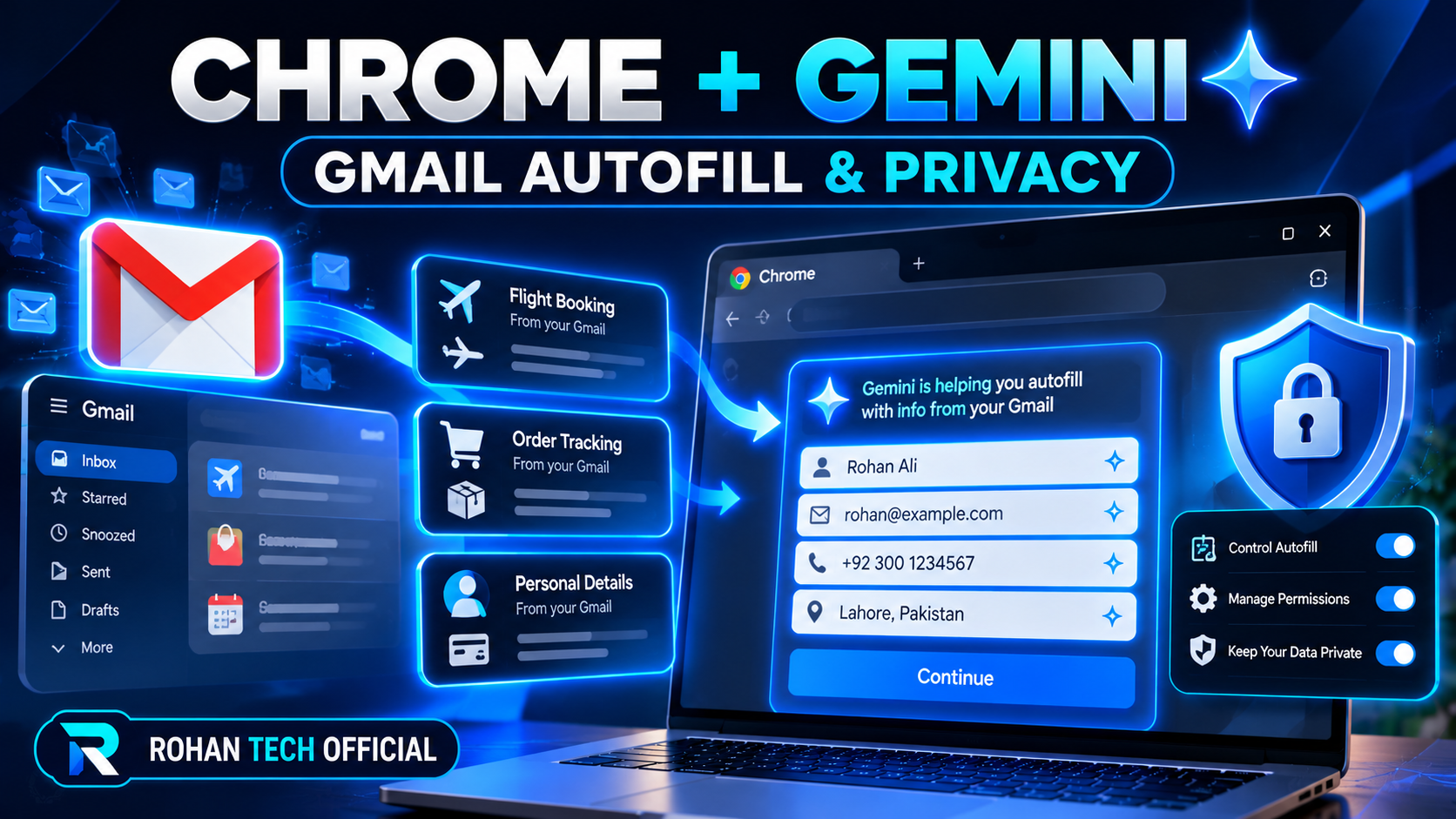
At its Android Developer Summit, Google showed a new Chrome feature: AI-powered autofill that can use details from your Gmail to help fill out online forms faster. It is a convenience feature with a privacy question attached, so it is worth understanding before it reaches your browser.
What the feature does
The idea is that Chrome stops asking you to retype details it could already find. If a form needs an address, a booking reference, or a similar detail sitting in your email, Gemini-powered autofill can surface it. Digit’s summit roundup describes it as using Gmail details to help users complete forms faster. It is an autofill helper, not a tool that sends email or acts on your behalf without you — you still see the form before you submit it.
Why it is handy, and where to be careful
It is handy on long checkout, booking, and sign-up forms, where one mistyped detail can mean a failed order or a lost reservation. The careful part is the scope: your inbox holds far more than addresses. Before switching a feature like this on, check which account it reads from, whether it works only in Chrome or across Google services, and whether you can turn it off per site or entirely. A feature saving two minutes is not worth it if you cannot tell what it read.
A simple check before you use it
When it arrives on your browser, try it first on a low-stakes form — a newsletter sign-up or a demo checkout — and watch exactly which fields it fills. If it fills something you did not expect, pause and check the settings before using it on a payment or travel booking. And keep the old habit: read the filled form once before hitting submit, every time. Autofill fills the boxes; it does not check that the answer is right for this order.
If you would rather not use it
You do not have to. Chrome’s regular autofill for addresses and payment methods, kept up to date in your browser settings, still covers most forms. If the Gmail-based autofill does not feel right, leave it off and type the few fields yourself. Convenience is a choice, and the right setting is the one you understand.
Gemini autofill trades a little typing for a little trust. Used with your eyes open, it can make long forms painless. Used without checking, it can fill a form with the wrong detail faster than you would have typed it yourself.
Sources: Google Chrome, Digit summit roundup
Related: Best Browser Extensions 2026, SEO Basics: How to Rank Your First Blog Post on Google