Android Tips & Tricks: 10 useful Features to try in 2026
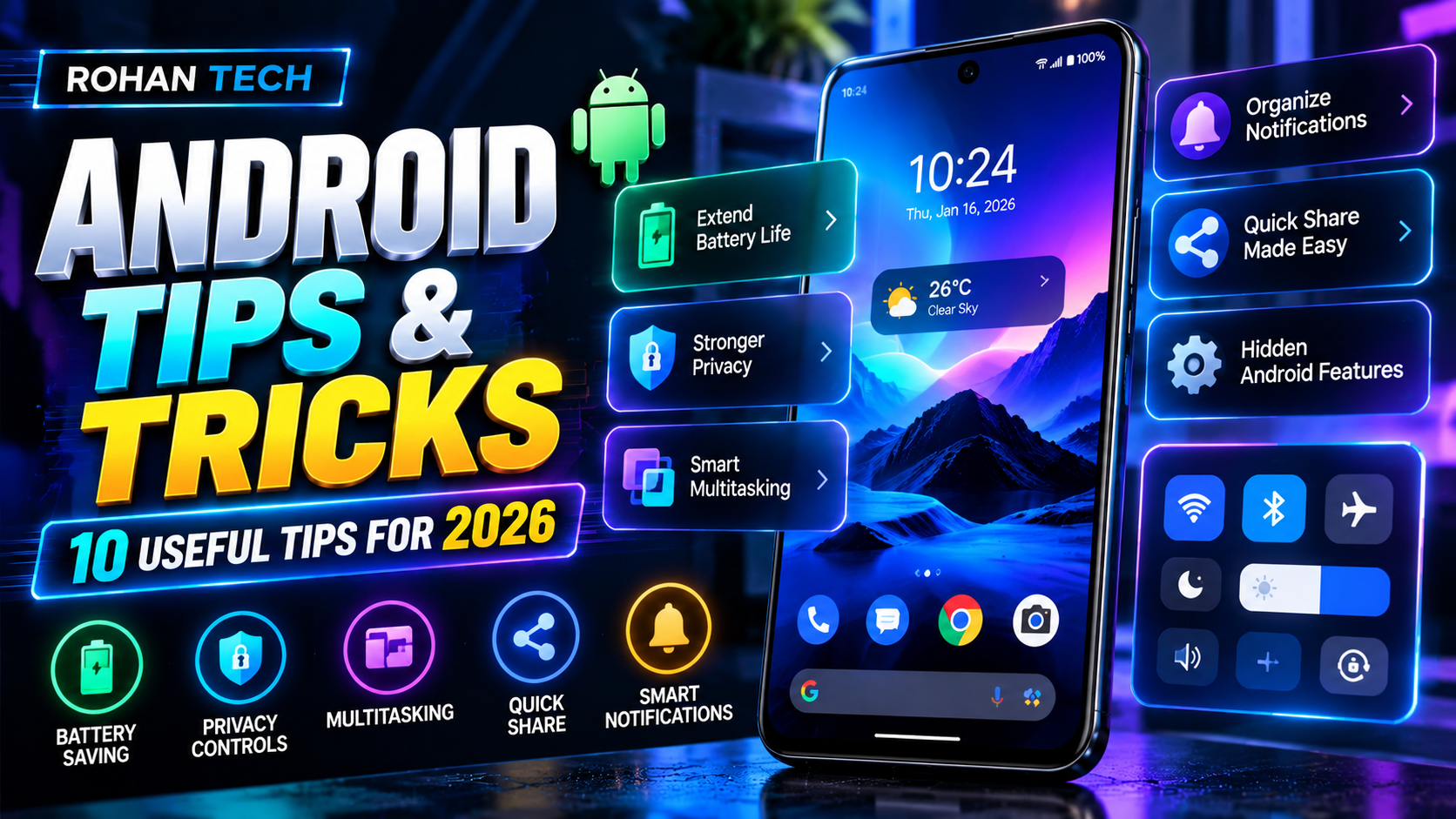
Android Tips & Tricks: 10 Useful Features You Should Try in 2026
Android Phone have become much more then devices for calls, messages and social media.
Modern Android versions include powerful tools for productivity, privacy, security, multitasking and battery management, but many useful features can be easy to overlook.
If you use and Android smartphone every day, learning a few simple settings and features can make your phone easier and more efficient to use.
In this guide, we’ll look at at 10 useful Android features, notification management and file sharing.
Note: Android features and menu name can very depending on your phone manufacturer, Android version and device model.
- Use Battery-Saving settings
One of the easiest ways to improve everyday phone usage is to review which setting and apps consume the most battery.
Google’s Android help documentation recommends several battery-saving measures, including reducing screen brightness, allowing the screen to turn off sooner, using adaptive Battery where supported restricting apps with high battery usage and enabling battery server when appropriate
Try these settings:
- Reduce unnecessary screen
- Use automatic brightness when
- Reduce the screen timeout.
- Check which app consume the most battery.
- Turn on Adaptive battery if your device supports it.
- Use Battery sever when you need additional battery life.
You don’t necessarily need to disable everything on your phone instead, start by checking the Battery section in settings and identifying apps or features that consume unusually high amounts of power.
2,Control App permission
Privacy is other area where Android give user more control.
Instead of allowing every application to access everything, review the permissions granted to individual app.
Depending on your Android version and Manufacturer interface, you can review permissions for things such as:
- Location
- Camera
- Microphone
- Contacts
- Photos and videos
- Notifications
Android 17 introduces even more privacy controls. Google says users can temporarily grant can app precise-location access for a specific task and can share selected contacts rather then providing and application which access to their entire address book.
A good habit is to periodically review applications that you no longer use and remove unnecessary permissions.
- Make Multitasking Easier
If you regularly switch between multiple application, Android’s multitasking features can save time.
Android 17 introduces Bubbles, which can turn supported applications into compact floating windows. On large-screen devices, bubbles can also appear in a dedicated bar, making it easier to o switch between applications.
Multitasking can be especially useful when you’re:
- Reading information while taking notes
- Messaging while checking another application
- Comparing information between two apps
- Working on a tablet or foldable
- Using multiple productivity applications
On supported device, experiment with split-screen and other multitasking options available from the recent -apps screen.
.4. Organize Your Notifications
Notifications can quickly become overwhelming if every applications is allowed to interrupt you.
Instead of simply dismissing notifications throughout the day, review which apps are actually important
Open your Android notification settings and look at the applications that frequently send alerts.
You can usually control whether an app can:
- Send notifications
- Show notifications on the look screen
- Play notifications sounds
- Use Vibration .
- Display notification categories
- Categories
Android has also introduced smarter notification-management capabilities in recent releases. Google previously added AI-powered notification summaries and notification organization t Android 16,designed to make large numbers of notifications easier to manage.
A cleaner notification panel can make your phone feel considerably less distracting.
- Use Quick Share
Need to send photos, videos or files to anther compatible device?
Quick Share can make the process much easier then sending files through email or messaging applications.
Google has continued expanding Android’s Sharing Capabilities. In 2026, Google announced improvement that make Quick share compatible with Airdrop on supported Android phones, beginning with pixel devices and expanding t additional partners.
Instead of uploading a large file to a cloud service just to transfer it between nearby device, check whether quick share is available on your phone.
Open the file you want to send, choose Share, and look for Quick Share.
The Exact interface can vary between device.
- Review Your Location settings
Location access can be useful maps, weather, transportation and other applications, but not every application needs continuous access to your location.
Check your installed application and review which ones have location permission.
For applications that don’t need constant access, consider selecting a more limited permission where your Android version provides that option.
Android 17 adds a temporary precise-location control that allow users to give an app precise location access while that app is being used for specific task . Google also says Android 17 provides a clearer indicator when location is being accessed.
This gives you more visibility into how applications use location information,
- Use Android’s Bulit-In security Features
Your smartphone contains important personal information, basic security settings should nt be ignored.
At minimum, use a secure screen lock and keep your operating system and applications updated.
Android has continued adding security protections. Google says Android 17 expands advanced protections and introduces additional safeguards against scams, applications and device theft.
Google also describes and enhanced Mark as lost ability in Android 17 that can help protect a missing phone by requiring biometric authenticating in supported circumstances.
You can also review your phone’s security settings periodically rather then waiting until something goes wrong.
- Clean Up Unused Apps
Many smartphones accumulate applications that are installed once and then forgotten.
Unused Application can consume Storge, generate notifications and something continue
Performing background activity .
Go through your app list and ask yourself:
Do I still use this application?
If the answer is no, uninstall it when appropriate.
Also review your storage settings to identify large files, downloads and applications consuming significant amounts of space.
Keeping same free storage available can make managing your phone easier and gives you room for new photos, videos and application.
- Make Your phone More personal
Android provides many customization options.
Depending on your device, you may be able to customize:
- Wallpaper
- Home-screen layout
- Widgets
- Icons
- Theme
- Lock-screen appearance
- Quick Settings
- Notification appearance
Google has continued adding personalization options to Android updates have included more ways to customize the appearance and behavior of the operating system.
Don’t overlook widgets, either. A useful widget can put information such as weather, calendar events, notes or other frequently used information directly on your home screen.
- Take Advantage f New Android Features
One of the best Android tips is simply keep checking what’s new after a major software update.
Android 17, for example, introduced features focused on productivity, security, multitasking and connectivity. Google says Android 17 started rolling out supported Pixel devices in June 2026, followed by other eligible devices throughout the year.
Google’s September 2026 Andorid Drop also introduced additional features, incuding the ability for Gemini to remember where certain important items wear placed in find Hub, Plus new Google Messages collaboration and customization features. Availability varies by device and region.
So after installing a major Android update, spend a few minutes checking:
Setting → System → Software update
And explore the new settings and features available on your particular phone.
Bonus tip: check your phone’s Own Settings Search
Android setting can contain dozens of options, and their exact locations can vary between manufactures.
If you can’t find a particular setting, use the settings search feature.
Android tips 2026
Android tricks
best Android tips
Android hidden features
Android battery saving tips
Android privacy tips
Android multitasking tips
Android productivity tips
Android features 2026
Android phone tips