How to Install WordPress on cPanel: A Beginner’s Step-by-Step Guide
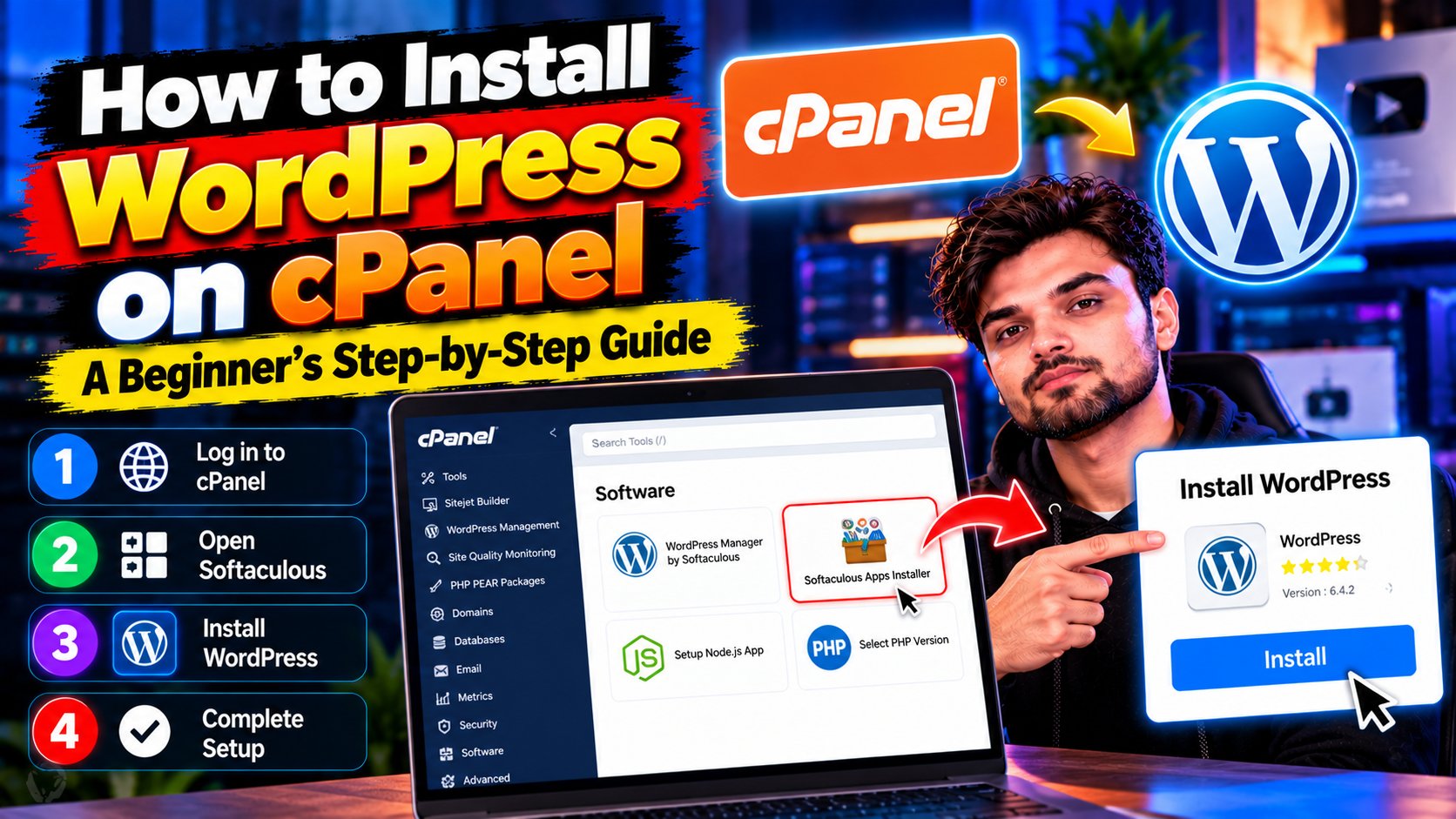
WordPress powers over 40% of all websites, and installing it is far easier than most beginners expect. If your web host uses cPanel (most shared hosts do), you can install WordPress on cPanel in under 10 minutes — no coding, no manual file uploads. Here are the two methods, easiest first.
Method 1: One-Click Install with Softaculous (Easiest)
Most cPanel hosts include an auto-installer called Softaculous or QuickInstall. This is the method I’d recommend to every beginner.
Step 1: Log in to cPanel and find the Softaculous Apps Installer section (usually near the bottom). Click the WordPress icon.
Step 2: Click Install Now. Choose your domain from the dropdown. Leave the “In Directory” field empty to install on your main domain (or enter “blog” to install at yoursite.com/blog).
Step 3: Fill in the site name, site description, and — important — create an admin username and strong password. Don’t use “admin” as the username. Enter your email.
Step 4: Click Install. Wait about a minute. Done — you’ll get a link to your new site and your wp-admin login.
Method 2: Manual Install (More Control)
If your host lacks an auto-installer, do it manually. It’s only slightly more work.
Step 1: In cPanel, go to MySQL Databases and create a new database and database user, then add the user to the database with all privileges. Write down the database name, username, and password.
Step 2: Download WordPress from wordpress.org and upload the ZIP to your domain’s public_html folder via cPanel’s File Manager. Extract it there.
Step 3: Visit your domain in a browser. The WordPress setup wizard will launch — enter your database details, then create your admin account. Five minutes later, you’re in.
5 Things to Do Right After Installing
1. Delete the default content — remove the “Hello world” post, sample page, and sample comment. 2. Change permalinks — go to Settings → Permalinks and select Post name (crucial for SEO). 3. Install an SSL certificate — most hosts offer free Let’s Encrypt SSL in cPanel; enable it so your site uses HTTPS. 4. Install essential plugins — start with a security plugin and an SEO plugin; don’t install 30 plugins on day one. 5. Pick a lightweight theme — a fast, simple theme beats a bloated “multipurpose” one every time.
Common Beginner Mistakes
Installing WordPress in a subdirectory by accident (leaving “wp” in the directory field), using weak admin credentials, and skipping the SSL setup. Fix these three and you’re ahead of 90% of new site owners. For more website guides, browse our tutorials section.