How to Make Your Old Laptop Feel New Again
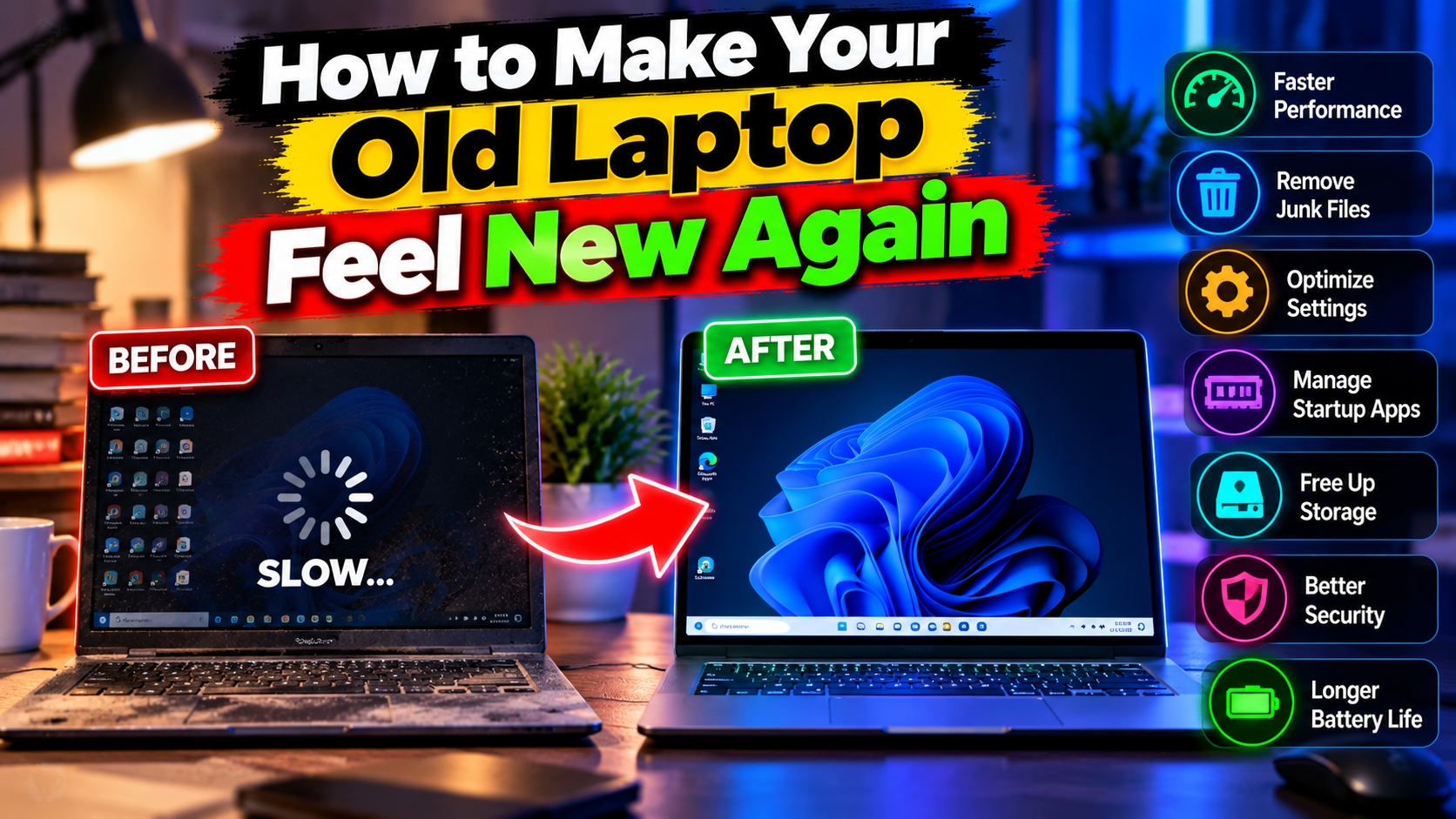
Before you spend money on a new laptop, hear this out: most “slow” laptops aren’t dying — they’re neglected. Bloated startup programs, a full drive, three years of accumulated digital cruft. The good news? An afternoon of maintenance can make a 6-year-old machine feel years younger. Here’s exactly what to do, step by step.
Step 1: Murder Your Startup Programs
Press Ctrl + Shift + Esc → Startup apps tab. Disable everything you don’t need the second Windows boots — Spotify, Discord, Adobe updaters, printer utilities, all of it. You can still open these apps manually whenever you want; they just won’t ambush your boot anymore. This single step fixes “slow startup” for most people. Restart and feel the difference immediately.
Step 2: Free Up Disk Space (Properly)
Windows needs breathing room — a drive over 85% full gets sluggish fast. Run Settings → System → Storage → Cleanup recommendations and clear out temporary files, old Windows Update leftovers, and the Recycle Bin. Then check your Downloads folder (everyone’s secret hoard) and move big files to an external drive. Tools like CCleaner can help, but Windows’ built-in cleanup does 90% of the job on its own. Skip the sketchy “PC optimizer” ads — they’re the problem, not the solution.
Step 3: Update Everything
Boring but real: Settings → Windows Update → install everything, then update your drivers — especially graphics and chipset, and get them from your laptop maker’s site, not random driver tools. Microsoft’s Windows support pages confirm what technicians have known forever: outdated drivers cause a shocking amount of “mystery slowness.”
Step 4: Tame Your Browser
Your browser is probably eating half your RAM right now. Audit your extensions (keep five max), close the tabs you’re “definitely reading later” (you’re not — be honest), and consider switching heavy users to a lighter browser. While you’re at it, clear the cache. A 4GB cache from 2023 isn’t helping anyone.
Step 5: Check What’s Actually Slow
Open Task Manager → Performance tab while using the laptop normally. RAM pinned at 90%+? That’s your bottleneck — and a RAM upgrade is the cheapest meaningful laptop upgrade out there (if your model allows it). Disk at 100%? You’re on an old HDD; an SSD swap transforms these machines. It’s genuinely the single best upgrade in computing. CPU maxed out by one app? Then that app is the problem, not the laptop. Diagnose first, spend later.
Step 6: The Nuclear Option (Done Right)
If all else fails: Settings → System → Recovery → Reset this PC, choosing “Remove everything” — after backing up your files, obviously. A fresh Windows install on old hardware feels like a new machine, because software-wise, it is one. Reinstall only the programs you actually use (our essential software list is a good starting point) and enjoy the clean slate. There’s something deeply satisfying about it.
When to Actually Replace It
Be honest with yourself about these: battery swollen or dead and non-replaceable, the machine can’t run software you need for work or school, or repair costs exceed half the price of a new one. Otherwise? An afternoon of maintenance buys most laptops two to three more good years. That’s real money saved — and one less machine in a landfill. More revival tricks in our tutorials.
The $30 Upgrade That Changes Everything
If the laptop is still slow after all the software fixes, there’s one hardware upgrade worth every rupee: an SSD. Swapping an old spinning hard drive for a solid-state drive is the single most transformative upgrade in computing — boot times drop from minutes to seconds, ap
Related Reading
Keep exploring: Budget Mechanical Keyboards: 5 Worth Buying in 2026, 5 Free Antivirus Programs Tested: Which One Is Actually Worth It?, and Tablet vs Laptop 2026: Which Should You Buy? An Honest Buying Guide.