
WordPress Speed Optimization: 10 Ways to Make Your Site Load Faster
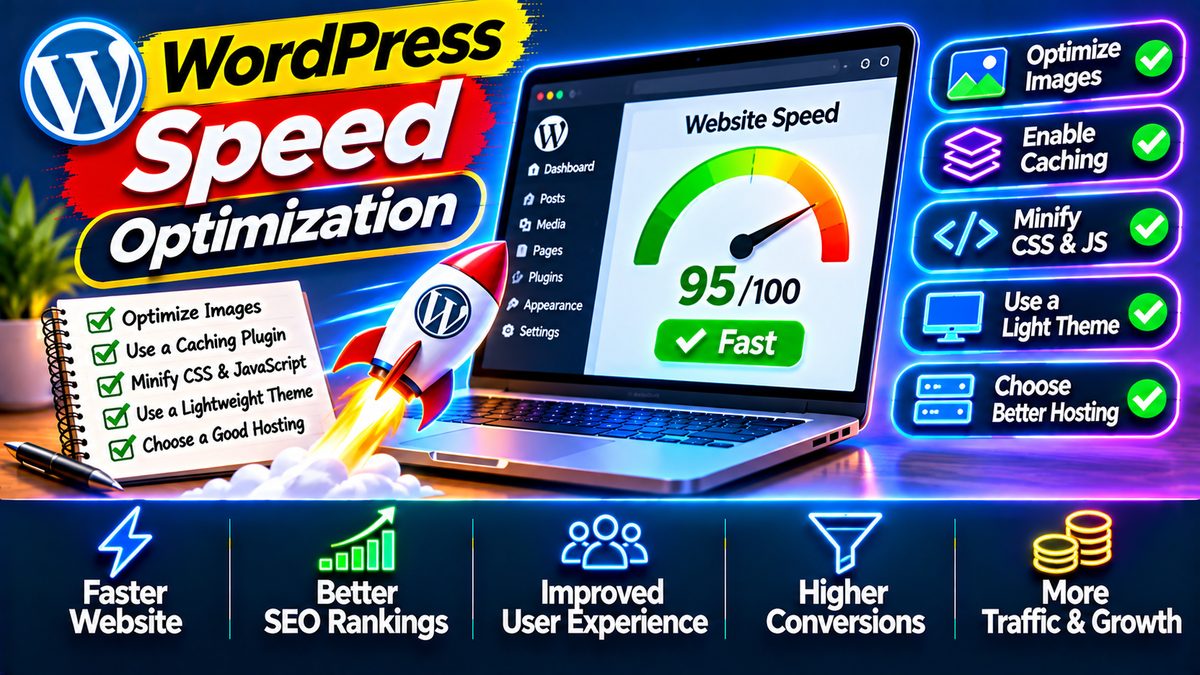
Nothing kills a website quite like slowness. Visitors bail on pages that take more than three seconds to load. Google quietly ranks slow sites lower. And every extra second costs you readers, customers, ad revenue — pick your poison. The good news? WordPress speed optimization isn’t some dark art. These 10 techniques are ordered from biggest impact to smallest, and they’ll make almost any WordPress site noticeably faster. Most of them take under half an hour each.
1. Measure First (Know Your Baseline)
Before you touch a single setting, measure where you stand. Run your site through PageSpeed Insights (Google’s free tool) and GTmetrix, and write down three numbers: Largest Contentful Paint (how fast the main content shows up), Total Blocking Time (how long the page feels frozen), and fully-loaded time. These are your “before” numbers. After every change below, check them again — if a tweak doesn’t move the needle, undo it. Optimizing without measuring is like dieting without a scale: lots of effort, no idea what’s working. Your target: LCP under 2.5 seconds. That’s Google’s “good” threshold, and it’s the one metric that matters most for rankings.
2. Get Decent Hosting (The Foundation)
Uncomfortable truth first: no plugin on earth fixes bad hosting. If your site lives on a $2/month shared plan with 500 neighbors on the same server, everything below is an uphill battle. You don’t need expensive hosting — but you do need server-level caching, PHP 8 or newer, and HTTP/2 or HTTP/3 support. For most blogs and small business sites, a solid managed WordPress host (or a decent shared plan running LiteSpeed) makes a bigger difference than any plugin ever will. Quick diagnostic: if your Time to First Byte is over 600ms, your hosting is the problem. Not your theme, not your plugins. Your hosting.
3. Install a Caching Plugin (The Biggest Single Win)
Caching converts your dynamic WordPress pages into static HTML files that get served instantly — instead of rebuilding every page from the database on every single visit. For most sites, this one change cuts load times roughly in half. On LiteSpeed servers, the free LiteSpeed Cache plugin is fantastic since it hooks into server-level caching. Otherwise, WP Rocket (paid, worth every penny) or W3 Total Cache (free, powerful, fiddly) get the job done. Turn on page caching, browser caching, and object caching if your host supports it. One caution: after enabling caching, test your contact forms and checkout pages. Aggressive caching can occasionally break dynamic stuff — just exclude those pages from the cache and move on.
4. Optimize Your Images (The Usual Culprit)
Images are the number one cause of slow WordPress sites, and it’s not close. People upload 4MB phone photos where a 150KB compressed version would look identical. Three rules fix 90% of it: (a) resize images to their actual display size before uploading — no 4000px-wide monsters for an 800px content column; (b) compress everything — ShortPixel, Imagify, or the free Squoosh web app shave 60–80% off file sizes with no visible quality loss; (c) serve modern formats — WebP or AVIF instead of JPEG/PNG, which LiteSpeed Cache and most image plugins can convert automatically. Oh, and lazy loading (WordPress does this by default now) means below-the-fold images only load when someone scrolls to them. A media-heavy page can drop from 8MB to under 1.5MB with just these three moves.
5. Audit Your Plugins (Kill the Dead Weight)
Every active plugin loads code on some or all of your pages. Go to Plugins → Installed Plugins and be ruthless: if you don’t actively use it, deactivate it — then delete it (deactivated plugins still get scanned, so don’t just leave them sitting there). Consolidate overlaps too. Three SEO plugins, two backup plugins, four social sharing buttons? Pick one of each. Want to find the real offenders? Install Query Monitor temporarily and see which plugins slow down each page load. There’s almost always one ancient plugin responsible for half your load time, and it’s usually something you installed in 2021 and forgot. My rule of thumb: if you can’t explain what a plugin does, you don’t need it. When in doubt, the folks at WordPress Support can point you in the right direction.
6. Use a Lightweight Theme
Those multipurpose themes with 47 demo layouts and a bundled page builder? They look incredible in previews and perform terribly in real life. Every feature you don’t use is still code your visitors have to download. Here’s a quick test: if your theme scores badly on PageSpeed Insights even on a completely blank page, the theme is your bottleneck. Lightweight, well-coded themes — GeneratePress, Astra, Kadence, or a decent block theme — load in a fraction of the time. Yes, switching themes is work. But it’s a one-time cost for a permanent speed gain. Just test the new theme on a staging copy first, not on your live site at 2 AM. (Ask me how I know.)
7. Enable GZIP/Brotli Compression
Compression shrinks your HTML, CSS, and JavaScript while they’re traveling to the visitor — usually 60–70% smaller. Most caching plugins have a single toggle for this, and plenty of hosts handle it server-side without you lifting a finger. Not sure if it’s on? Run your URL through GiftOfSpeed’s compression checker. If your pages are going out uncompressed, you’re leaving the easiest win in web performance on the table. Five-second fix, outsized payoff — especially on text-heavy pages.
8. Minify CSS and JavaScript (Carefully)
Minification strips the whitespace and comments out of your code files, making them leaner. Most caching plugins offer it — but go carefully, because aggressive minification sometimes breaks layouts or scripts in weird ways. The safe play: turn it on, then click through your site like a visitor would. Homepage, a blog post, the contact page, mobile view. Anything look broken? Exclude that file in the plugin’s settings and move on. The gains here are modest — a few percent — but they stack on top of everything else. While you’re at it, defer non-critical JavaScript: scripts that don’t need to run immediately shouldn’t hold up the page.
9. Clean Your Database
Years of WordPress use leave crud in the database: post revisions (WordPress saves one every time you hit update), trashed items, spam comments, expired transients. A plugin like WP-Optimize cleans all of it safely in one click — and you’d be surprised how much space comes back. Set it to run automatically every week and forget about it. Also, cap post revisions going forward (a line in wp-config.php or a small plugin does it). Be honest: do you really need 47 revisions of every post? This won’t transform a slow site on its own, but on old databases it visibly speeds up the admin panel and shortens backup times. If you want to go deeper, the developer docs at WordPress Developer Resources cover the internals.
10. Use a CDN (Go Global)
A Content Delivery Network serves your static files — images, CSS, JS — from servers physically near each visitor, instead of making everyone download from your one lonely host. For sites with international readers, this is transformative: someone in London pulls files from London, not from your server in Texas. Cloudflare’s free plan throws in CDN plus security extras, and setup takes about 10 minutes (you’ll change your domain’s nameservers). It’s that rare thing in web performance: a genuine free lunch. Stack it with your caching plugin for the full effect.
The Order of Operations
Don’t try all ten at once — you’ll never figure out which change actually helped. Go in order, measuring after each step: hosting check, then caching, then images, then the plugin audit, then theme evaluation, then compression and minification, then the database, then the CDN. Most sites see dramatic improvement from just the first four. And tattoo this on your brain: measure, change one thing, measure again. Speed optimization is a process, not a plugin you install and forget. Your visitors will feel the difference. So will Google. For more website know-how, our Tutorials section has you covered — and Tech News keeps you current.
Related Reading
Keep exploring: How to Install WordPress Plugins: 3 Methods Explained, How to Use Google Drive Like a Pro: 9 Google Drive Tips That Actually Help, and Two-Factor Authentication Setup: Lock Down Every Important Account.