Two-Factor Authentication Setup: Lock Down Every Important Account
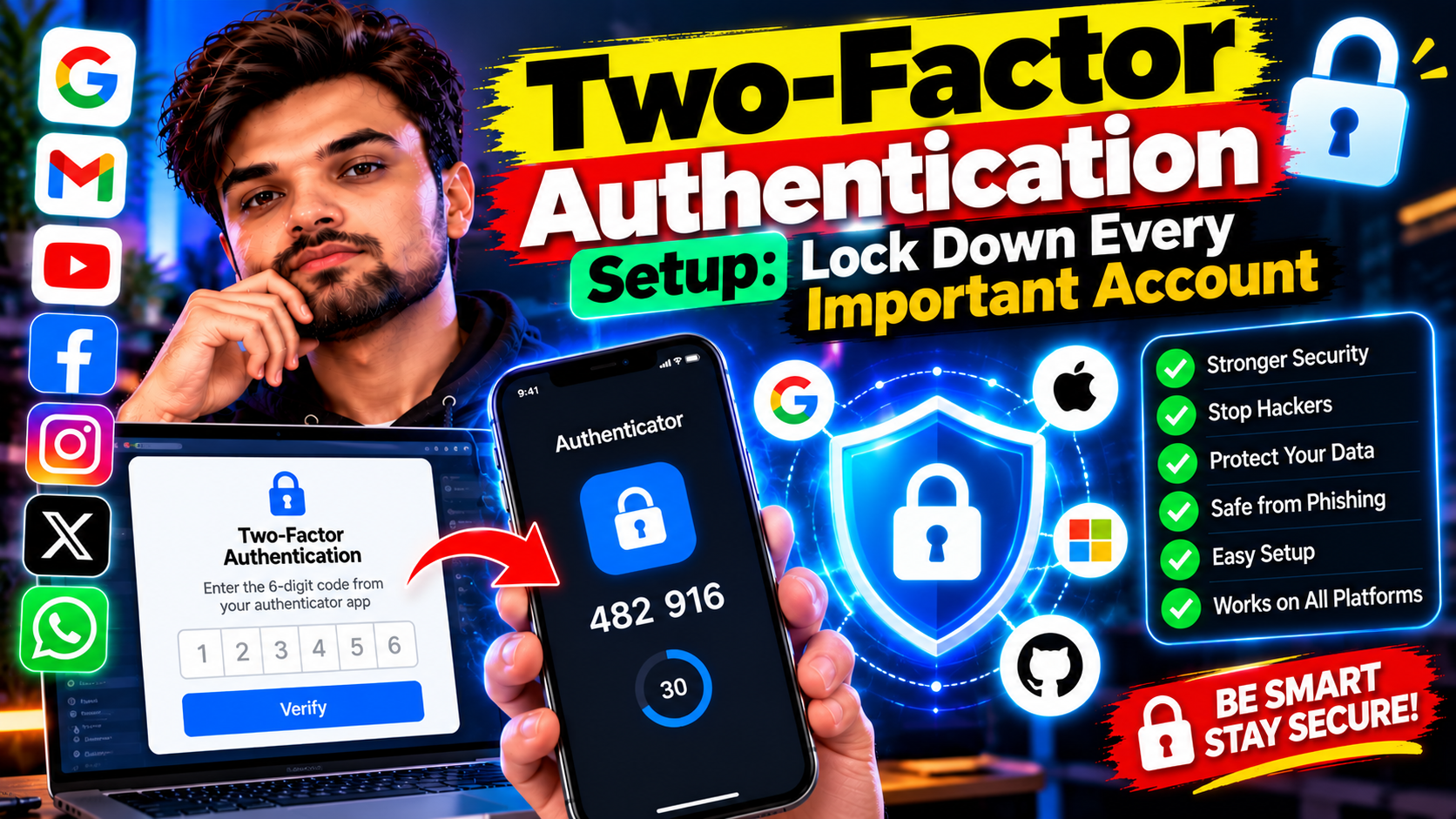
Your password is doing all the heavy lifting for your digital life — and honestly, it shouldn’t have to. A proper two-factor authentication setup adds a second lock to every important account, so even if someone steals your password, they still can’t get in. Here’s the thing: it takes about twenty minutes, and it’s the single biggest security upgrade most people never bother with.
Let’s fix that. This guide walks through what 2FA actually is, which authenticator app to grab, and the exact steps for Google, Apple, Facebook, Instagram, and WhatsApp.
What Two-Factor Authentication Actually Does
Think of it like this. Your password is the key to your front door. Two-factor authentication is the deadbolt. After you enter your password, the service asks for a second proof — usually a six-digit code from an app on your phone — that only you can see.
Why does that matter? Because passwords leak. A lot. Data breaches, phishing emails, reused passwords across sites — there are a dozen ways your password ends up in the wrong hands. But a hacker in another country can’t type in the code sitting on your phone. That’s the whole point.
You’ll see two common flavors of that second step: codes sent by text message (SMS), and codes generated by an authenticator app. SMS is better than nothing, but it’s the weaker option — phone numbers can be hijacked through SIM-swapping scams. An authenticator app is the safer pick, and it’s what this guide uses.
Pick an Authenticator App First
Before touching any settings, install one of these free apps. They all do the same basic job: generate time-based codes that change every 30 seconds.
- Google Authenticator — simple, no account needed, works everywhere. If you want the least fuss, start here.
- Microsoft Authenticator — adds cloud backup, so your codes survive a phone change. Handy if you switch devices often.
- Authy — multi-device sync and encrypted backups, plus a desktop option. A solid choice if you juggle phones and computers.
Grab one from the Play Store or App Store now — you’ll need it open during the two-factor authentication setup for each account below. (We round up useful security apps on our Android apps page if you want to browse more.)
Two-Factor Authentication Setup for Google
Your Google account guards your email, photos, and probably half your logins elsewhere. Secure it first.
- Go to myaccount.google.com and sign in.
- Head to Security (labeled “Security & sign-in” in some layouts).
- Under “How you sign in to Google,” select Turn on 2-Step Verification.
- Follow the on-screen steps — Google will walk you through verifying it’s really you.
- When it offers a second-step method, choose Authenticator app, scan the QR code with the app you installed, and enter the code it shows.
Google’s own walkthrough lives here on Google’s support site if anything on the page looks different from these steps.
Apple Account (Apple ID)
On iPhone, two-factor authentication is baked right into the system — no extra app needed for Apple itself.
- Open Settings and tap your name at the top.
- Tap Sign-In & Security.
- Tap Turn On Two-Factor Authentication and follow the prompts.
Once it’s on, signing in on a new device sends a verification code to your trusted Apple devices. Just approve the sign-in and type in the code. That’s it.
Facebook and Instagram
Social accounts get targeted because they’re easy to impersonate. Both live under Meta’s Accounts Centre now, so the path is nearly identical.
- Open the app, go to Settings, then Accounts Centre.
- Tap Password and security, then Two-factor authentication.
- Pick the account, choose Authentication app, and scan the QR code with your authenticator app.
Do both accounts while you’re at it. Ten extra minutes, and your socials stop being the easy target.
Two-Factor Authentication Setup for WhatsApp
WhatsApp calls it “two-step verification,” and it protects you when someone tries to register your number on another phone.
- Open WhatsApp, go to Settings, then Account.
- Tap Two-step verification, then Enable.
- Create a six-digit PIN you’ll remember — this is asked when your number gets re-registered.
- Add an email address for PIN recovery. Don’t skip this; without it, forgetting the PIN locks you out for days.
WhatsApp explains the whole feature in its own help center if you want the fine print.
Finishing Your Two-Factor Authentication Setup: Backup Codes
Almost every service hands you backup codes during setup — one-time codes for when your phone is lost, dead, or replaced. Most people screenshot them and forget where the screenshot went. Don’t be most people.
Save them somewhere sensible: a password manager, or printed and kept somewhere safe at home. Then test one thing — sign out and sign back in somewhere, just to prove your two-factor authentication setup actually works before you need it for real.
Twenty minutes, five accounts, one much harder target. Not bad for a Tuesday. For more step-by-step walkthroughs like this one, browse our tutorials section.
Related Reading
Keep exploring: How to Create Strong Passwords You’ll Actually Remember, How to Back Up Your Entire Phone So You Never Lose Anything, and How to Install WordPress Plugins: 3 Methods Explained.