How to Use Google Drive Like a Pro: 9 Google Drive Tips That Actually Help
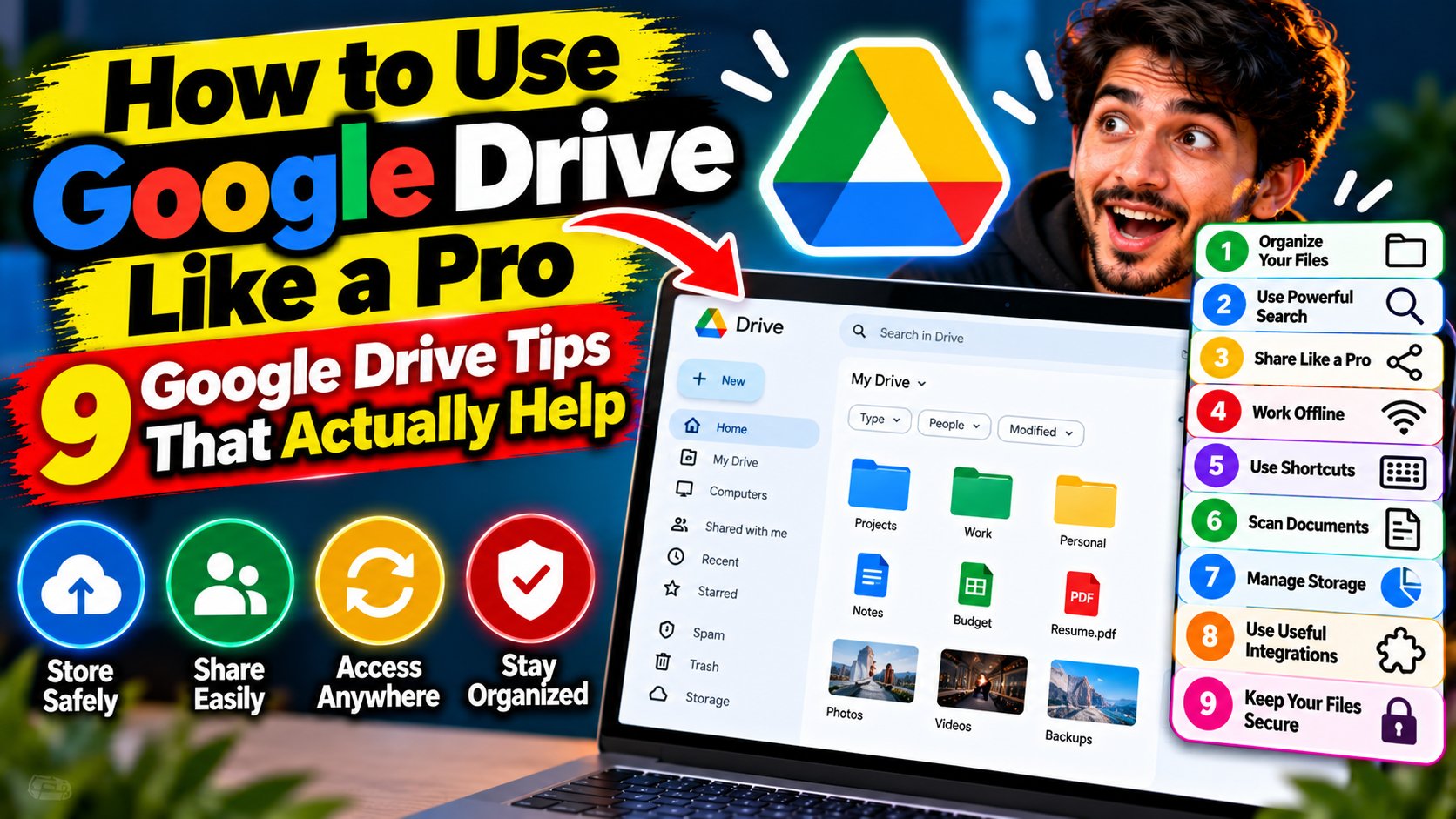
Most people barely scratch the surface of Google Drive. They upload files, share a link now and then, and call it a day. But Drive is packed with features that can genuinely change how fast you work — if you know where to look. These google drive tips cover the ones that matter most: finding files in seconds, flying through the interface, collaborating without chaos, working offline, and keeping your storage under control.
Google Drive Tips for Finding Any File in Seconds
Typing a filename into the search box works fine — until it doesn’t. The moment your Drive holds a few hundred files, plain search starts feeling like luck. That’s where search operators come in. They work right in the Drive search bar, and they turn vague hunting into precise hits.
Try these:
- type:pdf (or type:spreadsheet, type:presentation) — shows only that file type.
- owner:me — filters to files you created, cutting out everything shared with you.
- before:2024/06/01 or after:2025/01/01 — narrows by date. Great for finding last quarter’s files.
- “quarterly report” — quotes search for the exact phrase, not just the individual words.
Combine them and things get fun: type:spreadsheet owner:me after:2025/01/01 finds every spreadsheet you made this year. Google documents the full list of operators in its Drive help center, and it’s worth a skim.
Learn the Keyboard Shortcuts (They Changed in 2024)
Here’s something a lot of guides get wrong: Google replaced Drive’s old single-letter keyboard shortcuts in 2024. The classic combos like Shift+T stopped working in their old form, because Google wanted single letters free for jumping to files by name. So if a shortcut you remember suddenly does nothing, that’s why.
The good news? The new scheme is easy to learn, and here’s a google drive tip worth memorizing: there’s a built-in cheat sheet — press Ctrl + / (or Cmd + / on a Mac) anywhere in Drive to see every current shortcut. A couple worth memorizing right now: pressing / jumps straight to the search bar, and the create menu (for new Docs, Sheets, Slides, and folders) now lives behind a two-key combo shown in that same list. Check the live list once, and you’ll stop reaching for the mouse.
Use Shared Drives for Team Files
If you collaborate with the same group of people regularly — a team, a class, a family — stop sharing individual files back and forth. Shared drives (what Google used to call Team Drives) are folders owned by the group instead of one person. Files stay put even when someone leaves, and everyone with access sees the same structure.
When should you use one? Any collection of files that belongs to a project rather than a person: client work, club documents, household paperwork. Personal stuff stays in My Drive. Project stuff goes in the shared drive. That one habit alone prevents the classic “wait, who has the latest version?” mess.
Turn On Offline Mode Before You Need It
Drive’s offline mode is one of those features you don’t appreciate until you’re on a plane or your internet dies mid-deadline. With it on, your recent Docs, Sheets, and Slides stay available without a connection, and changes sync the moment you’re back online.
Setting it up takes a minute: open Drive in Chrome, click the gear icon, choose Settings, and turn on Offline. It downloads a local copy of your recent files in the background. Do it now, while your connection is fine — future you, stuck on hotel Wi-Fi, says thanks.
More Google Drive Tips: Tame Your Storage
Running out of space is the most common Drive complaint, and it’s usually fixable without paying for more. First, see what’s actually eating your quota: open Drive, look at the storage indicator, and sort by file size. You’ll often find a couple of forgotten videos or giant zip files doing most of the damage.
Second, remember the trash. Deleted files sit in Drive’s trash for 30 days before they’re removed automatically — and they count against your storage until then. Empty it manually when you’re cleaning house. Third, check Google’s storage manager at the Drive help pages for a breakdown across Drive, Gmail, and Photos, since all three share one quota. Photos and Gmail attachments are often the real culprits behind a “full” Drive.
That’s the core toolkit: smarter search, current shortcuts, shared drives for teams, offline mode for bad connections, and storage habits that keep you off the paid plan. Put even half of these google drive tips into practice and Drive stops feeling like a junk drawer and starts feeling like an assistant. For more step-by-step walkthroughs, browse our tutorials and how-to guides. Most people barely scratch the surface of Google Drive. They upload files, share a link now and then, and call it a day. But Drive is packed with features that can genuinely change how fast you work — if you know where to look. These google drive tips cover the ones that matter most: finding files in seconds, flying through the interface, collaborating without chaos, working offline, and keeping your storage under control. Most people barely scratch the surface of Google Drive. They upload files, share a link now and then, and call it a day. But Drive is packed with features that can genuinely change how fast you work — if you know where to look. These google drive tips cover the ones that matter most: finding files in seconds, flying through the interface, collaborating without chaos, working offline, and keeping your storage under control.
Google Drive Tips for Finding Any File in Seconds
Typing a filename into the search box works fine — until it doesn’t. The moment your Drive holds a few hundred files, plain search starts feeling like luck. That’s where search operators come in. They work right in the Drive search bar, and they turn vague hunting into precise hits. Typing a filename into the search box works fine — until it doesn’t. The moment your Drive holds a few hundred files, plain search starts feeling like luck. That’s where search operators come in. They work right in the Drive search bar, and they turn vague hunting into precise hits. Try these:
- type:pdf (or type:spreadsheet, type:presentation) — shows only that file type.
- owner:me — filters to files you created, cutting out everything shared with you.
- before:2024/06/01 or after:2025/01/01 — narrows by date. Great for finding last quarter’s files.
- “quarterly report” — quotes search for the exact phrase, not just the individual words.
Combine them and things get fun: type:spreadsheet owner:me after:2025/01/01 finds every spreadsheet you made this year. Google documents the full list of operators in its Drive help center, and it’s worth a skim. Combine them and things get fun: type:spreadsheet owner:me after:2025/01/01 finds every spreadsheet you made this year. Google documents the full list of operators in its Drive help center, and it’s worth a skim.
Learn the Keyboard Shortcuts (They Changed in 2024)
Here’s something a lot of guides get wrong: Google replaced Drive’s old single-letter keyboard shortcuts in 2024. The classic combos like Shift+T stopped working in their old form, because Google wanted single letters free for jumping to files by name. So if a shortcut you remember suddenly does nothing, that’s why. Here’s something a lot of guides get wrong: Google replaced Drive’s old single-letter keyboard shortcuts in 2024. The classic combos like Shift+T stopped working in their old form, because Google wanted single letters free for jumping to files by name. So if a shortcut you remember suddenly does nothing, that’s why. The good news? The new scheme is easy to learn, and here’s a google drive tip worth memorizing: there’s a built-in cheat sheet — press Ctrl + / (or Cmd + / on a Mac) anywhere in Drive to see every current shortcut. A couple worth memorizing right now: pressing / jumps straight to the search bar, and the create menu (for new Docs, Sheets, Slides, and folders) now lives behind a two-key combo shown in that same list. Check the live list once, and you’ll stop reaching for the mouse. The good news? The new scheme is easy to learn, and here’s a google drive tip worth memorizing: there’s a built-in cheat sheet — press Ctrl + / (or Cmd + / on a Mac) anywhere in Drive to see every current shortcut. A couple worth memorizing right now: pressing / jumps straight to the search bar, and the create menu (for new Docs, Sheets, Slides, and folders) now lives behind a two-key combo shown in that same list. Check the live list once, and you’ll stop reaching for the mouse.
Use Shared Drives for Team Files
If you collaborate with the same group of people regularly — a team, a class, a family — stop sharing individual files back and forth. Shared drives (what Google used to call Team Drives) are folders owned by the group instead of one person. Files stay put even when someone leaves, and everyone with access sees the same structure. If you collaborate with the same group of people regularly — a team, a class, a family — stop sharing individual files back and forth. Shared drives (what Google used to call Team Drives) are folders owned by the group instead of one person. Files stay put even when someone leaves, and everyone with access sees the same structure. When should you use one? Any collection of files that belongs to a project rather than a person: client work, club documents, household paperwork. Personal stuff stays in My Drive. Project stuff goes in the shared drive. That one habit alone prevents the classic “wait, who has the latest version?” mess. When should you use one? Any collection of files that belongs to a project rather than a person: client work, club documents, household paperwork. Personal stuff stays in My Drive. Project stuff goes in the shared drive. That one habit alone prevents the classic “wait, who has the latest version?” mess.
Turn On Offline Mode Before You Need It
Drive’s offline mode is one of those features you don’t appreciate until you’re on a plane or your internet dies mid-deadline. With it on, your recent Docs, Sheets, and Slides stay available without a connection, and changes sync the moment you’re back online. Drive’s offline mode is one of those features you don’t appreciate until you’re on a plane or your internet dies mid-deadline. With it on, your recent Docs, Sheets, and Slides stay available without a connection, and changes sync the moment you’re back online. Setting it up takes a minute: open Drive in Chrome, click the gear icon, choose Settings, and turn on Offline. It downloads a local copy of your recent files in the background. Do it now, while your connection is fine — future you, stuck on hotel Wi-Fi, says thanks. Setting it up takes a minute: open Drive in Chrome, click the gear icon, choose Settings, and turn on Offline. It downloads a local copy of your recent files in the background. Do it now, while your connection is fine — future you, stuck on hotel Wi-Fi, says thanks.
More Google Drive Tips: Tame Your Storage
Running out of space is the most common Drive complaint, and it’s usually fixable without paying for more. First, see what’s actually eating your quota: open Drive, look at the storage indicator, and sort by file size. You’ll often find a couple of forgotten videos or giant zip files doing most of the damage. Running out of space is the most common Drive complaint, and it’s usually fixable without paying for more. First, see what’s actually eating your quota: open Drive, look at the storage indicator, and sort by file size. You’ll often find a couple of forgotten videos or giant zip files doing most of the damage. Second, remember the trash. Deleted files sit in Drive’s trash for 30 days before they’re removed automatically — and they count against your storage until then. Empty it manually when you’re cleaning house. Third, check Google’s storage manager at the Drive help pages for a breakdown across Drive, Gmail, and Photos, since all three share one quota. Photos and Gmail attachments are often the real culprits behind a “full” Drive. Second, remember the trash. Deleted files sit in Drive’s trash for 30 days before they’re removed automatically — and they count against your storage until then. Empty it manually when you’re cleaning house. Third, check Google’s storage manager at the Drive help pages for a breakdown across Drive, Gmail, and Photos, since all three share one quota. Photos and Gmail attachments are often the real culprits behind a “full” Drive. That’s the core toolkit: smarter search, current shortcuts, shared drives for teams, offline mode for bad connections, and storage habits that keep you off the paid plan. Put even half of these google drive tips into practice and Drive stops feeling like a junk drawer and starts feeling like an assistant. For more step-by-step walkthroughs, browse our tutorials and how-to guides. That’s the core toolkit: smarter search, current shortcuts, shared drives for teams, offline mode for bad connections, and storage habits that keep you off the paid plan. Put even half of these google drive tips into practice and Drive stops feeling like a junk drawer and starts feeling like an assistant. For more step-by-step walkthroughs, browse our tutorials and how-to guides.
Related Reading
Keep exploring: How to Install WordPress Plugins: 3 Methods Explained, Best AI Meeting Note Takers in 2026, and Two-Factor Authentication Setup: Lock Down Every Important Account.