How to Change Default Apps on Android
Tap a link and the wrong browser opens. Tap a text and the messaging app you never use pops up. Sound familiar? Learning to change default apps Android assigns to everyday tasks puts you back in charge — you pick which browser, SMS app, launcher, and phone app handle things, instead of living with whatever came preinstalled.
It takes about two minutes, and you can undo it just as fast. Here’s how it works.
What Are Default Apps, Exactly?
When more than one app on your phone can do the same job — say, three browsers or two texting apps — Android needs to know which one to use automatically. That’s your “default.” The first time you do something with multiple candidates installed, Android usually asks you to pick. The trouble is, most of us tap “always” without thinking, and then we’re stuck with a choice we made in a hurry.
The good news: nothing about it is permanent. You can change any default whenever you like.
Why Change Default Apps Android Picks for You
Phone makers love preloading their own apps. Sometimes those are fine. But maybe you prefer Firefox over Chrome, or you switched to a better texting app, or you installed a launcher that makes your home screen actually pleasant. Defaults are how you make those preferences stick — so every link, call, and text goes to the app you actually want.
It’s also the fix when something breaks. New messaging app installed but texts still open the old one? That’s a default that needs changing, not a bug.
Change Default Apps Android Lets You Customize, Step by Step
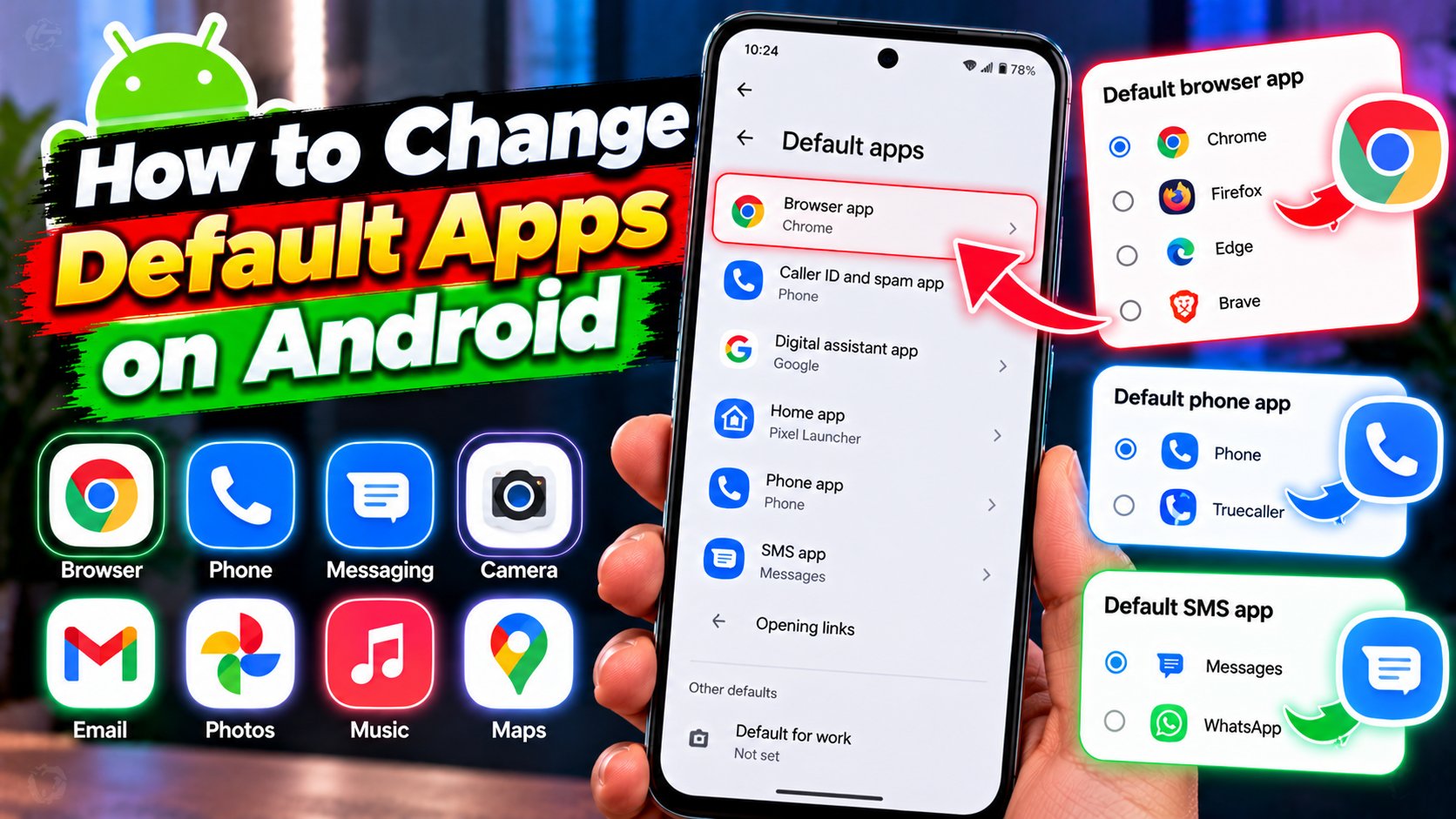
This is the front door — one screen where Android lists every app category you can assign.
- Open the Settings app.
- Tap Apps.
- Tap Default apps. (On some phones you may need to tap the three-dot menu first, then Default apps.)
- You’ll see categories like Browser, Phone, SMS, Home (launcher), Digital assistant, and Caller ID & spam. Tap any category.
- Pick the app you want from the list. That’s it — no save button needed. The change applies instantly.
Only apps that can actually do the job show up in each list, so if your favorite browser isn’t listed under Browser, it probably isn’t installed yet. Google documents the general process on its Pixel support page, and the steps are nearly identical on most Android phones.
Change Your Default Browser
This is the one people change most. In Default apps, tap Browser app and choose Chrome, Firefox, Edge, Brave, Samsung Internet — whatever you’ve installed. From then on, every link you tap anywhere on the phone opens in that browser. Want more browser options? Browse our Android apps section for picks worth trying.
Change Your Default SMS and Phone Apps
Same screen, different categories. Tap SMS app to switch texting apps, or Phone app to change which dialer handles your calls. One thing to know: on many phones, features like spam filtering or RCS chat only work fully in certain apps, so if you switch away from the stock app and something stops working, that’s usually why. Switching back takes ten seconds.
Change Your Default Launcher (Home App)
Tap Home app (sometimes called Launcher) to swap your entire home screen experience. This is the biggest visual change you can make on Android — new app drawer, new gestures, new look. Popular launchers like Nova or Niagara live on the Play Store. Fair warning: the first switch can feel disorienting for about a day. Give it that day before deciding.
Clear a Default for One Specific App
Sometimes you don’t want to set a new default — you want Android to ask you again each time. To clear a single app’s defaults:
- Go to Settings > Apps and tap the app in question.
- Tap Open by default.
- Turn off Open supported links (wording varies by phone).
Next time you tap a matching link, Android will ask which app to use instead of assuming.
What If “Default Apps” Looks Different on My Phone?
Samsung, Xiaomi, Oppo, and friends all rearrange Settings a little. If you don’t see Default apps under Apps, try searching “default” in the Settings search bar at the top — it finds the page on almost every skin. The categories and the tap-to-pick flow work the same once you’re there. For more Android walkthroughs like this, check our how-to guides and tutorials section.
Two minutes, one settings page, and your phone finally behaves the way you want. That’s the flexibility Android is known for — see android.com for more on what the platform can do. Not bad for a Tuesday.
Related Reading
Keep exploring: 10 Hidden Android Settings That Make Your Phone Feel Brand New, How to Stop Spam Calls on Android and iPhone, and Phone Not Charging Fix: How to Fix a Phone That Won’t Charge in 7 Steps.