Phone Not Charging Fix: How to Fix a Phone That Won’t Charge in 7 Steps
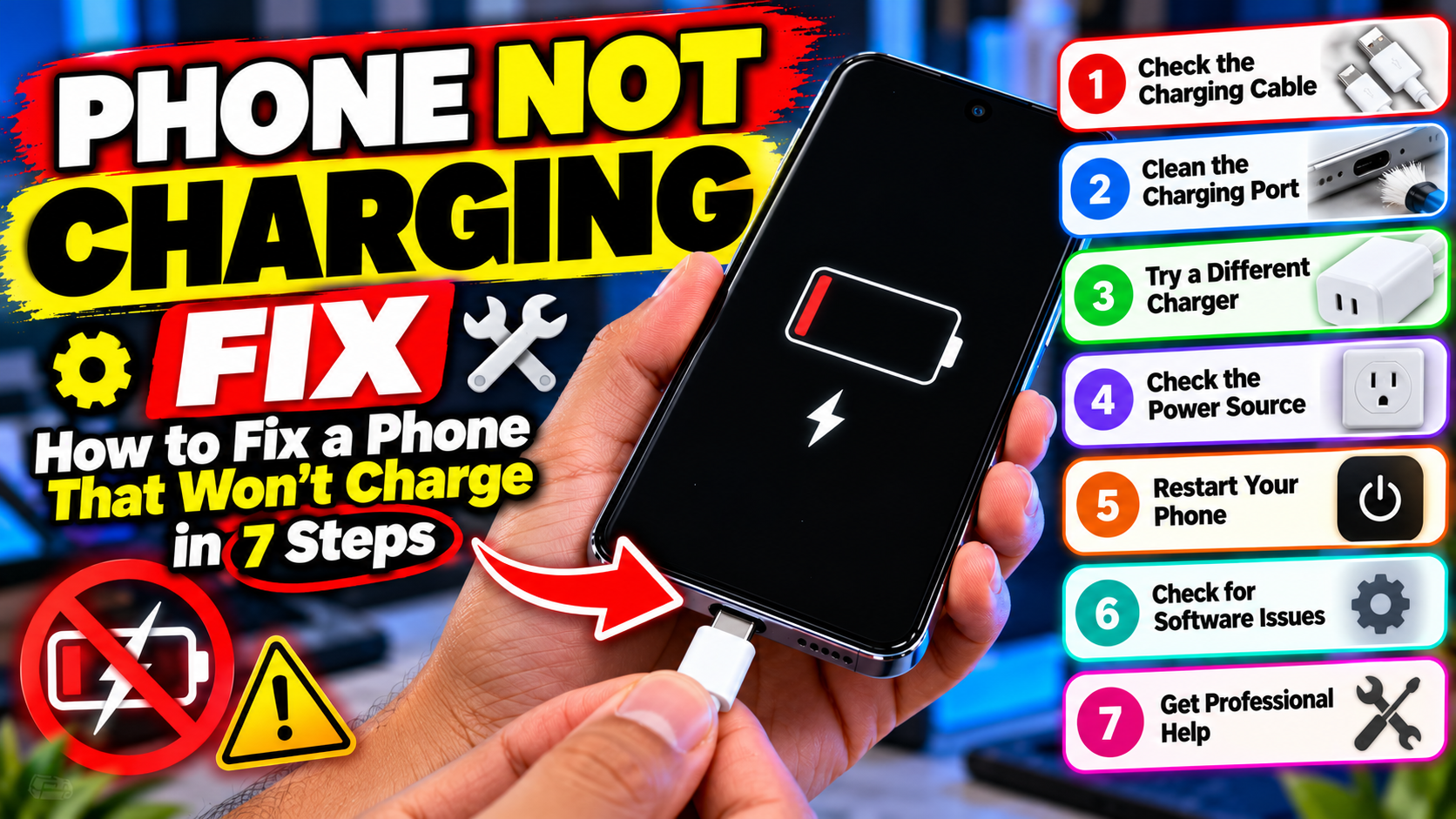
Nothing’s worse than plugging in your phone and watching the battery icon do absolutely nothing. Before you panic — or pay for a repair — run through this phone not charging fix checklist. Most charging problems come down to a bad cable, a dirty port, or a confused phone — all fixable at home in minutes.
The Simplest Phone Not Charging Fix: Swap the Cable and Charger
Cables die quietly. One day they work, the next they only charge if you hold them at exactly the right angle — and then not at all. So step one is always the swap test.
- Try your charger and cable on a different device. If that device doesn’t charge either, you’ve found the culprit.
- Try a different cable and charger on your phone — ideally the originals.
- Check the cable clicks firmly into both ends — a loose fit means a worn connector.
If you see a “check charging accessory” style warning, take it seriously: a damaged or unsupported cable can charge painfully slowly or not at all. Stick with reputable chargers rather than the cheapest no-name brick you can find.
Clean Lint Out of the Charging Port
This one surprises people. Phones live in pockets, and pockets are full of lint. Over months, that lint packs into the charging port until the cable can’t seat properly — and suddenly your phone won’t charge.
Here’s how to deal with it: power the phone off first. Then, with a wooden or plastic toothpick (never anything metal), gently scrape around the inside of the port and pull the compacted lint out. A soft brush works too. Be gentle — the little contact pins inside are delicate. You’d be amazed how much fluff a year-old port can hold.
Try a Different Outlet — and Ditch the Case
Still nothing? Rule out the wall. Plug your charger into a different outlet, and plug something else (a lamp, say) into the original one to confirm it actually has power. Silly as it sounds, dead outlets cause more “broken phone” scares than anyone admits.
Also worth trying: take the case off. Some thicker cases stop the cable from plugging in all the way, especially with certain third-party cables. If it charges fine without the case, you’ve found your answer — either trim back to a slimmer case or use a cable with a narrower connector.
Restart Your Phone, Then Try Safe Mode
Phones are computers, and computers get confused. A full restart is the oldest phone not charging fix there is — it clears whatever glitch might be blocking charging.
If a restart doesn’t help, try safe mode, which loads your phone with third-party apps disabled. On most Android phones, you hold the power button, then long-press the “Power off” option until safe mode is offered. If the phone charges fine in safe mode, some app you installed is interfering — think back to what you installed right before the problem started. iPhones don’t have safe mode, but a force restart serves the same purpose.
Phone Not Charging Fix: Check Battery Settings
Modern phones have battery-protection features that can look exactly like a charging failure. Many Android phones and iPhones pause charging at around 80% to protect long-term battery health — check Settings, then Battery, for options like “charging optimization” or “adaptive charging.” If your phone stops at a specific percentage every time, this feature is the likely explanation, not a fault.
While you’re in there, look at battery health if your phone shows it. A heavily degraded battery won’t hold charge like it used to, and no phone not charging fix involving cables will change that. Google’s own troubleshooting page for phones that won’t charge — support.google.com — walks through these exact checks, and Apple’s support site covers the iPhone side.
When the Battery Itself Is the Problem
Batteries wear out. After a couple of years of daily charging, a lithium battery holds noticeably less charge, drains faster, and can behave oddly — shutting off at 20%, or refusing to charge past a certain point. If your phone is old, charges slowly no matter what cable you use, and dies quickly, the battery is probably at the end of its life.
That’s a repair-shop job — most modern phones have glued-in batteries needing proper tools. Get a quote from the manufacturer’s authorized service or a reputable local shop before writing the phone off.
Swollen Battery? Stop Right There
One safety note that matters: if your phone’s back or screen is bulging, the battery may be swelling. Stop using it immediately. Don’t try to charge it, don’t press on the bulge, and whatever you do, don’t puncture it — a damaged lithium battery can catch fire. Put the phone somewhere safe, away from anything flammable, and take it to a professional for proper handling.
Work through these steps and most charging problems reveal themselves fast — usually the cable, the lint, or the outlet. And once you’re powered up again, a decent cable and a quick port clean every few months will keep this phone not charging fix guide gathering dust. For more hands-on walkthroughs, check our tutorials and how-to guides.
Related Reading
Keep exploring: How to Stop Apps From Draining Your Android Battery, Power Banks Explained: How to Pick the Right One, and USB-C Won the Charger War: What It Means for Your Next Phone.