How to Install WordPress Plugins: 3 Methods Explained
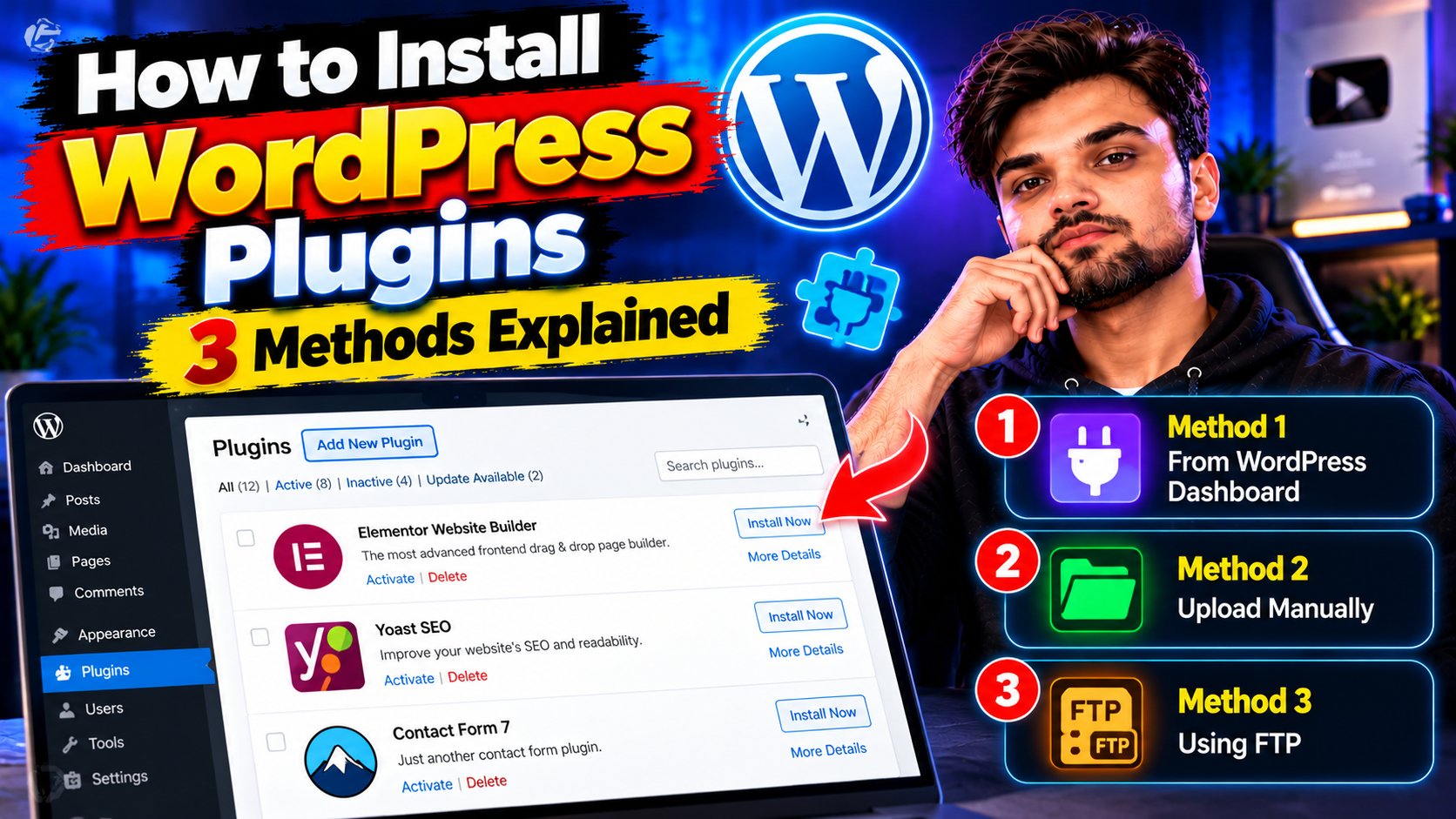
Plugins are what turn a plain WordPress site into whatever you need it to be — a store, a portfolio, a membership site, you name it. But if you’re new to WordPress, the first hurdle is simply learning how to install WordPress plugins without breaking anything. Relax. It’s one of the easiest things you’ll do in WordPress, and there are three ways to do it depending on your situation.
Before You Install WordPress Plugins: A Quick Safety Note
Not every plugin deserves a spot on your site. A bad one can slow things down or open security holes, so be picky. Stick to plugins from the official WordPress directory or reputable developers, check the ratings and review count, and make sure it’s been updated recently and is marked compatible with your WordPress version. If a plugin hasn’t been touched in two years, that’s your cue to keep looking. One more habit worth building: install one plugin at a time, so if something misbehaves you’ll know exactly which one caused it.
Method 1: Install WordPress Plugins from the Dashboard
This is the way most people do it, and it’s the easiest. Everything happens inside your WordPress admin area — no files, no fuss.
- In your WordPress dashboard, go to Plugins > Add New.
- Use the search box in the top right to find the plugin by name or keyword.
- Browse the results. Click a plugin’s title or “More Details” to check its description, ratings, and compatibility.
- Click Install Now next to the plugin you want.
- Once installed, the button changes to Activate — click it, and the plugin is live on your site.
That’s it. Five clicks and you’re done. WordPress’s own plugin documentation walks through this same process if you ever want the official version.
Method 2: Upload a Plugin Zip File
Sometimes the plugin you need isn’t in the official directory — maybe you bought a premium plugin or a developer sent you a file. In that case you’ll get a zip file, and WordPress can install it directly.
- Go to Plugins > Add New in your dashboard.
- Click the Upload Plugin button at the top of the page.
- Click Choose File, select the zip file from your computer, then click Install Now.
- When you see “Plugin installed successfully,” click Activate Plugin.
One thing to watch: upload the zip exactly as you received it — don’t unzip it first. WordPress handles the extraction itself. And only upload zips from sources you trust, since a plugin file has full access to your site once activated.
Method 3: Install via FTP or SFTP (Advanced)
Every so often the dashboard methods won’t work — usually a server restriction. Then it’s time for the manual route. Fair warning: this one’s for confident users.
- Unzip the plugin file on your computer so you have a folder (for example, my-plugin/).
- Connect to your hosting with an SFTP client using the credentials from your host.
- Navigate to the wp-content/plugins/ directory on the server.
- Upload the entire plugin folder there.
- Back in your WordPress dashboard, go to Plugins > Installed Plugins — you’ll see it listed. Click Activate.
Most people will never need this method, but it’s good to know it exists when the easy routes are blocked.
After You Install: Activate, Configure, Update
Installing is only half the job. After activation, most plugins add their own settings page — usually under Settings or as a new menu item in the dashboard. Take five minutes to walk through the options rather than leaving everything on defaults. Then keep the plugin updated: WordPress flags updates on the dashboard, and running outdated plugins is one of the most common ways sites get compromised. Turn on auto-updates for plugins you trust, and review the rest manually now and then.
How to Pick Plugins You Can Trust
A quick checklist before you hit Install Now. High install counts and solid ratings are a good sign. Recent updates matter more than total downloads — an actively maintained plugin is a safer bet. Read a few recent reviews, not just the star average, and glance at the support forum to see whether the developer actually answers questions. And keep your plugin count lean: every active plugin is code running on your site, so if two do the same job, keep the better one and drop the other.
That’s the whole process. Whether you install WordPress plugins from the dashboard, upload a zip, or go manual with SFTP, the pattern is the same: install, activate, configure, keep updated. Browse the official WordPress plugin directory when you’re ready to explore, and check our tutorials section and how-to guides for more WordPress walkthroughs. Plugins are what turn a plain WordPress site into whatever you need it to be — a store, a portfolio, a membership site, you name it. But if you’re new to WordPress, the first hurdle is simply learning how to install WordPress plugins without breaking anything. Relax. It’s one of the easiest things you’ll do in WordPress, and there are three ways to do it depending on your situation. Plugins are what turn a plain WordPress site into whatever you need it to be — a store, a portfolio, a membership site, you name it. But if you’re new to WordPress, the first hurdle is simply learning how to install WordPress plugins without breaking anything. Relax. It’s one of the easiest things you’ll do in WordPress, and there are three ways to do it depending on your situation.
Before You Install WordPress Plugins: A Quick Safety Note
Not every plugin deserves a spot on your site. A bad one can slow things down or open security holes, so be picky. Stick to plugins from the official WordPress directory or reputable developers, check the ratings and review count, and make sure it’s been updated recently and is marked compatible with your WordPress version. If a plugin hasn’t been touched in two years, that’s your cue to keep looking. One more habit worth building: install one plugin at a time, so if something misbehaves you’ll know exactly which one caused it. Not every plugin deserves a spot on your site. A bad one can slow things down or open security holes, so be picky. Stick to plugins from the official WordPress directory or reputable developers, check the ratings and review count, and make sure it’s been updated recently and is marked compatible with your WordPress version. If a plugin hasn’t been touched in two years, that’s your cue to keep looking. One more habit worth building: install one plugin at a time, so if something misbehaves you’ll know exactly which one caused it.
Method 1: Install WordPress Plugins from the Dashboard
This is the way most people do it, and it’s the easiest. Everything happens inside your WordPress admin area — no files, no fuss.
- In your WordPress dashboard, go to Plugins > Add New.
- Use the search box in the top right to find the plugin by name or keyword.
- Browse the results. Click a plugin’s title or “More Details” to check its description, ratings, and compatibility.
- Click Install Now next to the plugin you want.
- Once installed, the button changes to Activate — click it, and the plugin is live on your site.
That’s it. Five clicks and you’re done. WordPress’s own plugin documentation walks through this same process if you ever want the official version. That’s it. Five clicks and you’re done. WordPress’s own plugin documentation walks through this same process if you ever want the official version.
Method 2: Upload a Plugin Zip File
Sometimes the plugin you need isn’t in the official directory — maybe you bought a premium plugin or a developer sent you a file. In that case you’ll get a zip file, and WordPress can install it directly. Sometimes the plugin you need isn’t in the official directory — maybe you bought a premium plugin or a developer sent you a file. In that case you’ll get a zip file, and WordPress can install it directly.
- Go to Plugins > Add New in your dashboard.
- Click the Upload Plugin button at the top of the page.
- Click Choose File, select the zip file from your computer, then click Install Now.
- When you see “Plugin installed successfully,” click Activate Plugin.
One thing to watch: upload the zip exactly as you received it — don’t unzip it first. WordPress handles the extraction itself. And only upload zips from sources you trust, since a plugin file has full access to your site once activated. One thing to watch: upload the zip exactly as you received it — don’t unzip it first. WordPress handles the extraction itself. And only upload zips from sources you trust, since a plugin file has full access to your site once activated.
Method 3: Install via FTP or SFTP (Advanced)
Every so often the dashboard methods won’t work — usually a server restriction. Then it’s time for the manual route. Fair warning: this one’s for confident users.
- Unzip the plugin file on your computer so you have a folder (for example, my-plugin/).
- Connect to your hosting with an SFTP client using the credentials from your host.
- Navigate to the wp-content/plugins/ directory on the server.
- Upload the entire plugin folder there.
- Back in your WordPress dashboard, go to Plugins > Installed Plugins — you’ll see it listed. Click Activate.
Most people will never need this method, but it’s good to know it exists when the easy routes are blocked.
After You Install: Activate, Configure, Update
Installing is only half the job. After activation, most plugins add their own settings page — usually under Settings or as a new menu item in the dashboard. Take five minutes to walk through the options rather than leaving everything on defaults. Then keep the plugin updated: WordPress flags updates on the dashboard, and running outdated plugins is one of the most common ways sites get compromised. Turn on auto-updates for plugins you trust, and review the rest manually now and then. Installing is only half the job. After activation, most plugins add their own settings page — usually under Settings or as a new menu item in the dashboard. Take five minutes to walk through the options rather than leaving everything on defaults. Then keep the plugin updated: WordPress flags updates on the dashboard, and running outdated plugins is one of the most common ways sites get compromised. Turn on auto-updates for plugins you trust, and review the rest manually now and then.
How to Pick Plugins You Can Trust
A quick checklist before you hit Install Now. High install counts and solid ratings are a good sign. Recent updates matter more than total downloads — an actively maintained plugin is a safer bet. Read a few recent reviews, not just the star average, and glance at the support forum to see whether the developer actually answers questions. And keep your plugin count lean: every active plugin is code running on your site, so if two do the same job, keep the better one and drop the other. A quick checklist before you hit Install Now. High install counts and solid ratings are a good sign. Recent updates matter more than total downloads — an actively maintained plugin is a safer bet. Read a few recent reviews, not just the star average, and glance at the support forum to see whether the developer actually answers questions. And keep your plugin count lean: every active plugin is code running on your site, so if two do the same job, keep the better one and drop the other. That’s the whole process. Whether you install WordPress plugins from the dashboard, upload a zip, or go manual with SFTP, the pattern is the same: install, activate, configure, keep updated. Browse the official WordPress plugin directory when you’re ready to explore, and check our tutorials section and how-to guides for more WordPress walkthroughs. That’s the whole process. Whether you install WordPress plugins from the dashboard, upload a zip, or go manual with SFTP, the pattern is the same: install, activate, configure, keep updated. Browse the official WordPress plugin directory when you’re ready to explore, and check our tutorials section and how-to guides for more WordPress walkthroughs.
Related Reading
Keep exploring: Two-Factor Authentication Setup: Lock Down Every Important Account, How to Use Google Drive Like a Pro: 9 Google Drive Tips That Actually Help, and The Only 7 Browser Extensions You Really Need in 2026.